Download and Install BreviSoft PST Converter Tool on your system.
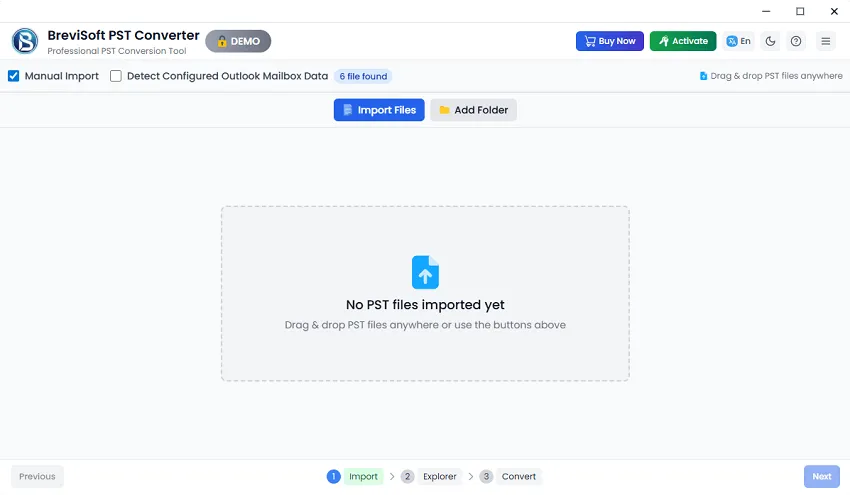
Add PST File Using Either Manual Import Option or Detect Configured Outlook Mailbox Data.
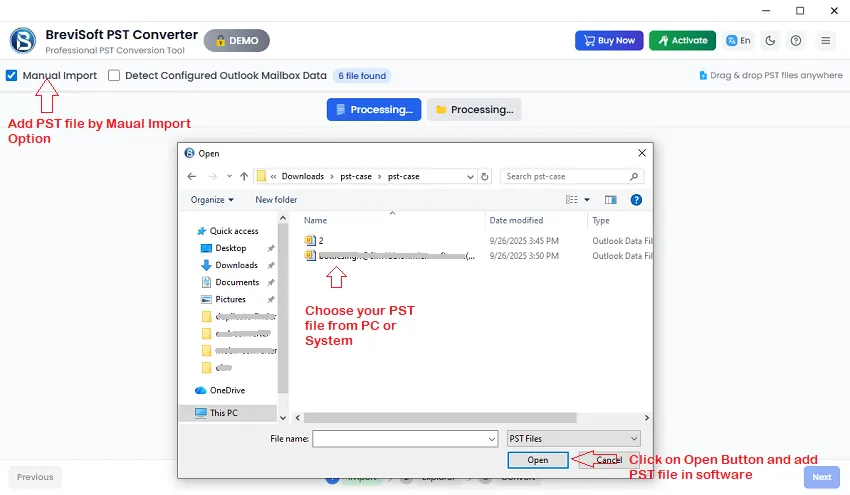
Note In the Manual Import option you can simply click on the Import Files button and add PST files.

Select PST file From your system or PC by Manual Import options.
Add or Select PST File by Detect Configured Outlook Mailbox Data option.
Note In the Manual Import option you can simply click on the Import Files button and add PST files.
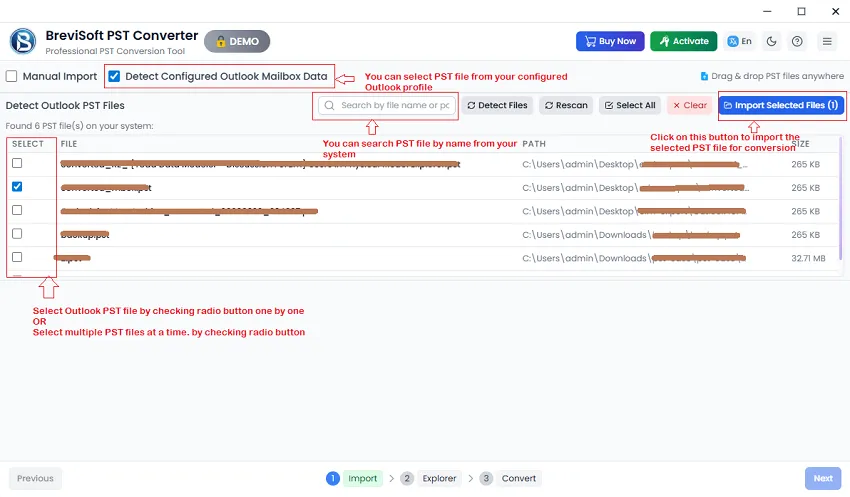
Select PST File and Click on Import Select File button then press on Next button.
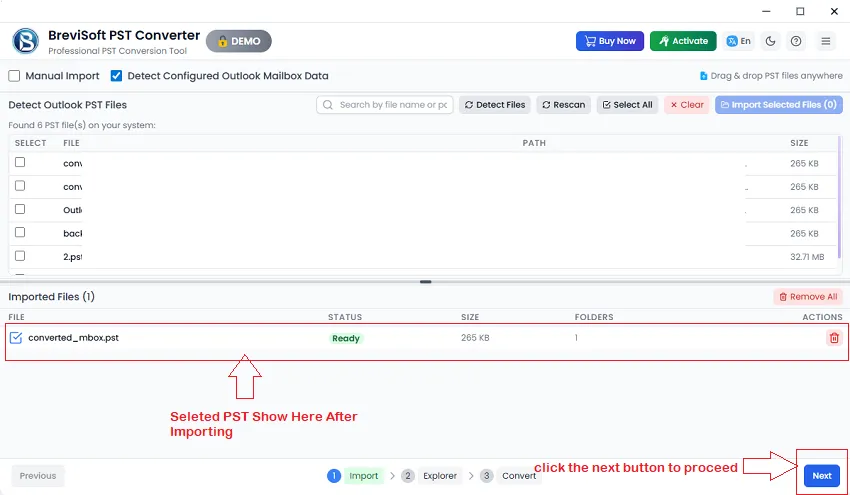
Now, select Email items and preview them with all details.
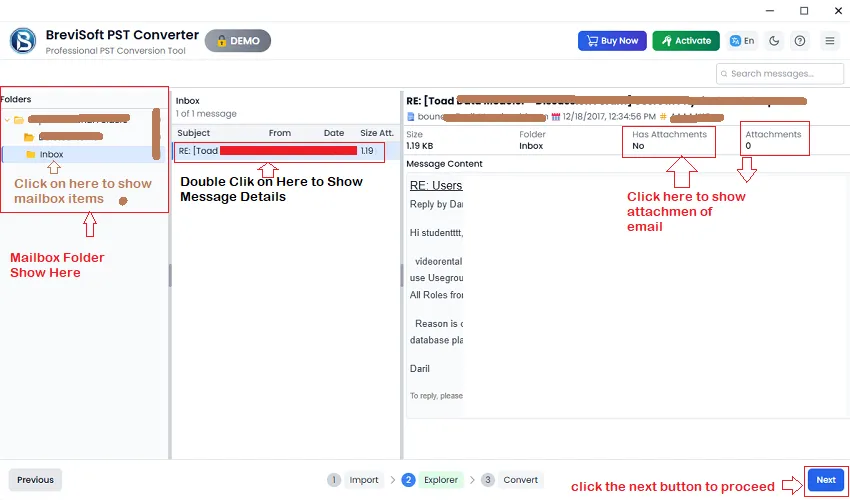
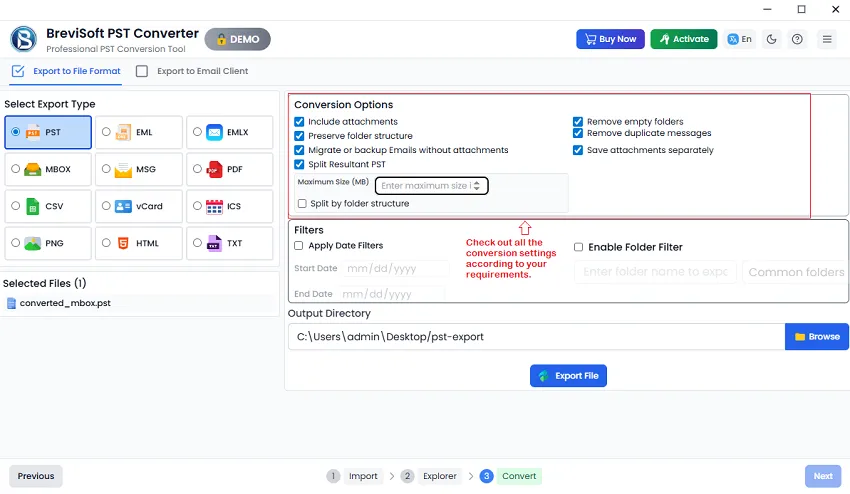
Click on Next button and choose PST file formats from Select Export Types options.
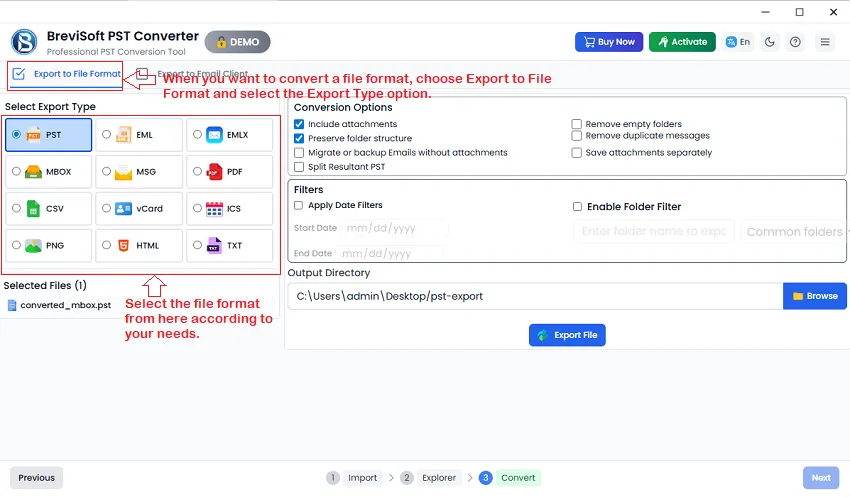
Checkout Conversion Options
Main Point - The Split Resultant PST options only applicable when you convert a PST file into a new PST file
Filter Options: You can also check out filter options during conversion
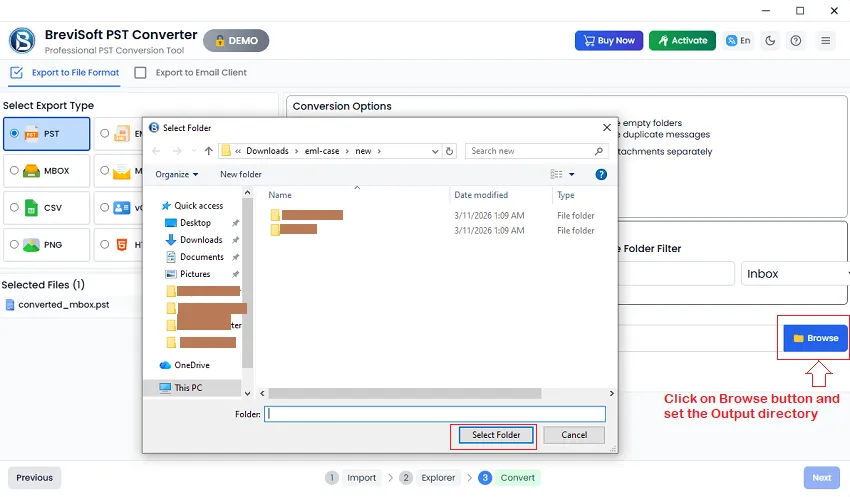
Click on Browse button and set the Output directory.
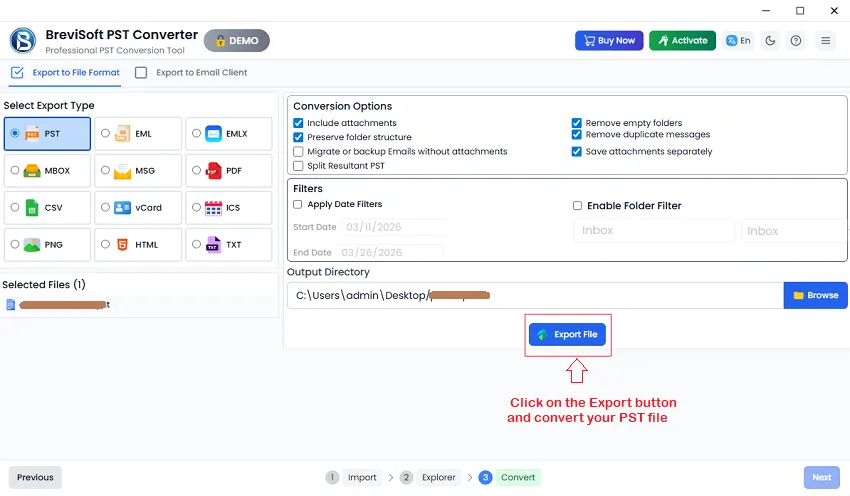
Click on the Export button and convert your PST file successfully.
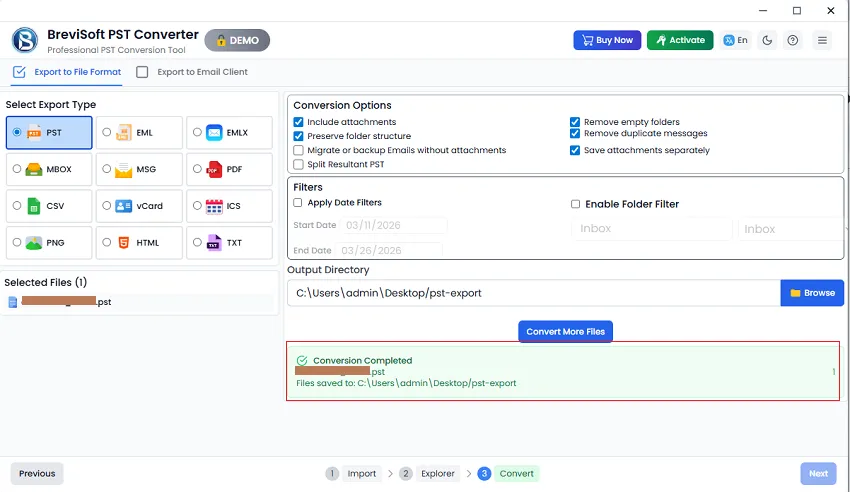
Now you can check the converted PST file in the output directory after successful conversion.
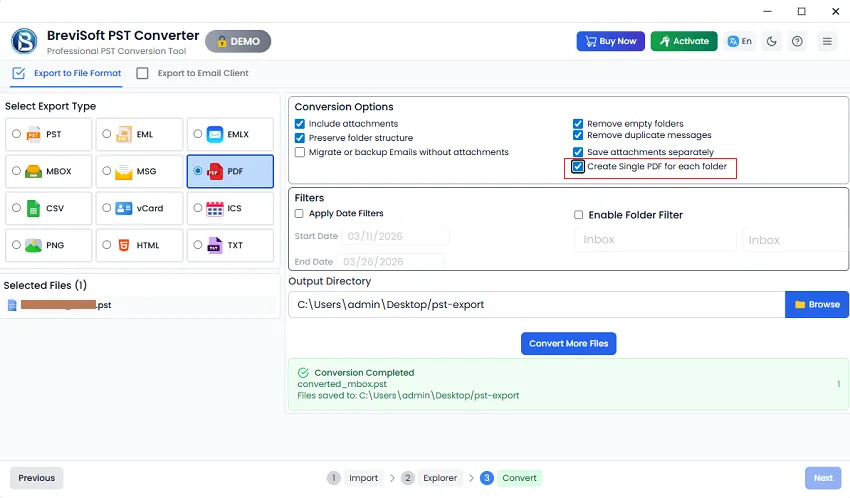
Note: The procedure is the same when converting a PST file into EML, MSG, EMLX, TXT, PST, MBOX, HTML, ICS, vCard, CSV, and PNG formats. However, when converting to PDF, the “Create Single PDF for Each Folder” option is additionally available for users.
Migrate to Email Clients
STEP 1
Download and Install BreviSoft PST Converter Tool on your system.

STEP 2
Add PST File Using Either Manual Import Option or Detect Configured Outlook Mailbox Data.
Note In the Manual Import option you can simply click on the Import Files button and add PST files.

STEP 2.1
Select PST file From your system or PC by Manual Import options.

STEP 2.2
Add or Select PST File by Detect Configured Outlook Mailbox Data option.
Note In the Manual Import option you can simply click on the Import Files button and add PST files.

STEP 3
Select PST File and Click on Import Select File button then press on Next button.

STEP 4
Now, select Email items and preview them with all details.

STEP 5
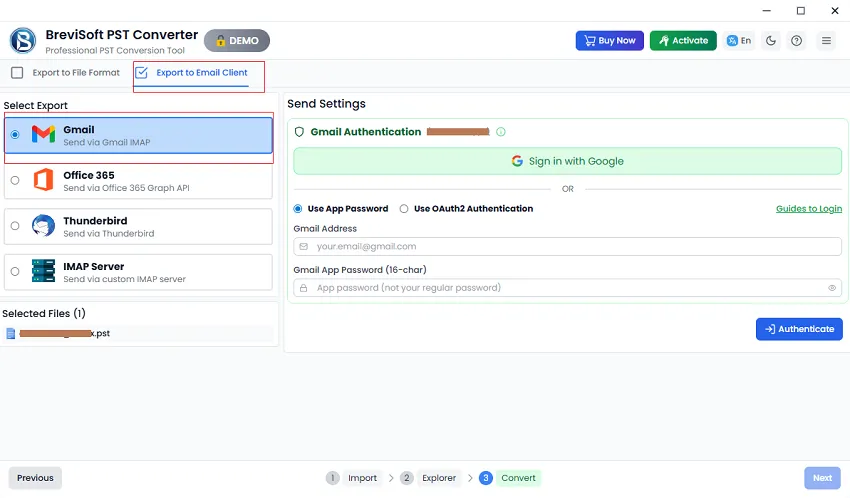
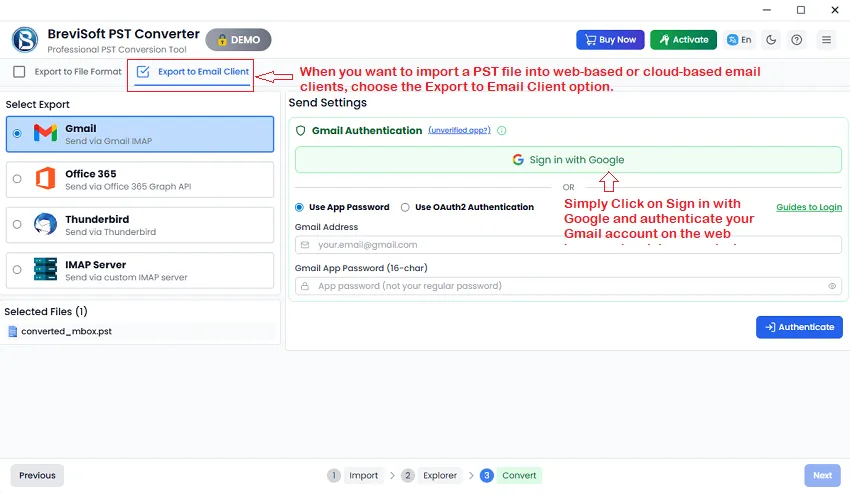
Select Export to Email Clients options and Choose Select Export as Gmail.

STEP 5.1
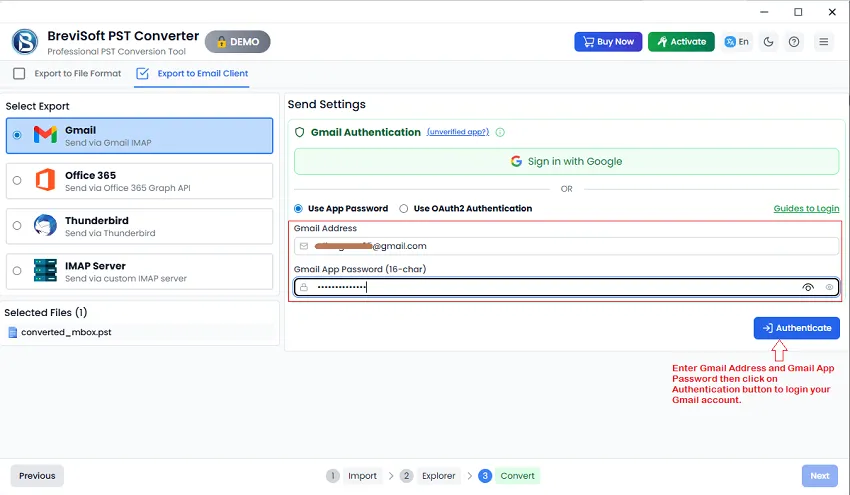
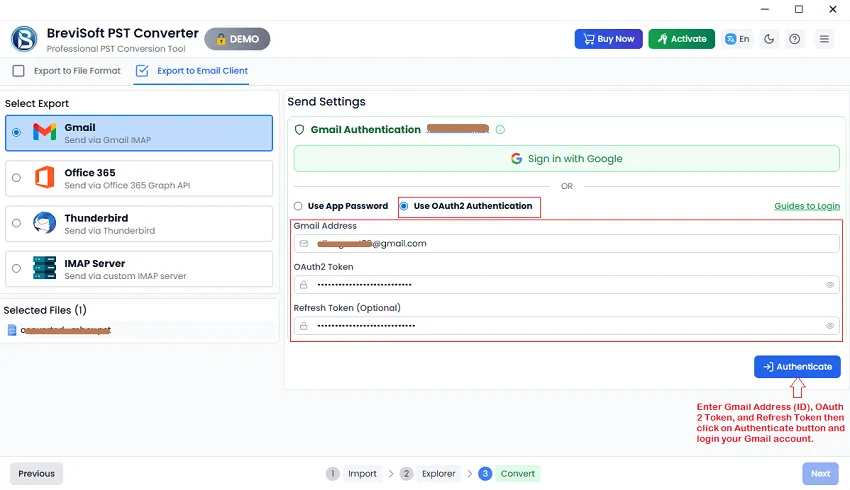
Note: You can choose 3 different mode for login Gmail account for importing PST File-
Gmail Authentication - Simply Click on Sign in with Google and authenticate your Gmail account on the web browser by giving permission.

STEP 5.2
Note: Click here to learn how to log in to your Gmail account using browser-based authentication.
Use App Password: Enter Gmail Address and Gmail App Password then click on Authentication button to login your Gmail account. Click Here to Learn
Use OAuth2 Authentication: - Enter Gmail Address (ID), OAuth 2 Token, and Refresh Token then click on Authenticate button and login your Gmail account.
STEP 6
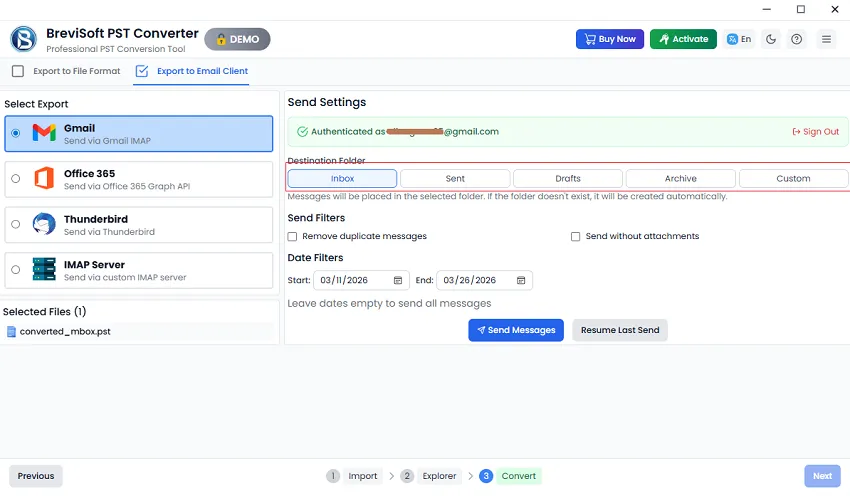
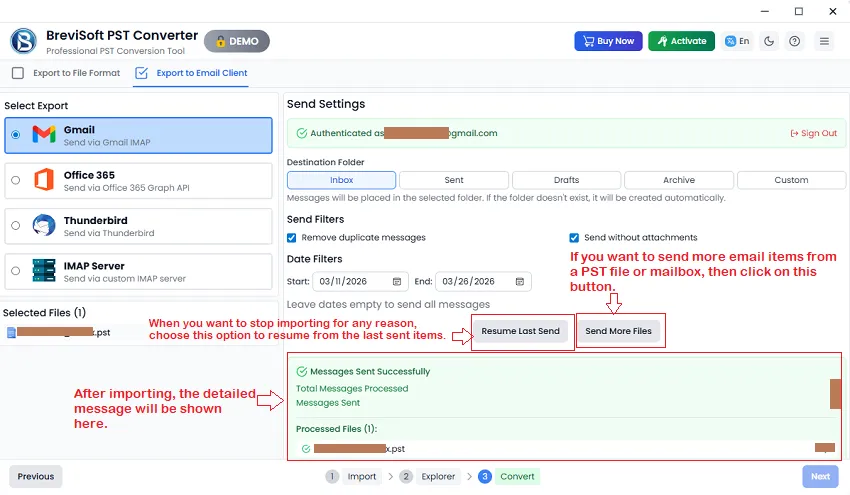
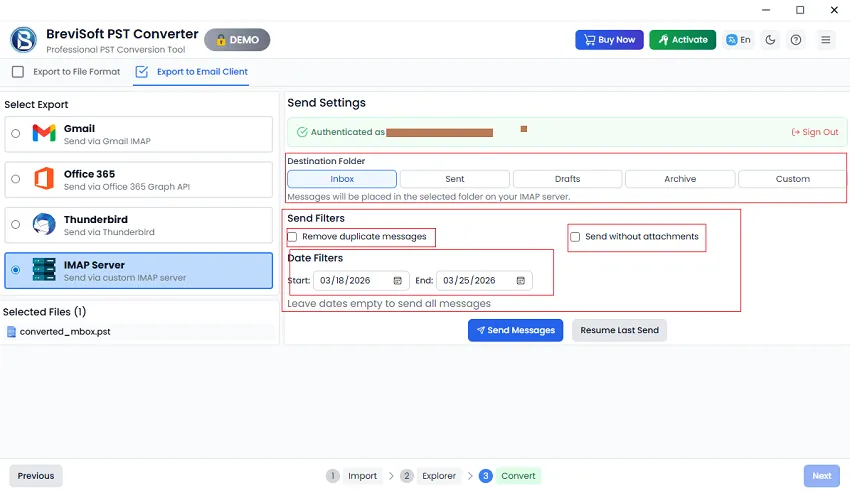
After successfully logging into Gmail, choose the destination folder where you want to import the selected PST file.

STEP 7
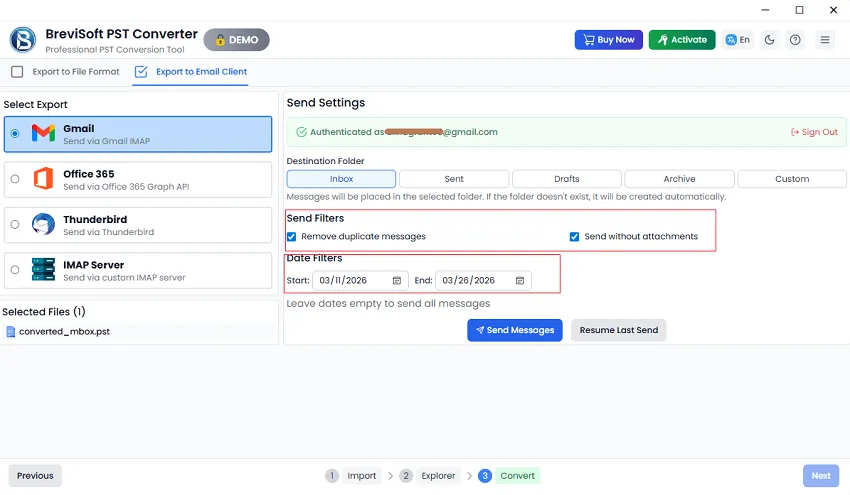
Choose the send filter option and date filter options according to your needs.

STEP 8
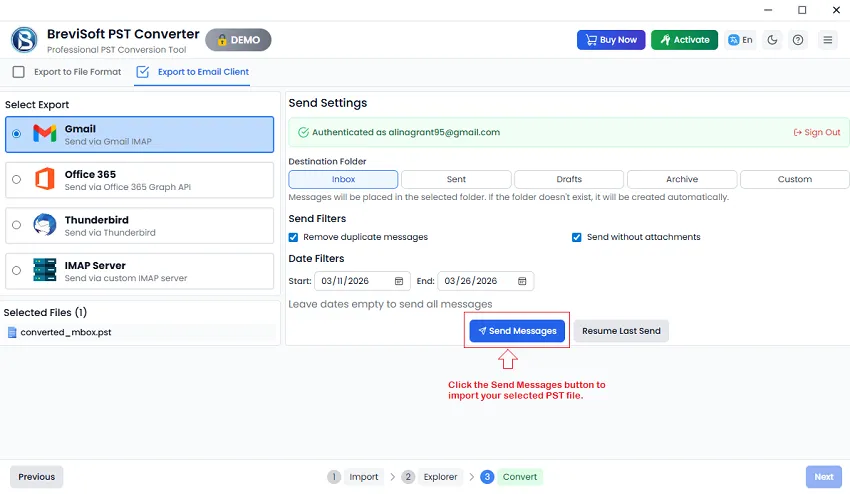
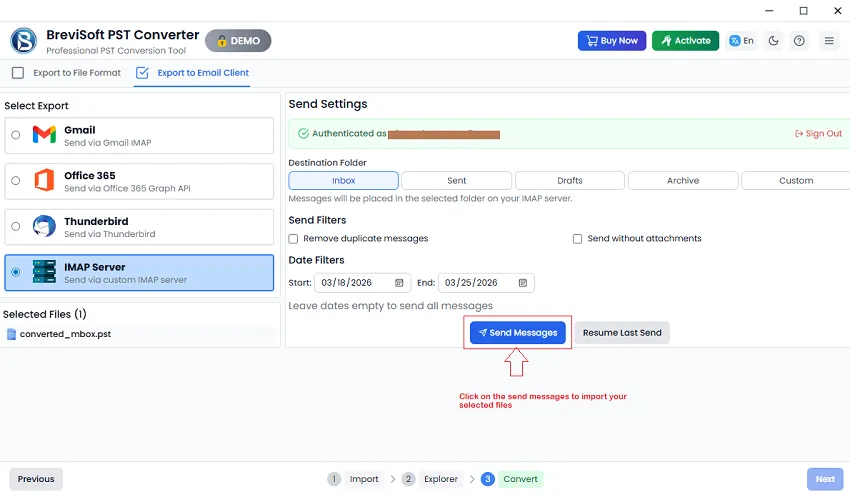
Click the Send Messages button to import your selected PST file.

STEP 9
After a successful import, a message will be shown.
Resume Last Send: - When you want to stop importing for any reason, choose this option to resume from the last sent items.
Send More Files:- If you want to send more email items from a PST file or mailbox, then click on this button.
STEP 1
Download and Install BreviSoft PST Converter Tool on your system.

STEP 2
Add PST File Using Either Manual Import Option or Detect Configured Outlook Mailbox Data.
Note In the Manual Import option you can simply click on the Import Files button and add PST files.

STEP 2.1
Select PST file From your system or PC by Manual Import options.

STEP 2.2
Add or Select PST File by Detect Configured Outlook Mailbox Data option.
Note In the Manual Import option you can simply click on the Import Files button and add PST files.

STEP 3
Select PST File and Click on Import Select File button then press on Next button.

STEP 4
Now, select Email items and preview them with all details.

STEP 5
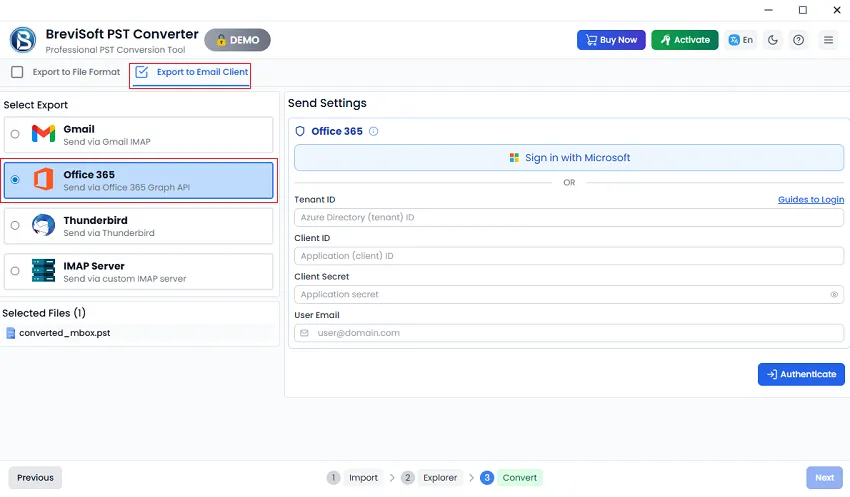
Select Export to Email Clients options and Choose Select Export as Microsoft (Office) 365.

STEP 6
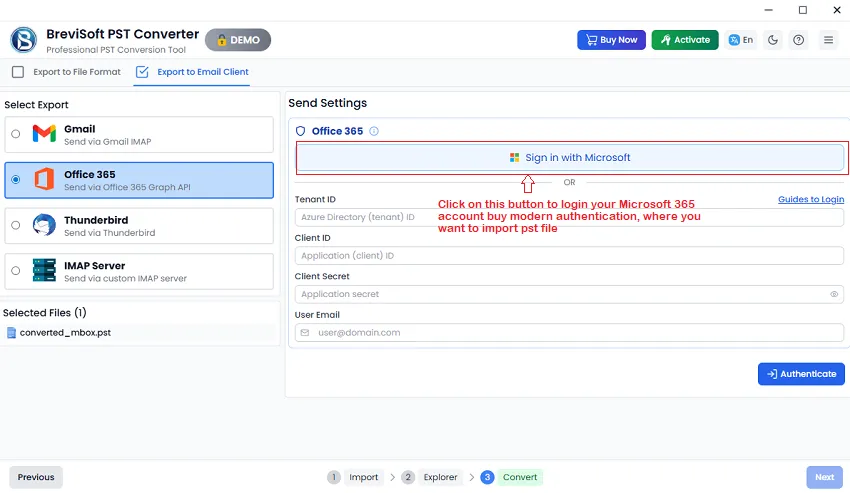
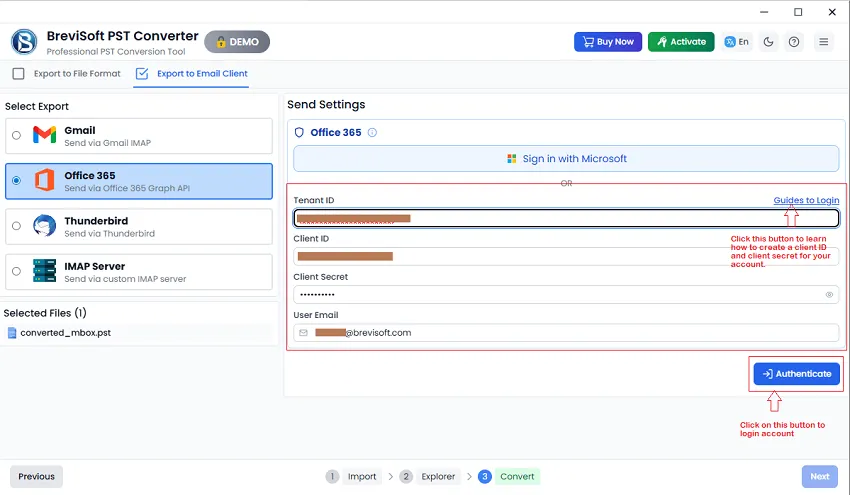
You can log in to your Microsoft (Office) 365 account using Modern Authentication (by granting permissions through a web browser) or by using a Client Secret ID.
Login Using Modern Authentication – Click the Sign in with Microsoft button. Your account will open in a web browser; grant the required permissions to access it. Once signed in successfully, you can import the PST file into your Microsoft 365 account.
Login Using Client Secret ID: Enter the Tenant ID (Azure Directory ID), Client ID, Client Secret, and user email address, then click the Authenticate button to sign in to your Microsoft 365 account.
Note: Click on Guides to Login button to learn how to create a client ID and client secret for your account.
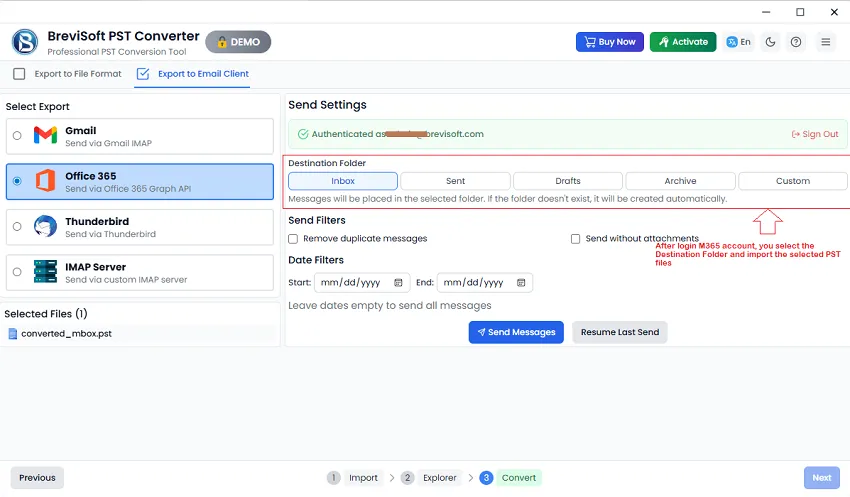
STEP 7
After logging into your M365 account, you can choose the destination folder where you want to import the selected PST file.

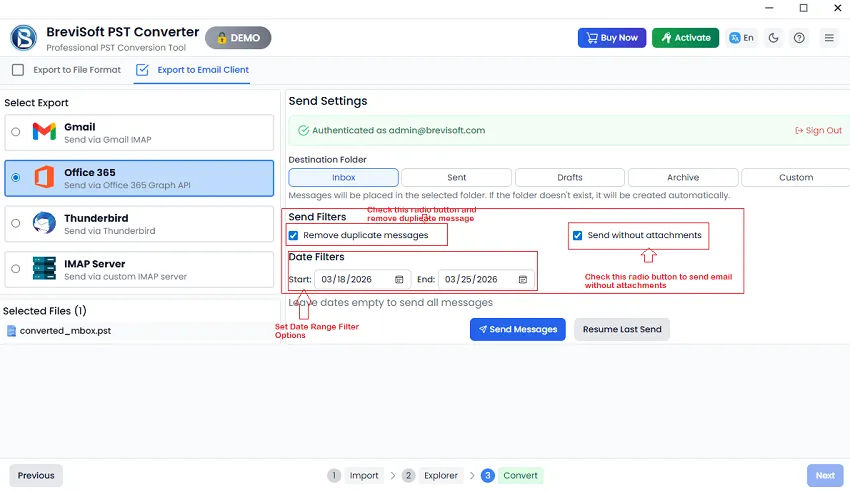
STEP 8
Set the Send Filter option:

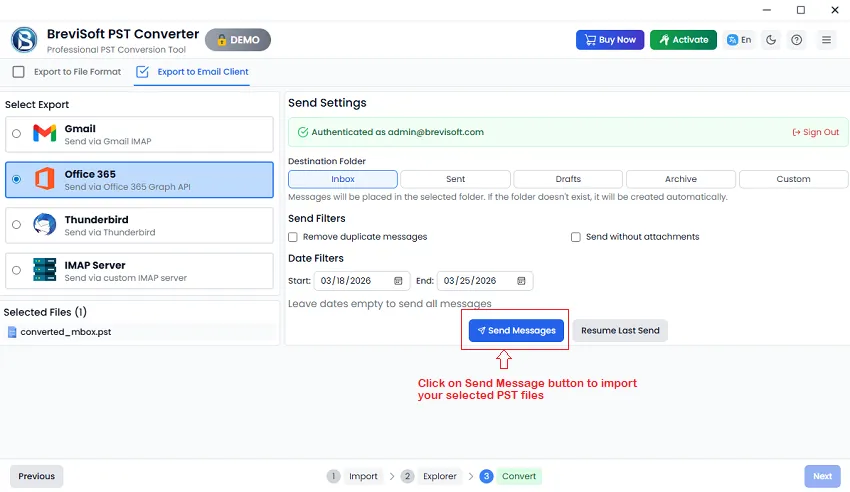
STEP 9
Click on Send Message button to successfully import your PST file.
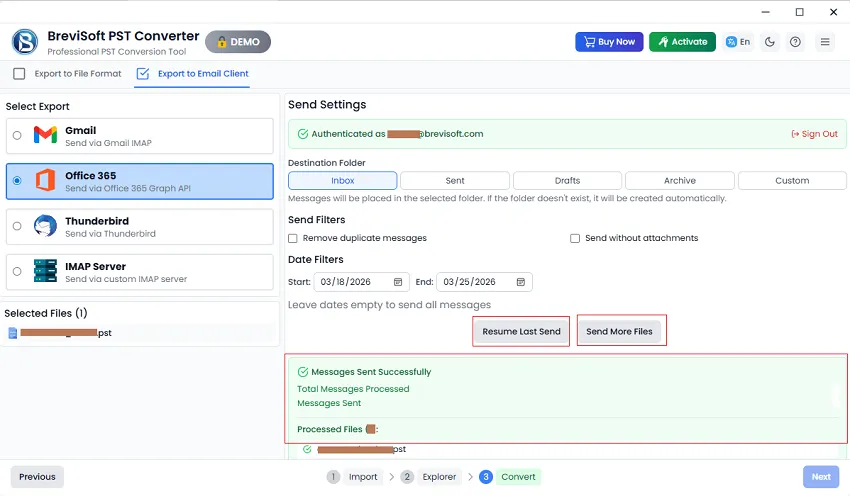
STEP 10
After a successful import, a message will be shown.
STEP 1
Download and Install BreviSoft PST Converter Tool on your system.

STEP 2
Add PST File Using Either Manual Import Option or Detect Configured Outlook Mailbox Data.
Note In the Manual Import option you can simply click on the Import Files button and add PST files.

STEP 2.1
Select PST file From your system or PC by Manual Import options.

STEP 2.2
Add or Select PST File by Detect Configured Outlook Mailbox Data option.
Note In the Manual Import option you can simply click on the Import Files button and add PST files.

STEP 3
Select PST File and Click on Import Select File button then press on Next button.

STEP 4
Now, select Email items and preview them with all details.

STEP 5
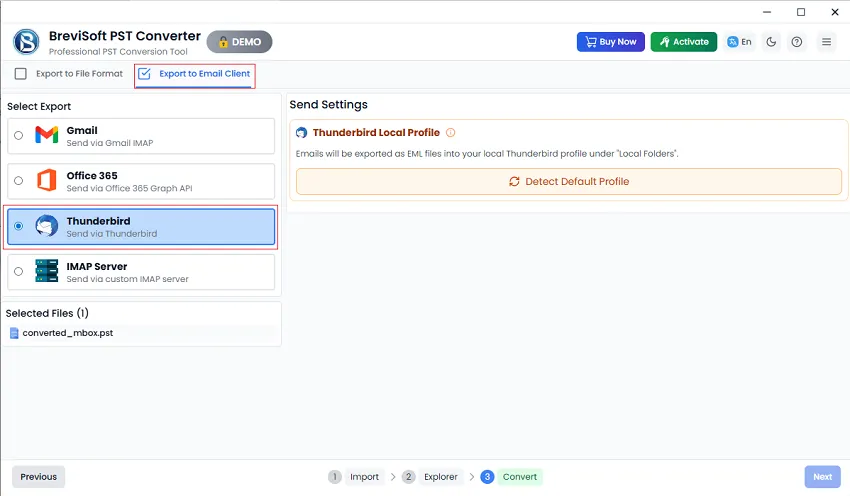
Select Export to Email Clients options and Choose Select Export as Thunderbird

STEP 6
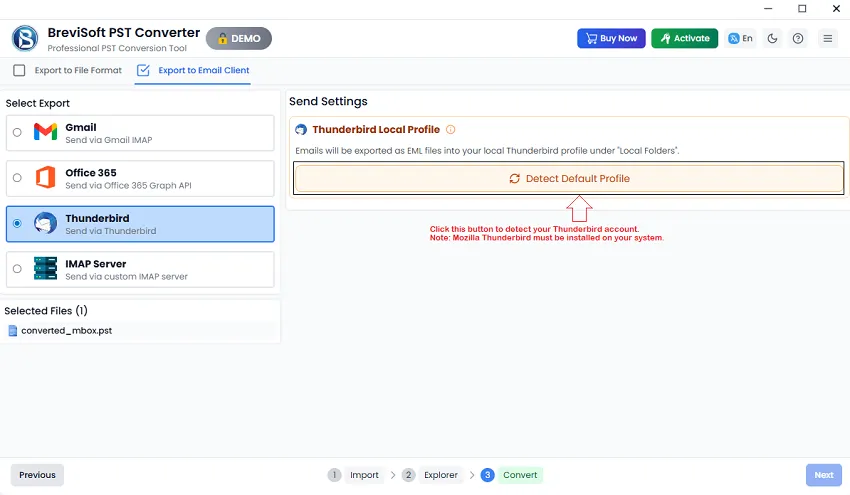
Click on the Detect Default Profile button to detect your Thunderbird account.
Note: Mozilla Thunderbird must be installed on your system.
STEP 7
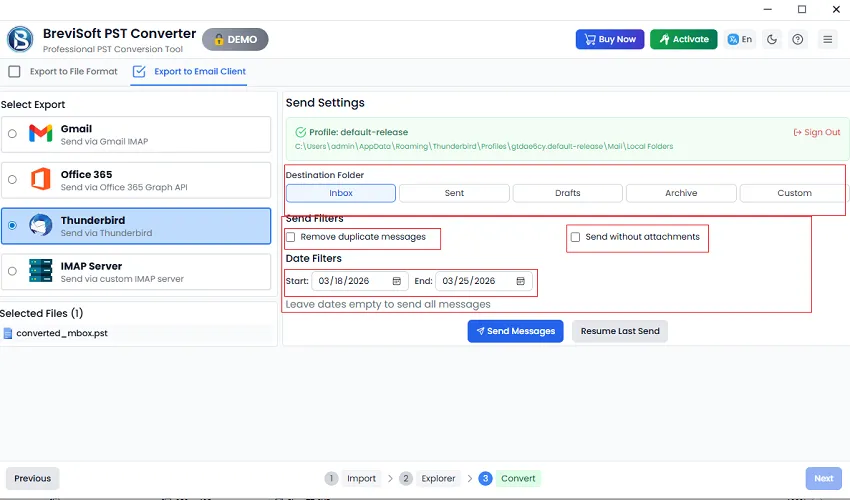
After logging into your Thunderbird account, you can choose the destination folder where you want to import the selected PST file.
Set the Send Filter option:

STEP 8
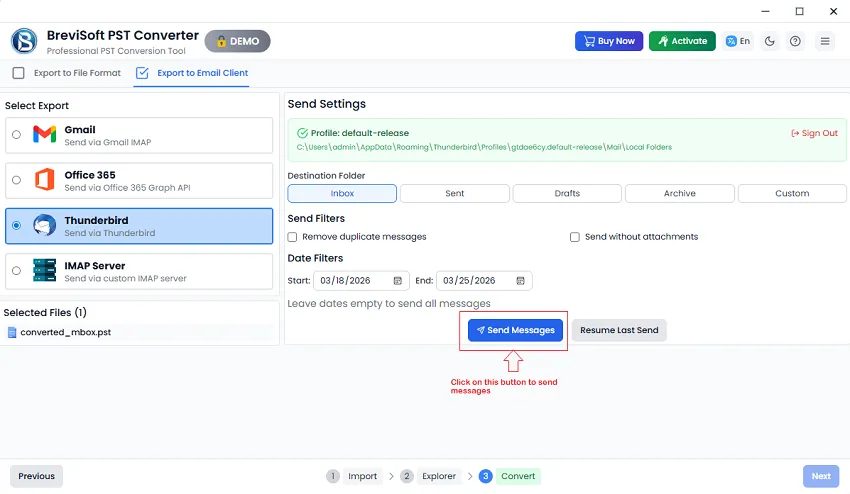
Click on Send Message to import selected PST files into Thunderbird profile successfully.
STEP 1
Download and Install BreviSoft PST Converter Tool on your system.

STEP 2
Add PST File Using Either Manual Import Option or Detect Configured Outlook Mailbox Data.
Note In the Manual Import option you can simply click on the Import Files button and add PST files.

STEP 2.1
Select PST file From your system or PC by Manual Import options.

STEP 2.2
Add or Select PST File by Detect Configured Outlook Mailbox Data option.
Note In the Manual Import option you can simply click on the Import Files button and add PST files.

STEP 3
Select PST File and Click on Import Select File button then press on Next button.

STEP 4
Now, select Email items and preview them with all details.

STEP 5
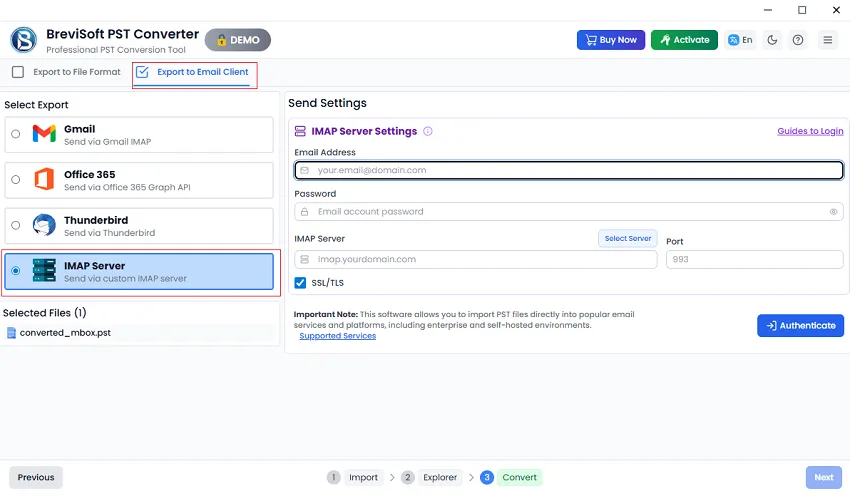
Select Export to Email Clients options and Choose Select Export as IMAP Server
STEP 5.1
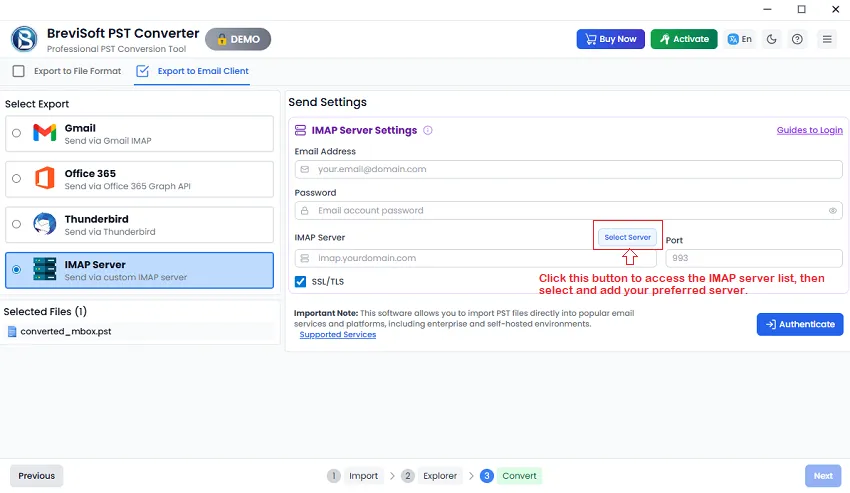
-> Click on the Select Server button and access the IMAP server list, then select and add your preferred server.
STEP 5.2
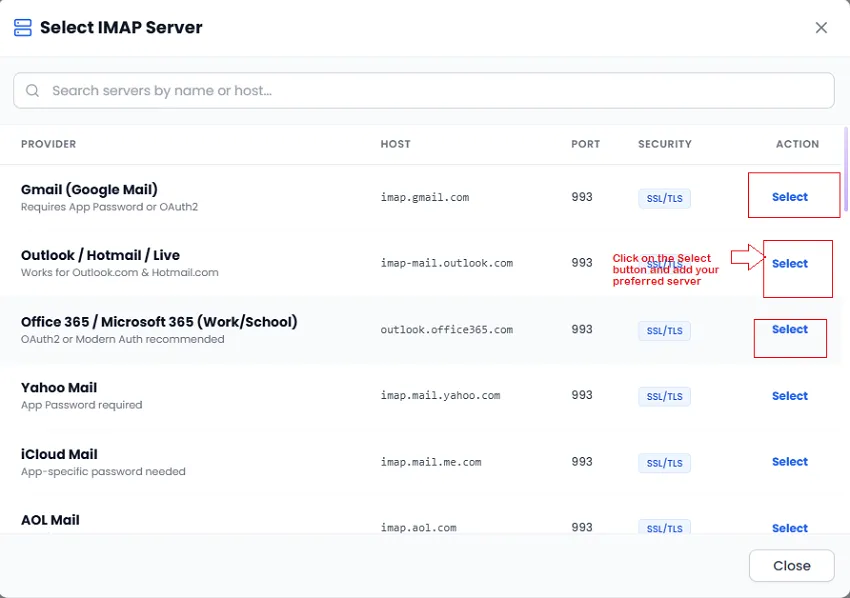
Click on the Select button to add the server detail in software.
Note: You can click on the Guides to Login option to know how to login to an IMAP account with easy steps.
STEP 6
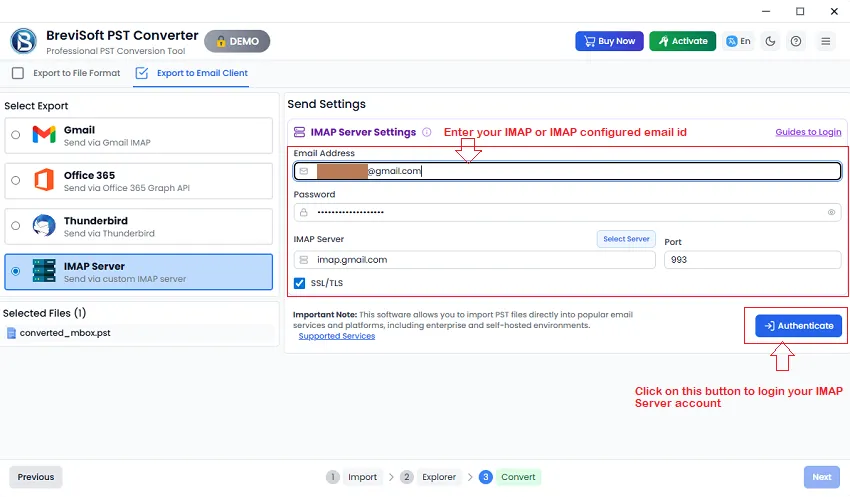
Enter your email ID (IMAP or IMAP configured email id), password or third party app password, imap server name, and port no. then click on the authenticate button to login IMAP account.
Note: Using the IMAP server settings option, you can import a PST file into various IMAP-based email clients, including the following:
IONOS, Rackspace Email, Bluehost, HostGator, GoDaddy Workspace, DreamHost, Namecheap, Dovecot, Cyrus IMAP, hMailServer (Windows), Zimbra Mail Server, Kerio Connect, Roundcube Webmail, Google Gmail (Google Mail), Microsoft Outlook / Hotmail / Live, Microsoft Office 365 / Microsoft 365, Yahoo Mail, Apple iCloud Mail, AOL Mail, Zoho Mail (including EU), GMX Mail, Mail.com, Yandex Mail, Fastmail, Mail.ru
STEP 7
After logging into your IMAP Server account, you can choose the destination folder where you want to import the selected PST file.
Set the Send Filter option:
Remove Duplicate Messages: Select this option to migrate emails from the chosen PST file without including duplicate messages.
Send without Attachments: Select this option to send emails to your IMAP Server account without attachments.
Date Filter: You can export PST email items within a specific date range by selecting the start and end dates.

STEP 8
Click on Send Message to import selected PST files into IMAP Server successfully.
Set the Send Filter option:
Remove Duplicate Messages: Select this option to migrate emails from the chosen PST file without including duplicate messages.
Send without Attachments: Select this option to send emails to your IMAP Server account without attachments.
Date Filter: You can export PST email items within a specific date range by selecting the start and end dates.