IMAP should be enabled
Enable IMAP in Gmail
1. Open Gmail and Sign In Go to mail.google.com on your desktop browser and log into your account.
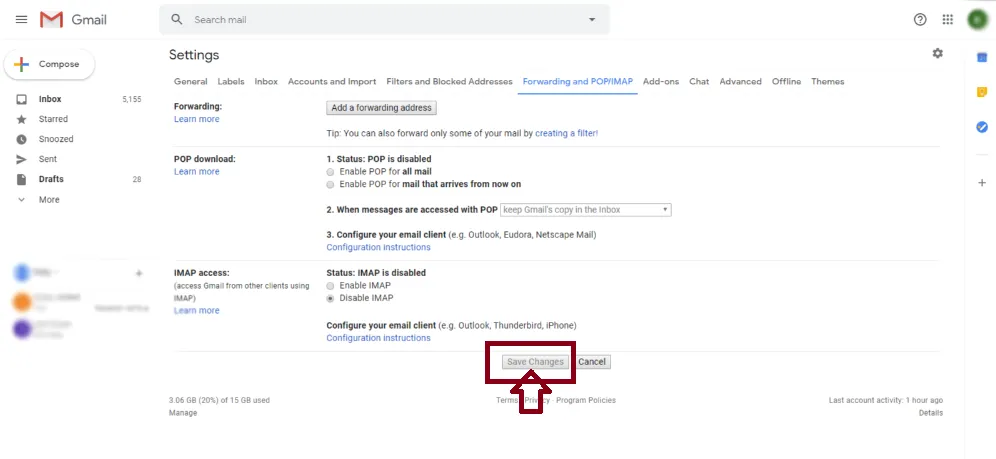
2. Open Settings Click the Gear icon (Settings) in the top-right corner, then click See all settings at the top of the sidebar.
3. Navigate to Forwarding and POP/IMAP Click the Forwarding and POP/IMAP tab along the top menu bar.
4. Enable IMAP & Save
- Scroll down to the IMAP access section.
- Select the radio button next to Enable IMAP.
- Scroll to the very bottom of the page and click Save Changes.
If 2 step Authentication is enabled, then use App Password to login on product or disable the 2-step authentication
Option 1: Generate an App Password (Recommended)
Using an App Password keeps your main Google account secure while allowing third-party apps to connect via IMAP.
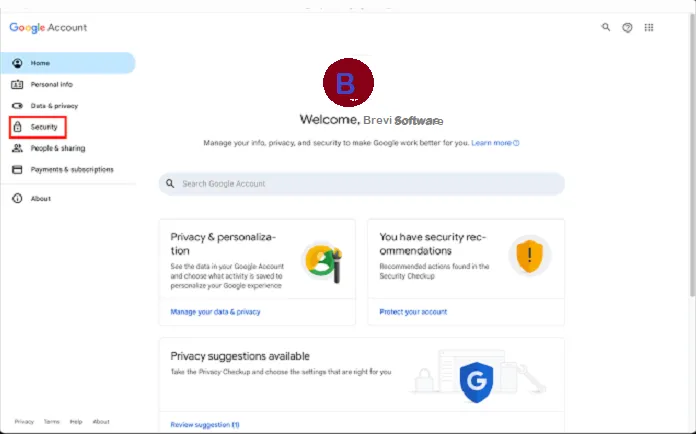
1.Go to Google Account Security:
Navigate to myaccount.google.com and click Security on the left menu.
2.Search for App Passwords:Under 'How you sign in to Google'.
Ensure 2-Step Verification is turned ON. Use the search bar at the top of your Google Account page and type App Passwords, then select it.
3. Generate New Password: Custom App Name (Brevi Software).
Enter a custom name for your app (e.g., "BreviSoft" or "BreviSoft Migration Tool") and click Create.
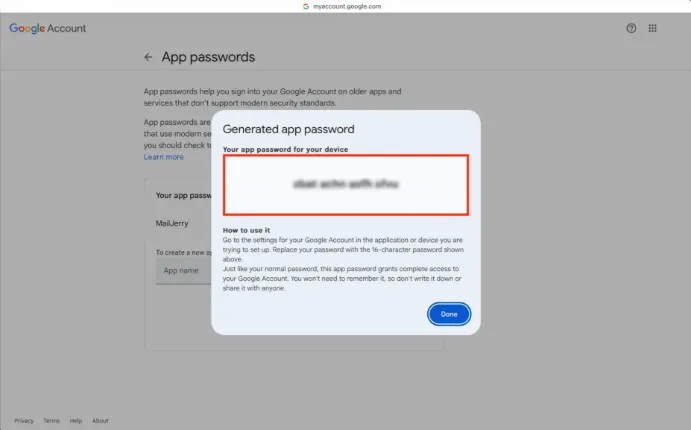
4.Copy and Use Password: 16-character code.
Copy the generated 16-character passcode (yellow box) and paste it into your app's password field instead of your regular Gmail password.
Option 2: Turn Off 2-Step Verification
Warning: Disabling 2-Step Verification removes an important layer of security from your Google Account.
- Go to your Google Account Security Settings.
- Under "How you sign in to Google," click 2-Step Verification.
- Re-enter your password if prompted.
- Click Turn off, then confirm by clicking Turn off again in the popup window.
Use App password to login
Here is how to log in Gmail account in BreviSoft Product using an App Password:
1.Copy Your Generated App Password: 16-character code.
When you generate an App Password in Google, copy the 16-character code from the popup window. You can copy it with or without spaces.
2.Open BreviSoft Product: (e.g- BreviSoft PST Converter, BreviSoft Migrator, BreviSoft Gmail Backup Tool)
Launch the app or service you want to connect to your Gmail account and open its account setup / IMAP settings page.
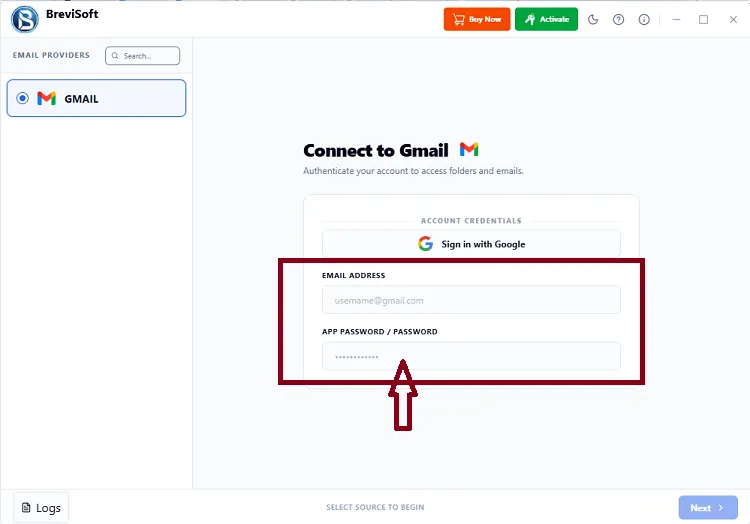
3.Enter Your Email Address and Server Settings: Standard credentials.
- Email: Your full Gmail address (example@gmail.com).
- Incoming Server (IMAP): imap.gmail.com (Port 993, SSL/TLS).
- Outgoing Server (SMTP): smtp.gmail.com (Port 465 or 587, SSL/TLS).
4.Paste the App Password in the Password Field: Replace regular password.
In the Password field, paste the 16-character generated code instead of your normal Gmail password.
5.Save & Test Connection: Final verification.
Click Log In or Save. Your app will connect immediately without prompting for 2-Factor Authentication codes.