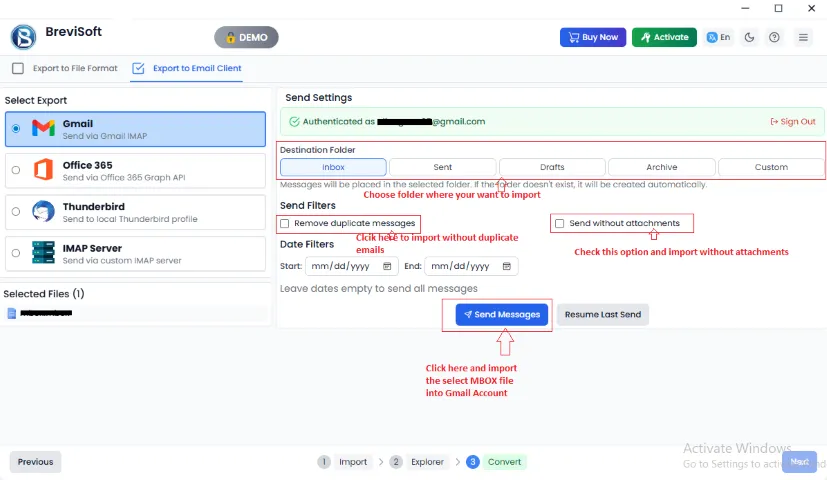
When using Brevi Software to migrate a mailbox or emails to a Gmail account via the Gmail Authentication option, you can follow the steps given below:
In the software, the “Export to Gmail Client” option enables users to migrate selected emails directly to their Gmail account.
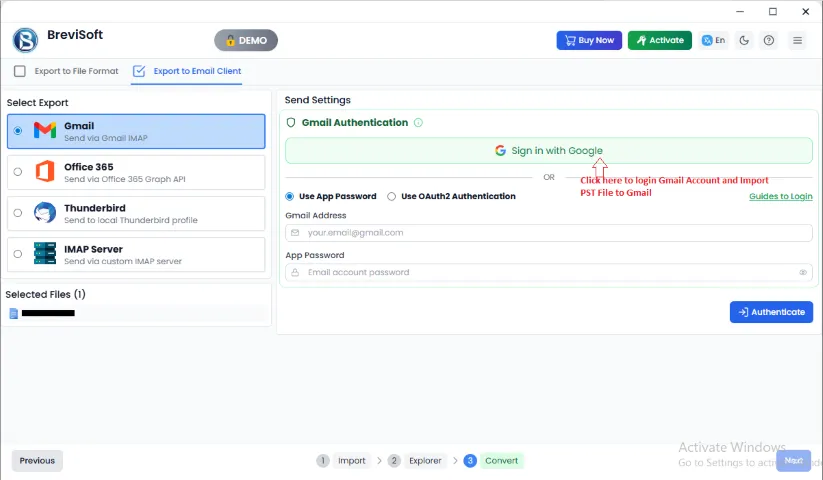
Step 1: Select Gmail options and Click on Sign in with Google.
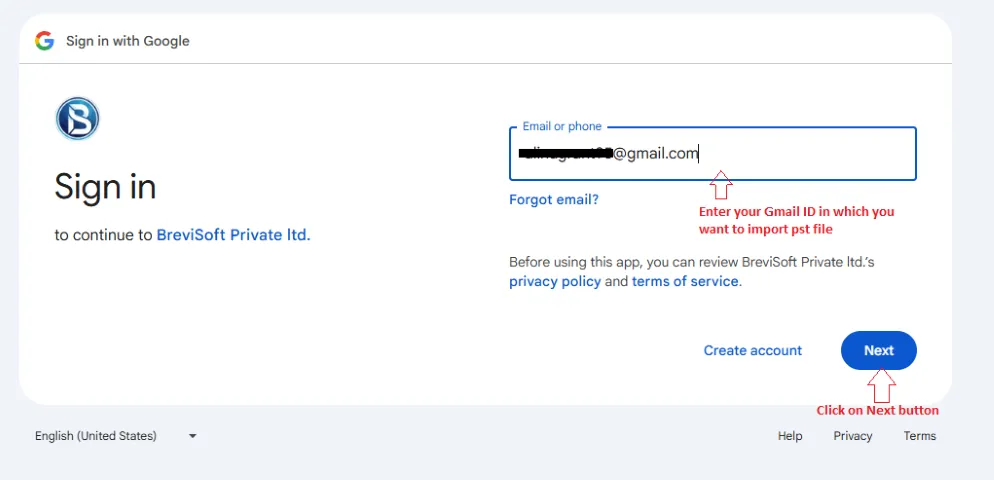
Step 2: Enter your Gmail ID (In Which Gmail Account you want to migrate emails) and Click on Next button.
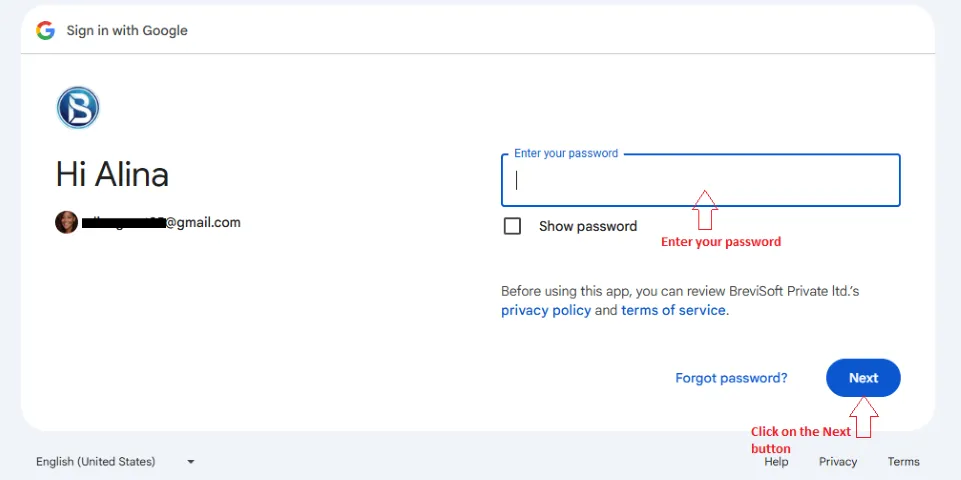
Step 3: Enter your password and Click on Next button.
Step 4: Now, the message will display
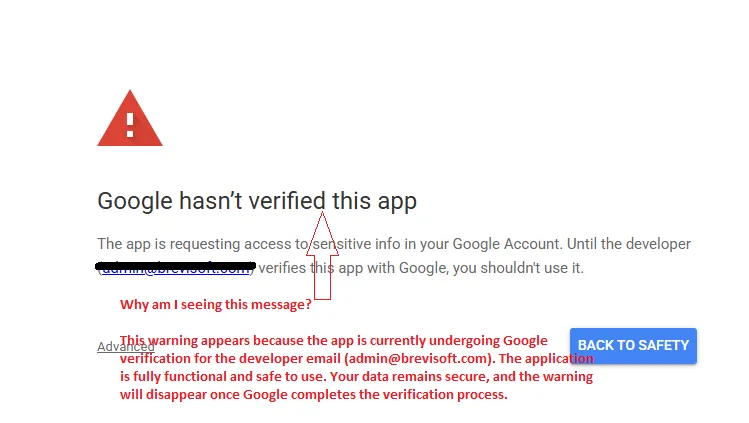
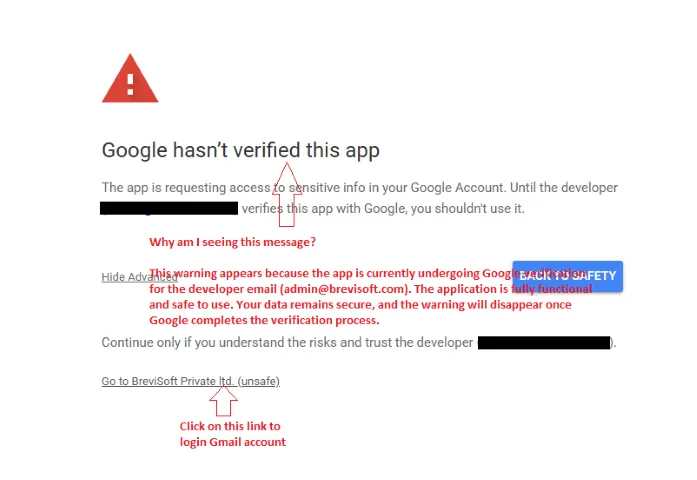
Step 5: Now, click on Advanced option and Click on the Go to BreviSoft Private Ltd
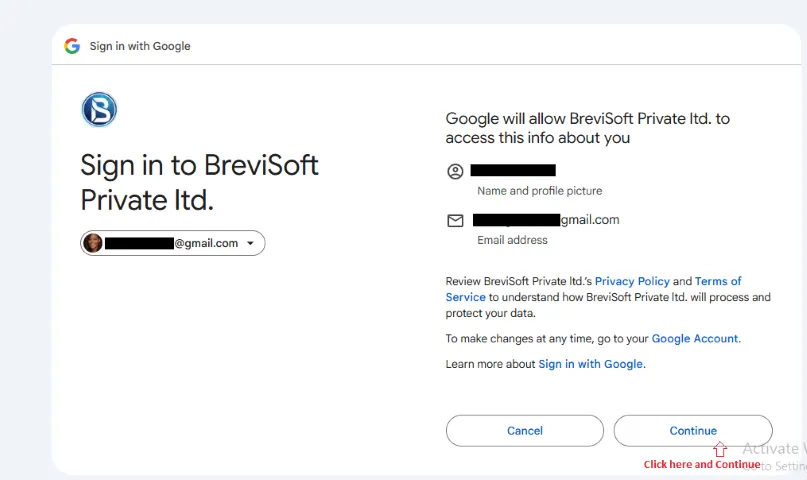
Step 6: Now, Click on the Continue button.
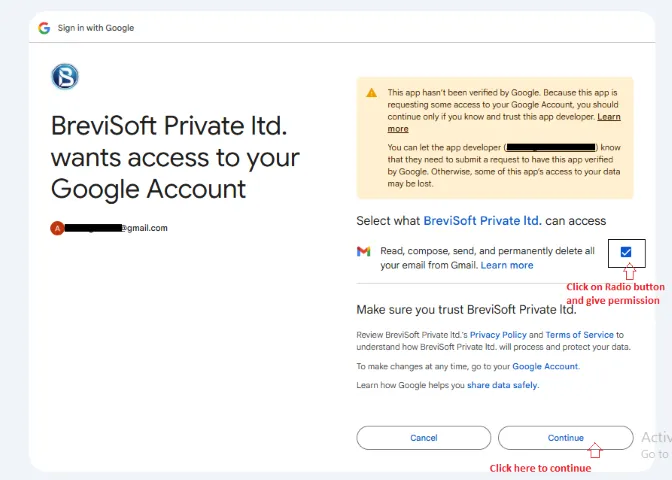
Step 7: Check the Check button and give permission, after that click on Continue button.
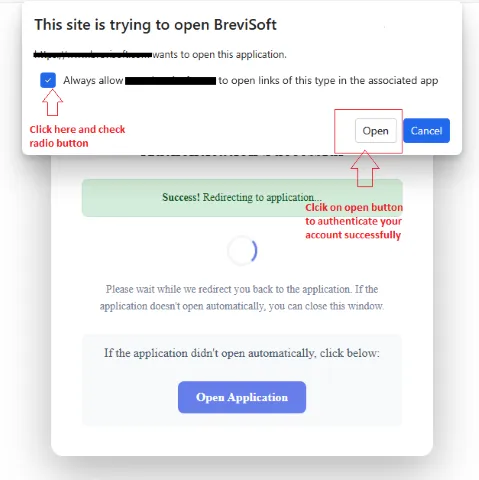
Step 8: Click on the Open button and authenticate the account.
Step 9: After Authentication, users can click on the “Send Messages” and directly import the selected emails into Gmail account.