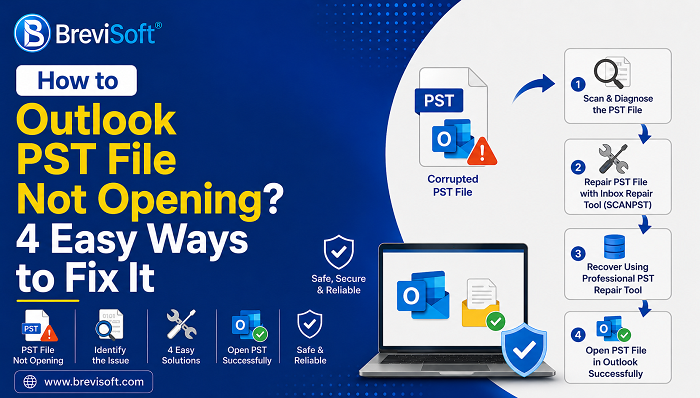
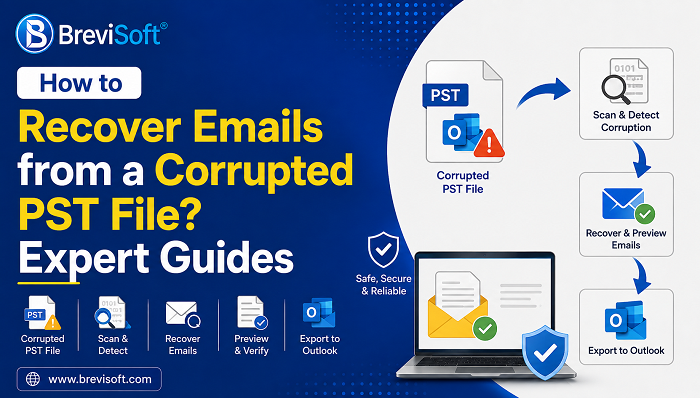
An Outlook data file cannot be accessed, error usually means Outlook can’t reach, open, or read your PST or OST file, and it can happen for several reasons, from a locked file to genuine corruption. This guide covers why the error shows up, along with practical fixes: closing Outlook completely before reopening, running the ScanPST repair tool, and checking file permissions and location when Outlook cannot access the PST file at all. For cases where the file itself is damaged beyond what ScanPST can fix, professional tools like BreviSoft PST File Repair Tool offer a more reliable way to repair unreadable or corrupted files Outlook won’t open.
Table of Contents
Why Does the Outlook Data File Cannot Be Accessed Error Occur?
This error shows up when Outlook can’t read, open, or write to your PST or OST file, and there are several possible reasons behind it. The file might already be open in another Outlook session or locked by a background process. Permission issues are common too, if your account doesn’t have read and write access to the file or its folder, Outlook won’t be able to reach it. Sometimes the file has been moved, renamed, or is sitting on a network drive or removable disk that’s currently disconnected. Antivirus software occasionally locks the file while scanning it, which triggers the same error. And in more serious cases, the PST or OST file itself is corrupted, which is a deeper issue than a simple permissions fix can resolve. This error is also closely related to cases where a PST file can’t open in Outlook at all, since many of the same underlying causes apply.
Method 1: Close Outlook Completely and Restart
Before digging into anything more technical, a few basic steps resolve this error more often than you’d expect. Start by fully closing Outlook, not just the window, but the background process too. Open Task Manager, look for OUTLOOK.EXE under Processes, and end the task if it’s still running. Reopen Outlook and see if the error clears. If it doesn’t, try starting Outlook in safe mode by holding Ctrl while launching it, or running outlook.exe /safe from the Run dialog, which disables add ins that sometimes interfere with data file access. If the error only appears with one specific PST or OST file, that points toward a file specific problem rather than a general Outlook issue, which is where the next steps come in.
Steps to fix Outlook PST cannot be accessed Error
- Close Outlook completely, including any open windows.
- Open Task Manager by pressing Ctrl+Shift+Esc.
- Under the Processes tab, look for OUTLOOK.EXE.
- If it’s still running, select it and click End Task.
- Reopen Outlook normally and check whether the error is gone.
- If it isn’t, hold Ctrl while launching Outlook, or run outlook.exe /safe from the Run dialog, to start in safe mode.
- If the file opens fine in safe mode, a misbehaving add in is likely the cause, and you can re enable add ins one at a time to find the culprit.
Method 2: Fix Outlook Data File Cannot Be Accessed Error Using ScanPST
ScanPST.exe, Outlook’s built in Inbox Repair Tool, is the next step if closing and reopening Outlook doesn’t fix the error. You’ll find it in the Outlook installation folder, with the exact path depending on your Outlook version. Close Outlook first, then run ScanPST and point it at the file that’s throwing the error. Let it scan the file and apply repairs automatically. Once it finishes, reopen Outlook and check whether the file loads normally. ScanPST handles minor to moderate corruption reasonably well, things like index errors or small structural issues, but it isn’t built for severely damaged files. If ScanPST can’t fix the file, you may need to recover emails from a corrupt PST file using more advanced recovery software.
Steps to fix it:
- Close Outlook completely.
- Find ScanPST.exe in your Outlook installation folder (the path varies by Outlook version, so search your file explorer if needed).
- Double click ScanPST.exe to open it.
- Click Browse and select the PST or OST file that’s showing the error.
- Click Start to begin scanning the file.
- If ScanPST finds issues, click Repair to fix them.
- Once the repair finishes, open Outlook and confirm the file loads without the error.

Method 3: Check File Permissions and Location
If the error keeps pointing to file location or permissions rather than corruption, a few more checks are worth running. Right click the PST file, open its properties, and confirm it isn’t set to read only. Check that your Windows account has full permissions on the folder the file lives in, not just the file itself. If the PST file is stored on a network drive or external device, try copying it to a local folder instead, since a dropped connection is a common reason Outlook cannot access the PST file mid session. It’s also worth temporarily disabling antivirus scanning for that specific file, in case security software is holding a lock on it.
Steps to fix it:
- Right click the PST file and select Properties.
- On the General tab, make sure the Read only box is unchecked.
- Go to the Security tab and confirm your account has Full Control permissions on the file.
- If the file is on a network drive or external device, copy it to a local folder, such as your Documents folder.
- In Outlook, go to File, then Account Settings, then Data Files, and update the file’s location if it changed.
- Temporarily disable antivirus scanning for that file, or add it to your antivirus exclusions list, then reopen Outlook to check.
Method 04. Best Software to Fix Outlook Data File Access Issues
When none of the standard steps clear the error, and ScanPST either can’t fix the file or makes it worse, BreviSoft PST File Repair Tool is built to repair unreadable or corrupted PST files that Outlook refuses to open.
- Repair files Outlook can’t access: The tool works on PST files at a deeper level than ScanPST, recovering data even from files that trigger a cannot be accessed error every time Outlook tries to open them.
- Preview before recovering: You can preview the recoverable emails, contacts, and folders before saving anything, so you know what’s actually recoverable first.
- Export a working PST file: Once you’ve confirmed what you need, save the recovered data into a new PST file you can open in Outlook without the error returning.
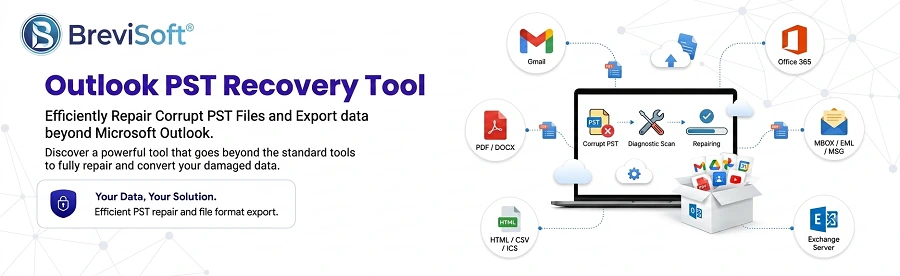
Steps to Resolve Outlook Data File Cannot Be Accessed Error
- Launch BreviSoft PST File Repair Tool and add the PST file that’s showing the error.
- Let the tool scan the file to detect and analyze the damage.
- Preview the recoverable emails, contacts, and folders before saving anything.
- Select the items you want to recover.
- Export the recovered data into a new, usable PST file.
- Add the new PST file to Outlook and confirm it opens without the error.
Conclusion
Most cases of the Outlook data file cannot be accessed error come down to something fixable: a locked process, a permissions issue, or a file sitting somewhere Outlook can’t reach. Closing Outlook fully, running ScanPST, and checking file location and permissions resolve the majority of cases. When the file is genuinely corrupted and those steps don’t help, BreviSoft PST File Repair Tool is built to recover data from PST files that Outlook simply won’t open.
Frequently Asked Questions About Outlook Data File Errors
Ans – Usually it’s one of a few things: the file is locked by another process, your account lacks the right permissions, the file has been moved or is on a disconnected drive, or the PST or OST file itself is corrupted.
Ans – Start by fully closing Outlook through Task Manager, then reopen it. If the error persists, run ScanPST to repair the file, and check that the file’s permissions and location are correct. For deeper corruption, dedicated PST repair software is the more reliable option.
Ans – It can, for minor to moderate issues like index errors or small structural damage. For more severe corruption, ScanPST often can’t fully repair the file, and a professional recovery tool is usually needed instead.
Ans – If you’ve tried closing Outlook, running ScanPST, and checking permissions with no luck, the file is likely too damaged for Outlook’s built in tools. A tool like BreviSoft PST File Repair Tool is designed to recover data from PST files that Outlook can’t open through normal troubleshooting.