Microsoft Outlook is one of the most trusted email clients for businesses, professionals, and individuals worldwide. Behind the scenes, it stores your emails, contacts, calendars, tasks, notes, and attachments in a Personal Storage Table (PST) file. Because this single file holds so much valuable mailbox data, any corruption can disrupt communication and potentially lead to serious data loss.
PST corruption can strike for many reasons — unexpected system shutdowns, oversized mailbox files, hard drive failures, malware infections, or Outlook crashes. When it happens, you might see startup errors, inaccessible emails, missing folders, or an application that crashes constantly.
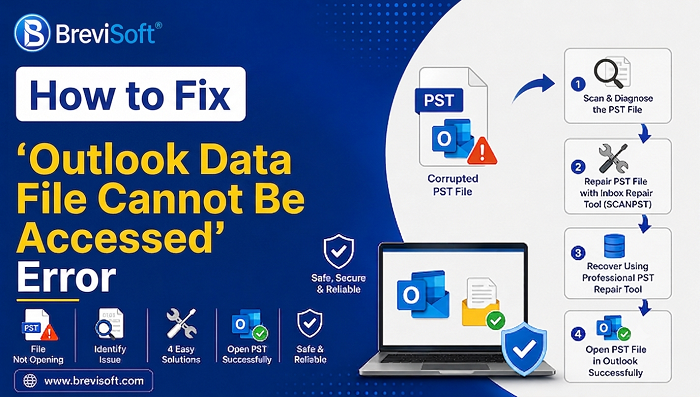
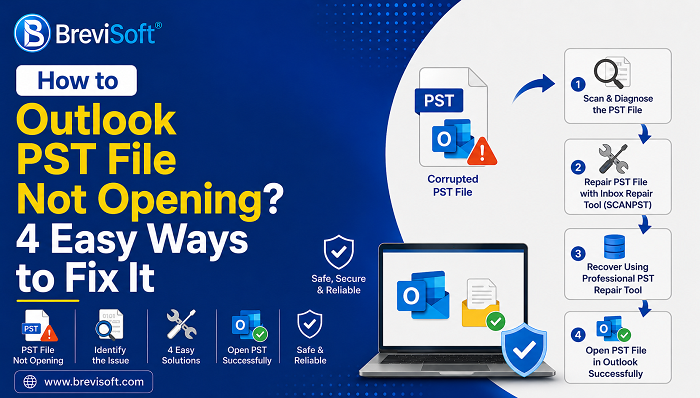
The good news: Outlook includes a built-in repair utility called ScanPST.exe (the Inbox Repair Tool) that can fix minor corruption. But when the damage is more severe, or ScanPST simply can’t recover your data, a dedicated solution like BreviSoft Outlook PST Recovery Tool can safely repair the file and restore your mailbox with high accuracy.
This guide walks through the common causes of PST corruption, how to use Microsoft’s free repair tool, and when it’s time to bring in a professional recovery solution.
Table of Contents
What Is a PST File?
A PST (Personal Storage Table) file is Outlook’s local storage file, keeping your mailbox data right on your computer. It’s what lets you access emails offline, and it’s commonly used for POP3 accounts, archived mailboxes, and exported Outlook data.
A single PST file can contain:
- Emails and attachments
- Contacts
- Calendar events
- Tasks
- Notes
- Journal entries
Since everything lives in one file, corruption can affect your entire mailbox at once — which is exactly why regular backups and timely repairs matter so much.
Common Signs of a Corrupted PST File
Catching the symptoms early can save you from permanent data loss.
Outlook Won’t Open The most obvious sign — Outlook refuses to start or throws errors like:
- “Outlook cannot open your data file.”
- “The set of folders cannot be opened.”
- “Errors have been detected in the file.”
Frequent Crashes If Outlook freezes, hangs, or crashes while opening emails or sending messages, the PST file may be damaged.
Missing Emails or Folders Corruption can make inbox folders, sent items, contacts, calendars, or attachments vanish without warning.
Slow Performance A damaged or oversized PST file often shows up as slow startup, sluggish search, and laggy folder navigation.
Send/Receive Errors Watch for error codes such as 0x80040119, 0x80040600, or 0x8004060C — these usually point to problems with the data file itself.
What Causes PST File Corruption?
| Cause | Why It Happens |
|---|---|
| Oversized PST files | Very large mailboxes reduce performance and increase corruption risk |
| Improper shutdown | Closing Outlook mid-sync interrupts write operations |
| Hard drive problems | Bad sectors, SSD failures, or file system errors |
| Malware/viruses | Malicious software can modify or encrypt PST files |
| Power failures | Sudden power loss can leave the file in an inconsistent state |
| Faulty add-ins | Third-party add-ins can conflict with Outlook |
Before You Repair: A Quick Checklist
- Back up the file. Always copy the damaged PST file before attempting repair.
- Close Outlook completely. Check Task Manager to confirm
OUTLOOK.EXEisn’t still running. - Locate the PST file via File → Account Settings → Data Files, or in Outlook’s default folders in Windows.
- Make sure you have disk space. Repairing large PST files needs room for temporary files and backups.
Method 1: Repair with ScanPST.exe
ScanPST, Microsoft’s Inbox Repair Tool, ships with Outlook and is built to catch minor structural issues.
- Close Microsoft Outlook.
- Locate and open ScanPST.exe.
- Click Browse and select the damaged PST file.
- Click Start to scan.
- If errors show up, choose to create a backup before repairing.
- Click Repair and let it finish.
- Restart Outlook and check whether the mailbox opens correctly.
Limitations of ScanPST.exe
ScanPST is a solid first step, but it has real limits. It generally can’t:
- Repair severely corrupted PST files
- Recover deleted emails
- Restore missing attachments
- Recover damaged contacts or calendars
- Repair oversized data files
- Recover items from an inaccessible PST
If ScanPST fails or Outlook still won’t open your mailbox, it’s time for a more advanced tool.
When to Use a Professional PST Recovery Tool
Consider dedicated recovery software when:
- ScanPST can’t repair the file
- Outlook keeps crashing
- Important emails are missing
- The PST file is inaccessible
- You need to recover deleted mailbox items
- The mailbox holds business-critical information
- The file is severely damaged or unusually large
Professional software digs deeper into the data file’s structure and can recover content that basic repair utilities simply can’t touch.
Repairing a PST File with BreviSoft Outlook PST Recovery Tool
When ScanPST.exe isn’t enough, BreviSoft Outlook PST Recovery Tool is built for the next step. It’s a Windows application designed to repair corrupted PST files and recover emails, attachments, contacts, calendars, tasks, notes, and journals — whether the damage came from a system crash, malware, storage failure, or an unexpected shutdown.
Unlike the Inbox Repair Tool, which mainly fixes file-structure issues, BreviSoft performs a deep scan and rebuilds damaged mailbox components, making it a good fit for both personal and business recovery.
Key Features
- Repairs severely corrupted Outlook PST files
- Recovers emails along with their attachments
- Restores contacts, calendars, tasks, notes, and journals
- Recovers deleted mailbox items whenever possible
- Preserves original folder hierarchy and email formatting
- Lets you preview recovered items before saving
- Supports both ANSI and Unicode PST files
- Handles large PST files efficiently
- Compatible with Outlook 2024, 2021, 2019, 2016, 2013, 2010, and earlier
- Works on Windows 11, 10, 8.1, 8, and 7
Step-by-Step Guides to Repair Corrupted PST Files
- Install the software on your Windows computer.
- Select the corrupted PST file by clicking Browse.
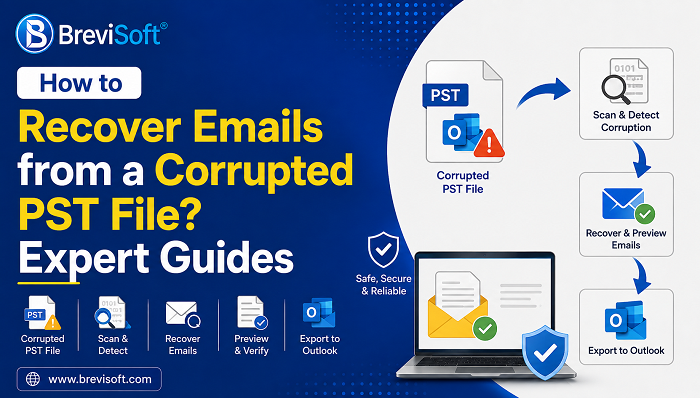
- Scan the file — the software runs an advanced scan to detect corruption and recover accessible data.
- Preview recovered items, including emails, attachments, contacts, calendars, tasks, notes, and journals, to verify everything looks right.
- Save the repaired PST file, then open it in Outlook and get back to work.
ScanPST.exe vs. BreviSoft Outlook PST Recovery Tool
| Feature | ScanPST.exe | BreviSoft Outlook PST Recovery Tool |
|---|---|---|
| Repair minor PST corruption | ✔ Yes | ✔ Yes |
| Repair severely corrupted PST files | ✘ No | ✔ Yes |
| Recover deleted emails | ✘ No | ✔ Yes |
| Recover attachments | Limited | ✔ Yes |
| Recover contacts & calendars | Limited | ✔ Yes |
| Preview recoverable data | ✘ No | ✔ Yes |
| Preserve folder structure | Limited | ✔ Yes |
| Repair large PST files | Limited | ✔ Yes |
| User-friendly interface | Basic | ✔ Modern |
| Suitable for business recovery | Limited | ✔ Yes |
Which should you use?
- Go with ScanPST.exe if Outlook shows minor errors and the PST file is still accessible.
- Go with BreviSoft Outlook PST Recovery Tool if the file is severely corrupted, Outlook won’t open it, or you need to recover important data.
Tips to Prevent PST Corruption in the First Place
- Back up regularly so you always have a safety net.
- Keep file size under control — archive older emails and clear out clutter.
- Close Outlook properly — never force-quit while it’s syncing.
- Protect your computer with updated antivirus software.
- Store PST files locally rather than on network drives or removable media.
- Keep Outlook updated for the latest bug fixes and security improvements.
Final Thoughts
A corrupted PST file doesn’t have to mean permanent data loss. For minor inconsistencies, Microsoft’s ScanPST.exe is a solid first move. But when the damage is severe or ScanPST can’t get the job done, a professional tool becomes essential.
BreviSoft Outlook PST Recovery Tool offers a reliable path back to a healthy mailbox — recovering emails, attachments, contacts, calendars, tasks, notes, and journals while preserving your original folder structure. Combined with the preventive habits above, it’s a solid way to keep your Outlook data safe for the long run.
Frequently Asked Questions
Ans – Start with Microsoft’s ScanPST.exe for minor corruption. For severe damage or an inaccessible file, use professional software like BreviSoft Outlook PST Recovery Tool.
Ans – No — it repairs file structure issues but doesn’t recover permanently deleted items.
Ans – Yes. Professional recovery software can repair PST files even if Outlook can’t open them.
Ans – Oversized files, unexpected shutdowns, hard drive errors, malware, power failures, and file system corruption are the usual culprits.
Ans – Yes, though it’s always wise to back up the file before running any repair.
Ans – Yes — BreviSoft Outlook PST Recovery Tool recovers attachments along with other mailbox items.
Ans – BreviSoft supports Outlook 2024, 2021, 2019, 2016, 2013, 2010, and earlier versions.