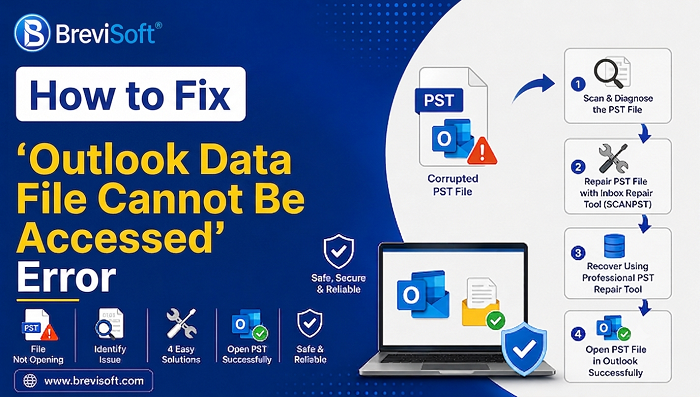
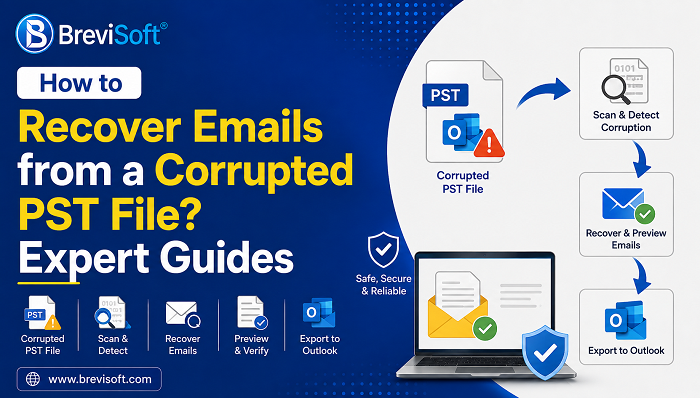
A PST file that won’t open in Outlook can be alarming, especially if it holds years of emails and contacts. In most cases, the fix is straightforward: file permission issues, a full mailbox, or a damaged PST file are the usual suspects. This guide walks through what causes Outlook PST files to stop opening, four practical ways to fix the issue, and what to try when Outlook still cannot open the PST file after the basic fixes. For files that are unreadable or badly corrupted, professional tools like BreviSoft PST File Repair Tool offer a more reliable way to recover and reopen the data.
Table of Contents
What Causes Outlook PST Files to Stop Opening?
There are a handful of reasons a PST file won’t open in Outlook, and they range from simple to serious. An oversized PST file, especially one nearing or past the size limit for your Outlook version, is a common cause. File permission issues are another frequent culprit: if the PST file is marked read only, or Outlook doesn’t have access to the folder it’s stored in, it won’t load. Sometimes the file has simply been moved or renamed, so Outlook can no longer find it at the path it expects. A damaged Outlook profile can also prevent a perfectly healthy PST file from opening. Network drives add another layer of risk, since a dropped connection while Outlook is reading the file can interrupt the process. And in more serious cases, the PST file itself is corrupted, which is when Outlook cannot open the PST file no matter what settings you check.
How to Fix Outlook PST File Not Opening?
Before assuming the worst, it’s worth working through a few basic checks. Most instances of a PST file not opening in Outlook come down to something fixable in a few minutes. Here are the 4 ways covered in this guide:
- Check the PST file path and permissions
- Run ScanPST to fix the PST file
- Remove and re add the PST file in Outlook
- Use professional way to Fix PST file won’t open in Outlook
01. Check the PST File Path and Permissions
Start by confirming the PST file is actually where Outlook expects it to be. If it’s been moved, renamed, or is sitting on a drive that’s currently disconnected, Outlook won’t be able to open it. Right click the file, check its properties, and make sure it isn’t set to read only. If it’s stored on a network drive, try copying it to a local folder and opening it from there instead, since network issues are a common reason Outlook can’t open a PST file.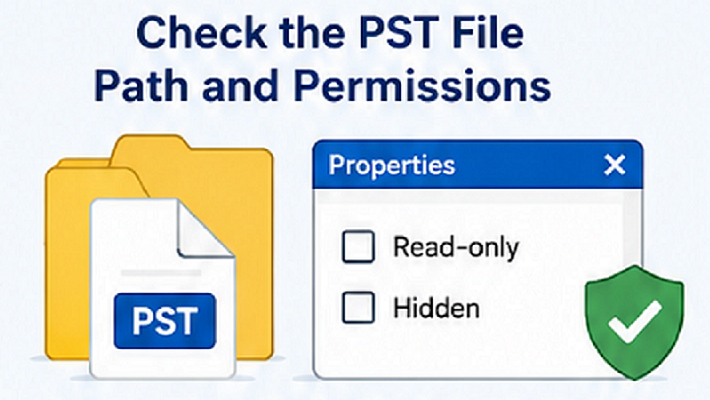
02. Run ScanPST to Fix the PST File Opening Issues
Outlook includes a free repair utility called ScanPST.exe, or the Inbox Repair Tool, that’s designed to fix structural issues in a PST file. You’ll find it in the Outlook installation folder, with the exact path depending on your Outlook version. Point it at the file causing trouble, run a scan, and let it attempt automatic repairs. This works well for minor damage, like index errors or small structural problems, and it’s usually the first thing worth trying when a PST file won’t open in Outlook.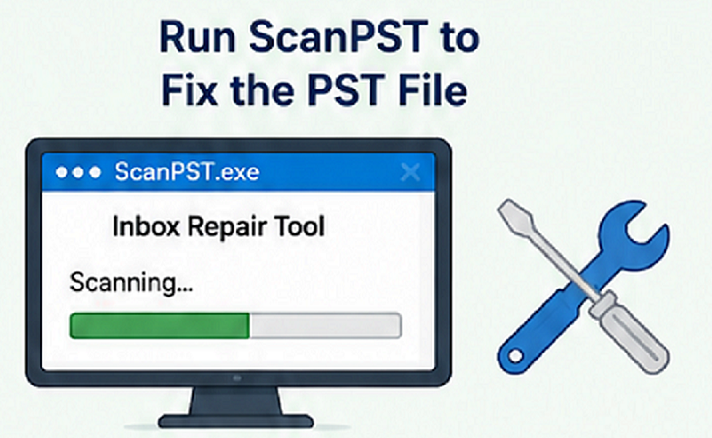
03. Remove and Re-add the PST File in Outlook
Sometimes the problem isn’t the file itself but how Outlook has it registered. Go to File, then Account Settings, then Data Files, and remove the problematic PST file from your profile. Close Outlook, reopen it, then add the file back in through File, Open, and Open Outlook Data File. This resets how Outlook references the file and can resolve cases where the profile has lost track of it, even though the PST file itself is fine.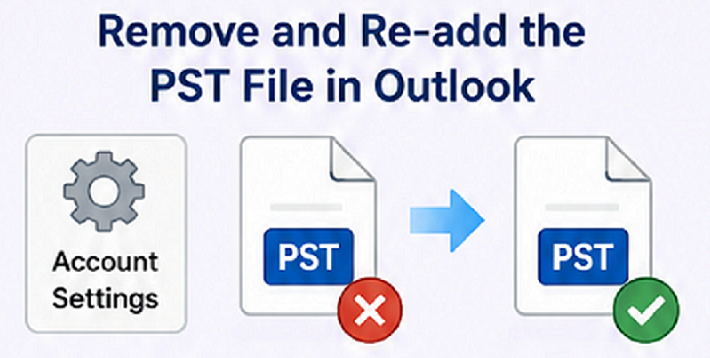
What to Do When Outlook Still Cannot Open the PST File?
If you’ve checked the path and permissions, run ScanPST, and re added the file with no luck, the corruption is likely deeper than Outlook’s built in tools can handle. Try opening the file on a different computer to rule out a local Outlook or profile issue. Check the file size against your Outlook version’s limits, since an oversized PST file can behave exactly like a corrupted one. If none of that resolves it, the PST file is probably too damaged for ScanPST to repair. At that point, you’ll want to recover emails from a corrupted PST file using dedicated recovery software.
04. Best Professional Way to Fix Outlook PST File Not Opening
When basic troubleshooting and ScanPST don’t get the file working again, BreviSoft PST File Repair Tool is built for exactly this kind of situation, repairing unreadable or corrupted PST files that Outlook simply refuses to open.
- Repair files ScanPST can’t fix: The tool scans and rebuilds PST files at a deeper level than Outlook’s own repair utility, recovering data from files that won’t open at all.
- Preview before you recover: You can preview the recoverable emails, contacts, and folders before saving anything, so you know what’s coming back before committing to the export.
- Export a working PST file: Once you’ve confirmed what you need, the tool saves the recovered data into a new, usable PST file you can reopen in Outlook right away.
Follow Steps to Fix Outlook PST File Not Opening Using BreviSoft
- Step 1: Download & Run BreviSoft PST File Repair Tool.
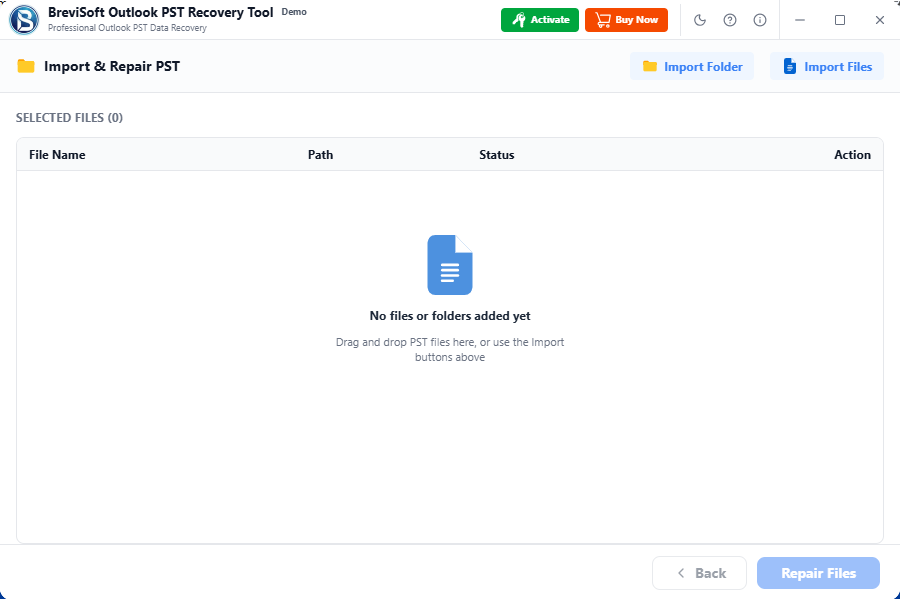
- Step 2: Select and load the PST file that won’t open.

- Step 3: Scan and repair the selected PST file.
- Step 4: Preview recoverable emails and other Outlook data.
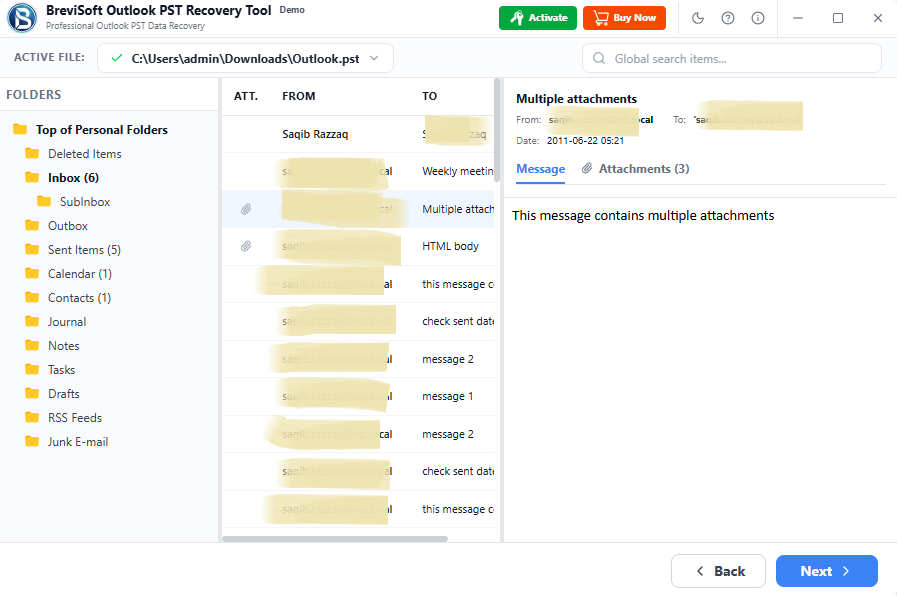
- Step 5: Save the repaired PST file and open it in Outlook.

Conclusion
An Outlook PST file that won’t open is rarely a lost cause. Start with the simple checks, file path, permissions, and a run through ScanPST, since that resolves most minor issues. If Outlook still cannot open the PST file after that, the damage is probably beyond what built in tools can fix, and a dedicated tool like BreviSoft PST File Repair Tool can usually recover the data and get you back into your mailbox.
Frequently Asked Questions About Outlook PST File Not Opening
Ans – Usually it’s one of a few things: an oversized file, incorrect permissions, a moved or renamed file, a damaged Outlook profile, or corruption within the PST file itself.
Ans – Start by checking the file path and permissions, then run ScanPST to repair minor structural issues. If that doesn’t work, try removing and re adding the file in Outlook. For deeper corruption, dedicated PST recovery software is usually the next step.
Ans – It can, for minor issues like index errors or small structural problems. For more severe corruption, ScanPST often can’t fully repair the file, and in some cases it may fail to recover certain data while trying.
Ans – If basic troubleshooting and ScanPST haven’t worked, the file likely needs a more thorough repair than Outlook’s built in tools can provide. A professional tool like BreviSoft PST File Repair Tool is designed to recover data from PST files that won’t open through normal means.