Table of Contents
What is an OST file?
OST is the abbreviation for Offline Storage Table; when you connect an Exchange, Microsoft 365, or IMAP account to Outlook, it sets up one automatically and keeps a local copy of your emails, calendar, contacts, tasks, and notes.
If you open Outlook while on a plane then your inbox will still be there. You’ll be able to compose replies, move messages and accept meetings. Once connection is restored, Outlook will send those changes to the server.
The file is generally located at C:\Users\YourName\AppData\Local\Microsoft\Outlook.
What’s the difference between OST and PST?
People often confuse the two. A PST file is a portable archive and you can copy it, back it up and open it on any computer that has Outlook. An OST file, on the other hand, is tied to the account and profile which created it.
If you transfer an OST file to a new computer then Outlook will not be able to read it, since this is the way things are intended. The OST file mirrors the server and therefore Microsoft regards it as a cache not a backup.
Why does Outlook create OST files?
Speed and access. Since Outlook reads your mail from your local drive, your inbox opens quickly even if your connection is slow. It also allows you to continue working when the network connection drops.
Size is also a factor. Although Outlook 2016 and later versions do not have a strict limit by default, an OST file above 50 GB tends to slow down; so if yours has become that large, you should archive your old mail.
When do OST files become a problem?
On most days you don’t give them a thought. Then one of them occurs:
- The account for the Exchange is deleted or disabled.
- The file becomes corrupted following a crash or a power cut.
- Your company has relocated into a new Microsoft 365 tenant.
- That means that Outlook no longer recognizes the profile of the file.
- Outlook shows “The OST file cannot be accessed”
In all cases the data could still be there, and it isn’t accessible by the usual method.
What are your options when Outlook won’t open an OST file?
There is no option in Outlook for opening an orphaned OST, in which case a standalone viewer has to be used instead.
The BreviSoft OST Viewer Tool is able to read OST files directly and does not require you to have an Outlook profile or an Exchange connection. You can load the file and then browse your emails, contacts, calendars, and attachments within a folder structure that is familiar to you. The tool also deals with damaged files, which means you can find out what can be recovered before exporting anything.
Envision the following situation: the former employee’s account has been deleted and the only thing you have left is their OST file; open it using the viewer, locate the project emails that your manager requires, and you’ll have completed the task in just a few minutes.
What is the procedure for extracting data from an OST file?
Half the task consists in viewing; typically you need to have the data in a place where it can be used.
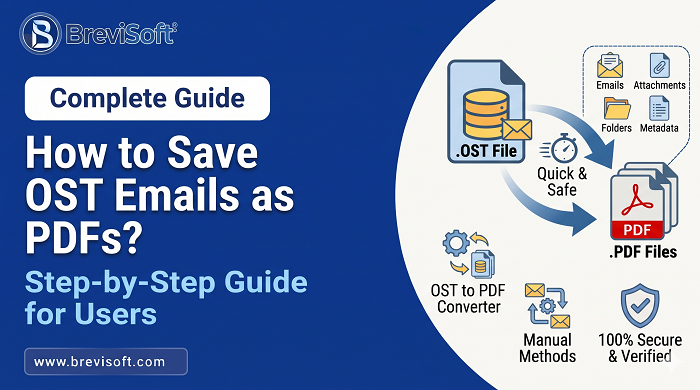
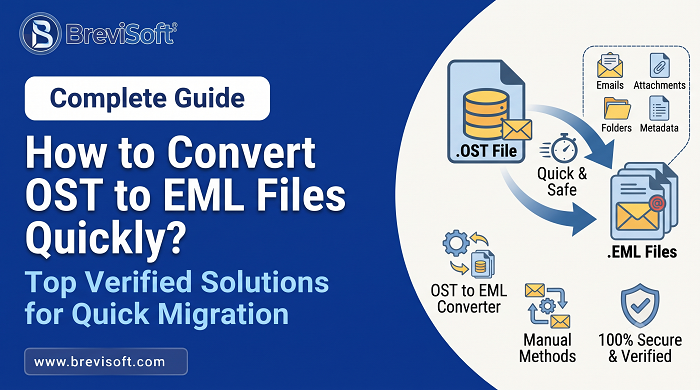
Using the BreviSoft OST to PST Converter, you can export OST data to PST format, which may then be imported into any Outlook profile. The program also allows you to save the data in EML, MSG, MBOX, and PDF formats so that you can transfer your emails to Thunderbird, Apple Mail, Gmail, and other email clients. You have the option of selecting specific folders, filtering by date range, and retaining the original folder structure together with the attachments.
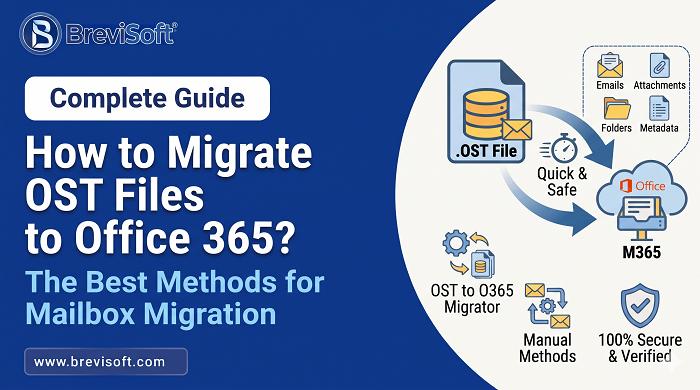
A typical example is when your company switches from one Microsoft 365 tenant to another and the old mailboxes are deleted. You should convert each OST file to PST format, import it into the new account, and then restore the history.
Is it possible to fix a corrupted OST file?
At times, Outlook comes with scanpst.exe, but this program is designed for PST files and usually does not work with OST files. A simpler solution is to delete the OST and then have Outlook reconstruct it from the server; however, this approach will only work if your mailbox still exists online.
Should the server mailbox be lost, a rebuild will result in an empty file. It is safer to first convert the OST to PST since this removes your data before it gets overwritten.
Tips for Managing OST Files
Make sure that the size of your OST does not exceed 50 GB. Once a year, move old email to a PST file. Do not regard an OST as your sole backup. Export the mailbox before you delete an account or when you are changing tenants.
If Outlook won’t open the OST file, use the BreviSoft OST Viewer Tool to open it and then use the BreviSoft OST to PST Converter to export it your data is most likely still there.
Conclusion
An OST file is a working copy of your mailbox, built for speed and offline access. It isn’t a backup, and it won’t follow you to a new computer or a new account. Most people learn that the hard way.
If Outlook stops opening your OST, don’t delete anything yet. Check whether the server mailbox still exists. If it does, a rebuild is the quick fix. If it doesn’t, pull the data out first with the BreviSoft OST Viewer Tool and the BreviSoft OST to PST Converter, then decide what to do with the file.
Archive old mail once a year, export before any account or tenant change, and keep a PST backup of anything you can’t lose. Ten minutes of prep now saves you a lot of stress later.