If you’ve ever needed to back up your mailbox, move your emails to a different Outlook profile, or find old messages, you’ve probably wondered how to turn an OST file into a PST file. Outlook gives you a few free ways to export or move mailbox data you can already open, but it won’t let you take a standalone OST file and directly save it as PST. This guide covers the built-in options, a couple of manual workarounds, what each one can’t do, and when it’s worth using BreviSoft OST to PST Converter Tool instead, which is made for OST files that are inaccessible, orphaned, or offline.
Table of Contents
Why Convert an OST File to PST?
An OST file is basically a local, synced copy of your Exchange, Microsoft 365, or Outlook mailbox. People usually want to convert it to PST for a handful of reasons:
- Backup: Keeping emails and other Outlook items safe in a portable PST file.
- Moving profiles: Shifting mailbox data over to a different Outlook profile.
- Getting at old data: Opening exported mailbox content without needing the original Exchange account.
- Recovery: Pulling accessible items out of an orphaned OST file.
- Compatibility: PST files can be dropped into any supported Outlook profile.
- Organization: Keeping emails, contacts, and calendars tidy in a separate file.
Method 1: Export OST Data with Outlook’s Native Export Wizard
If the OST belongs to a profile that’s still active and Outlook can see the mailbox data, the built-in Import/Export tool will get you a PST file without much fuss.
Steps For Change OST to PST Using Outlook
- Open Outlook and sign into the profile with the mailbox you need.
- Go to File > Open & Export > Import/Export.
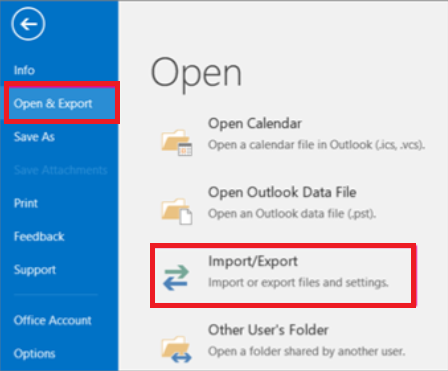
- Choose Export to a file, then click Next.
- Select Outlook Data File (.pst) and continue.
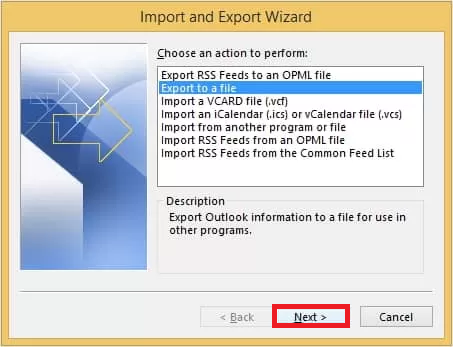
- Pick the mailbox or folders you need. Turn on Include subfolders if you want everything.
- Choose where to save the new PST file and finish the export.
This works fine when Outlook can already reach the mailbox. What it won’t do is open a standalone OST file on its own and convert it directly to PST.
Method 2: Use AutoArchive to Move Items into a New PST
AutoArchive is really meant for tidying up older mail, not converting files, but it does move items into a PST as a side effect. If archiving is genuinely your goal, it’s a decent option.
Steps to Export OST File into PST Using AtoArchve
- Open Outlook, then go to File > Options > Advanced.
- Find the AutoArchive Settings.
- Set how often it runs and how old items need to be before they’re archived.
- Choose a PST destination for the archived items.
- Run AutoArchive and let Outlook move eligible items over.
Keep in mind this isn’t a real OST to PST converter, and it may leave out items you actually wanted to migrate.
Method 3: Manually Copy Mailbox Folders into a New PST
You can also just create a fresh PST file and drag or copy items into it by hand.
Steps to Convert Your OST File to PST Manually:
- Create a new Outlook Data File (.pst) in Outlook.
- Keep both the mailbox and the new PST visible in the folder pane.
- Select the emails, contacts, calendars, or other items you need.
- Right-click and copy, or drag them straight into the PST folder.
- Open the destination PST afterward to confirm everything copied over properly.
This gets the job done for accessible data, but it turns into a slog once you’re dealing with thousands of emails, several folders, or an OST file that isn’t cooperating.
Where the Free Manual Methods Fall Short
These built-in options work well enough when Outlook can already access the mailbox, but they come with some real constraints:
- They won’t touch a standalone OST file directly.
- Outlook generally needs to be able to reach the mailbox data first.
- Orphaned OST files are a pain to process by hand.
- A corrupted OST file may simply refuse to open.
- Large mailboxes take a while to export or copy manually.
- Keeping the folder structure intact takes extra effort.
- None of these methods are great for bulk conversions.
- They’re of little use if the original Exchange account is gone.
So if you’re trying to convert an orphaned OST file, or process one that’s completely offline, a dedicated converter tends to be the more practical route.
Method 4: Use a Professional OST to PST Converter
When Outlook simply can’t get to the OST file, a purpose-built converter is often the more direct path forward.
BreviSoft OST to PST Converter Tool is designed specifically to take offline Exchange OST files and turn them into PST or other supported formats, without needing an active Outlook profile in the picture.
Steps to convert your OST to PST in Outlook with BreviSoft:
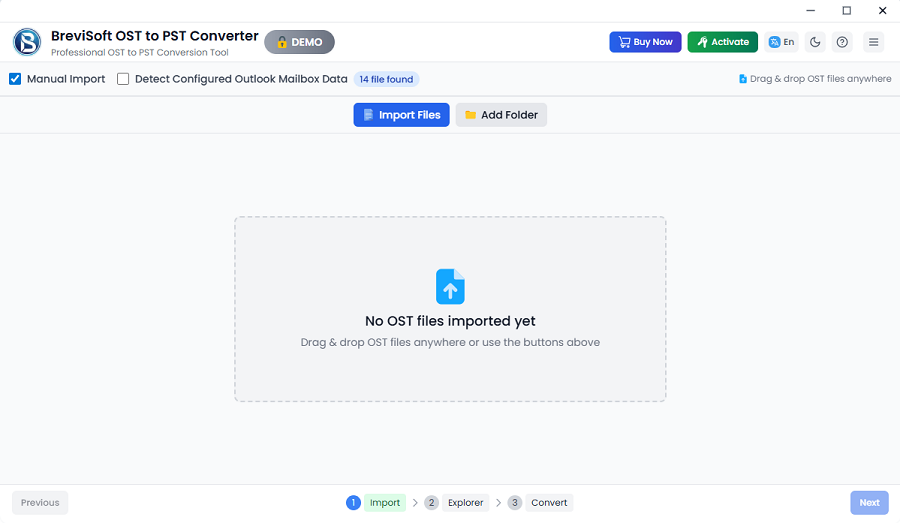
- Launch the tool BreviSoft OST to PST Converter and browse to the offline OST file you want to process.
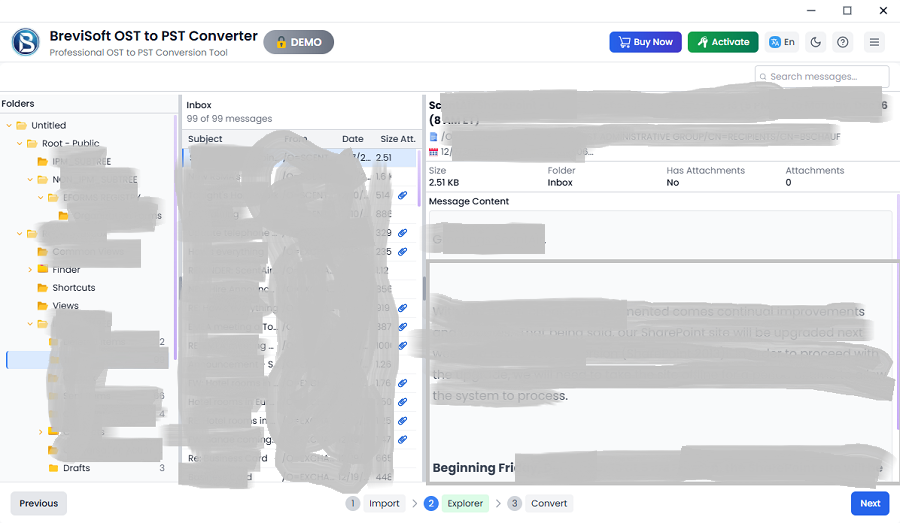
- Scan it and preview the mailbox folders and items before converting anything.
- Choose PST as your output format and select the folders you need.
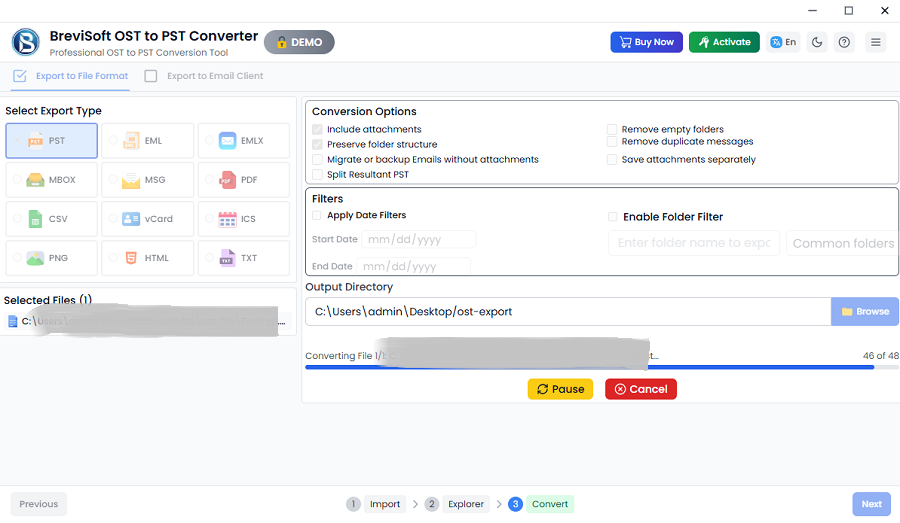
- Pick a save location and run the conversion. The tool writes the selected mailbox data into a new PST file.
This is particularly handy for OST files that are offline, orphaned, or otherwise hard to reach through Outlook, and depending on the export options available, it can also save data into other formats for whatever migration or backup need you have.
Free Methods vs. a Dedicated Tool: Which Fits Your Situation?
| Feature | Free Outlook Methods | Professional OST to PST Tool |
|---|---|---|
| Cost | Usually free | Paid/licensed |
| Needs active Outlook profile | Yes, in most cases | Not necessarily |
| Direct OST conversion | Limited | Supported |
| Orphaned OST files | Often not suitable | Handles this well |
| Folder selection | Manual | Available in the interface |
| Large OST files | Time-consuming | Handles bulk data more smoothly |
| Folder management | Manual | Automated |
| Technical effort | Moderate | Lower |
| Best suited for | Mailboxes Outlook can already access | Offline, orphaned, or complicated OST files |
If all you need is to pull data out of a mailbox Outlook can already open, the free options should work fine. But if your OST file is orphaned or Outlook can’t reach it, those same free methods usually won’t cut it, and that’s when a converter tool saves you real time and hassle.
Wrapping Up
There’s more than one way to get data out of an OST file and into PST, but which free method works for you depends on whether Outlook can actually open the mailbox. The Export Wizard, AutoArchive, and manual copying all work fine for data you can already access, but none of them are made to handle a standalone or orphaned OST file on their own. If your OST file is offline or Exchange can no longer reach it, BreviSoft OST to PST Converter Tool gives you a simpler way to get that data into PST or another format you can use. Pick whichever method matches your situation: how accessible the OST file is, whether Outlook can open it, how big the mailbox is, and what you ultimately need the converted file for.
Frequently Asked Questions About Converting OST to PST
Ans – Not usually. Outlook’s export tools need Outlook itself to read the mailbox. If all you have is a standalone OST file that Outlook can’t open, you’ll need a separate converter tool to get the job done.
Usually not, because they all depend on Outlook being able to open the mailbox first. A dedicated BreviSoft OST to PST converter works better for these cases.
If it’s done properly, no, your mailbox items should carry over fine. But results can vary depending on how healthy the OST file is, your Outlook setup, and which method you use. It’s always smart to check the new PST file before deleting the original OST.
It depends on your Outlook version, the PST format, how much storage you have, and the mailbox size. Very large PST files can make Outlook run slower, so it helps to keep plenty of free disk space and take your time with big exports.