Table of Contents
What Is an EML File and Why Convert OST to EML?
EML is a single message format. One email, one file. It bundles the From, To, subject, body and attachments together and pretty much any mail client can read it.
An OST is the opposite. It’s a single container tied to one Outlook profile. If you switch to a new laptop, lose your Exchange account or move to Thunderbird, that OST becomes completely useless.
People go to EML for a number of reasons. A client wants a copy of every email from 2022. A solicitor may want the messages saved as individual files. Someone may be moving from Outlook to a different system. EML will work in all those cases as you can open, sort and send each file individually.
Can Outlook export OST to EML directly?
No. Outlook has no EML export option. You can drag a message to your desktop to get an MSG file (which many other clients won’t be able to open). Save As will give you the same result.
You could open each MSG in another program and re-save it as EML, but do the maths. A mailbox of 40,000 emails would take days and you’d lose the folder structure completely in the process.
There’s another issue. Outlook will only open an OST if both the profile and the server account still exist. If your company have shut down Exchange or deleted your user account then Outlook will simply not be able to open the file. The free online converters often fail on files over a few GB and it’s a bad idea to upload your company mail to some random website. A desktop tool is the way to go and will allow you to open an OST file without Outlook on any Windows PC.
Professional Methods Convert OST to EML
The BreviSoft OST to PST Converter tool simply reads the OST file directly off your drive. You don’t need Outlook at all, you don’t need an Exchange login and you don’t need an internet connection. It can also deal with orphaned and damaged files.
Easy Steps to Convert an OST File to EML Using BreviSoft:-
- Download, install, and run the BreviSoft OST to PST Converter tool on your Windows PC.
- Click Add File and select your OST file (use the search if you can’t find it).
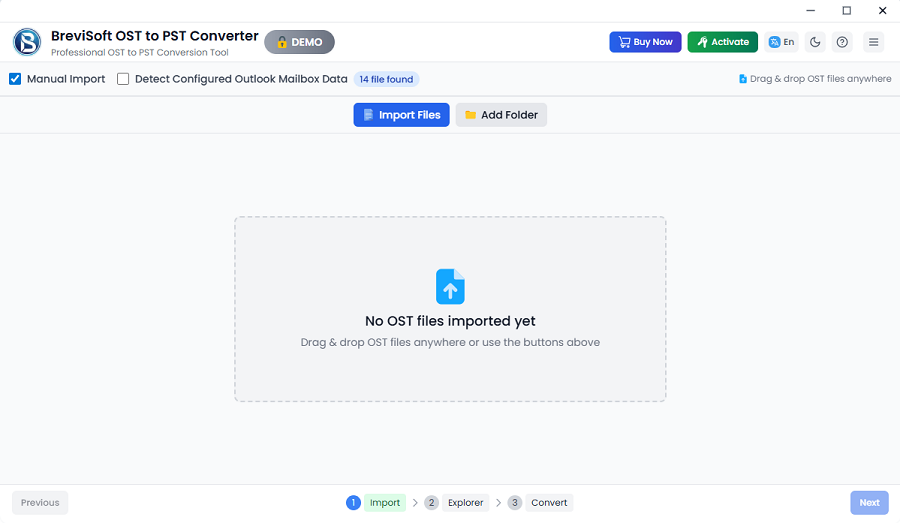
- Just wait for the scan. A 5GB file will typically take a few minutes to scan.
- Preview your folders, your emails, your contacts and your calendar items all in the left hand pane.
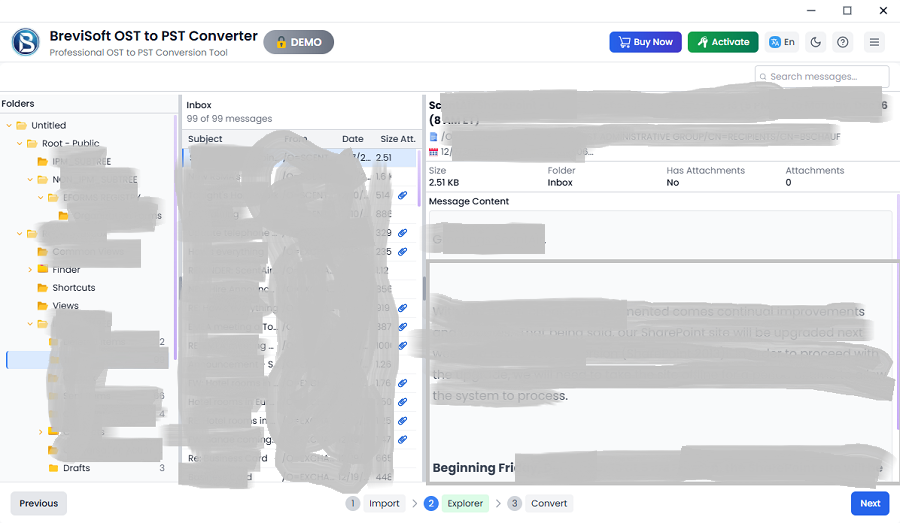
- Choose EML as the export format.
- Apply filters if you only want certain dates, senders or folders.
- Pick a destination folder and click Convert.
The tool maintains your original folder structure so your Inbox, Sent Items and any custom folders you’ve created all end up in the same structure. Attachments, headers and timestamps are all preserved.
Try it on one folder first. If the output looks OK then go and run the full mailbox.
Which email clients can you move your OST data to?
EML is by no means the only option. The same tool can export to a number of formats and email clients so you don’t need a second product down the line.
Thunderbird, Apple Mail and Eudora all read EML. Gmail and Office 365 accounts can take the data in via the appropriate import options. Pick the format that your target client prefer and the tool will do the rest.
A quick example. A small business migrate from MS365 to a Thunderbird setup and find 12 OST files on the old laptops. They convert each one, import the resultant files and have every employee back in their old mail by the end of the day.
Tips Before You Convert
Copy your OST file to a safe folder first. Don’t work on the only copy.
Check the free space on your destination drive. EML files take up a lot more space than you’d expect as every message becomes its own file. A 10GB OST can easily produce a folder of that size plus all the overhead.
Use date filters on the large mailboxes. If you only need 2023 and 2024 then just skip the rest and save yourself an hour.
After the export, open 5 or 6 of the EML files in your target client. Check the attachments and special characters (particularly in emails in non-English languages). That takes two minutes and picks up problems early on.
Moving to Thunderbird or Apple Mail Instead
Some people will go straight from EML to MBOX. If you’re converting OST to MBOX then pick MBOX as your output format. Thunderbird and Apple Mail both import MBOX in one go which is better than having to load thousands of individual files. It’s the standard choice for anyone moving away from Outlook.
The tool will also keep the folder tree in the MBOX output so you won’t be spending an afternoon re-creating your labels and folders by hand.
When PST Is the Better Choice
Not everyone leaves Outlook. You might only need to hand a mailbox over to a colleague or maintain an archive that can be opened on any Outlook installation. In that case Convert Outlook OST to PST and you end up with a portable file that you have complete control over. You can also split the large PST output into smaller files so nothing hits the 50GB limit.
Conclusion
Outlook won’t give you the EML files and a locked OST makes it even harder. Doing it manually is slow and online converters are a privacy risk in themselves. You need a tool that will read the OST directly and keep your data in good order.
The BreviSoft OST to PST Converter tool does this. It converts OST to EML, MBOX, PST and other formats, maintains your folder structure and works without requiring Outlook or Exchange. You can preview everything prior to export, filter out what you don’t want and split large files so they remain manageable.
Don’t wait until a laptop gets wiped or a drive fails. Run the trial on one file today, check the output, and then convert the rest.