Public folders have been a staple of Exchange based collaboration for years, but Microsoft has been steering organizations toward Microsoft 365 Groups instead, and the shift has become more pressing with Exchange Web Services set to be phased out starting October 2026. This guide covers what public folders and Microsoft 365 Groups actually are, why organizations are making the move, and the methods available for the migration itself, from Microsoft’s own PowerShell based batch migration to a dedicated tool like BreviSoft Microsoft 365 Tenant to Tenant Migration Tool for teams that want to skip the scripting.
Table of Contents
What Are Public Folders?
Public folders are a shared storage feature built into Exchange, designed to hold email, calendar items, and other content that an entire team or organization needs access to rather than a single mailbox owner. Instead of forwarding messages around or copying files into multiple inboxes, a department could route customer inquiries into a shared public folder, or maintain a shared calendar everyone could see and update. Public folders have existed since the earliest versions of Exchange, which is part of why so many organizations still have years of accumulated content sitting in them, even as Microsoft has shifted its focus toward newer collaboration tools.
What Are Microsoft 365 Groups?
Microsoft 365 Groups are Microsoft’s modern take on shared collaboration, bundling a shared mailbox, calendar, file library, and optional Teams integration into a single object that a set of people can access together. Rather than the layered permission system public folders use, Groups simplify access down to two roles: owners and members. Every Group also gets its own mailbox, up to 50 GB, along with a shared calendar and document library through SharePoint, which makes it function more like a lightweight team workspace than a simple storage folder. Since Groups plug directly into Teams, Outlook, and SharePoint, they tend to fit more naturally into how people actually collaborate day to day.
Why Migrate Public Folders to Microsoft 365 Groups?
Microsoft has made its direction fairly clear: Groups are the collaboration model it’s investing in, while public folders remain functional but increasingly legacy. A few reasons organizations move now rather than later:
- Simpler permissions: Managing owners and members is more straightforward than public folders’ layered permission roles, especially as teams grow.
- Built in collaboration tools: Groups come with a calendar, file library, and Teams integration public folders never had, so a migration often means gaining functionality rather than just moving data.
- Reduced reliance on legacy infrastructure: Public folder tooling largely depends on Exchange Web Services (EWS), and Microsoft has confirmed EWS access will begin being phased out starting October 1, 2026, with full retirement by April 1, 2027. That timeline puts real pressure on any organization still leaning on EWS based public folder tools.
- Better fit with modern workflows: Since Groups connect directly to Teams and SharePoint, content becomes part of the same ecosystem people are already using, instead of sitting in a separate, increasingly dated system.
None of this means public folders stop working immediately, but the practical case for migrating keeps getting stronger, particularly for organizations that rely on scripts or tools built around EWS. Microsoft 365 Groups also isn’t the only migration destination worth considering. If your organization needs simpler, mailbox style access instead, see our guide on how to migrate public folders to a shared mailbox.
Best Methods to Migrate Public Folders to Microsoft 365 Groups
There’s no single official migration wizard for this move, so the method you use depends on your technical comfort, the size of your public folder data, and how much control you want over the process.
Migrate Public Folders to Microsoft 365 Groups Using Microsoft Graph API
Microsoft Graph API is the modern, unified interface for accessing Microsoft 365 data, and it’s becoming more relevant here specifically because of the EWS retirement timeline. Since a Microsoft 365 Group’s mailbox is a regular mailbox under the hood, Graph API can read and write to it just like any other mailbox.
Where this gets more complicated is on the extraction side. Public folders themselves aren’t fully exposed through Graph API the way regular mailboxes are, so most Graph based approaches today involve a hybrid setup: pulling content out of the public folder hierarchy using EWS or PowerShell while it’s still available, then using Graph API calls to create that content inside the target Group’s mailbox. This approach suits developers and IT teams comfortable building custom scripts, and it’s worth investing in now if EWS retirement is going to affect your existing tooling anyway. For a straightforward, admin friendly migration, though, this is generally the most technical of the available options.
Transfer Public Folder Data to Microsoft 365 Groups Using PowerShell
This is Microsoft’s documented, officially supported method, built around Exchange Online PowerShell’s batch migration cmdlets. Before starting, there are a few requirements worth knowing:
- Only mail and calendar type public folders can be migrated this way, other public folder types aren’t supported.
- The target Microsoft 365 Groups need to already exist before you start the migration.
- Public folder permissions don’t carry over directly, since Groups only support owners and members, so permission mapping needs to happen separately.
- Microsoft recommends keeping total migrated public folder data under 25 GB, since Groups come with a 50 GB mailbox and you’ll want room for future growth.
- You’ll need Organization Management role membership, along with Mailbox Import Export and public folder management permissions.
Steps tMove Public Folder to Microsoft 365 Groups Using PowerShell:-
- Prepare a CSV file that maps each public folder to its destination Microsoft 365 Group.
- Connect to Exchange Online PowerShell with an account that has the required permissions.
- Create a migration endpoint for the public folder to Group migration.
- Run New-MigrationBatch with the -PublicFolderToUnifiedGroup switch, referencing your CSV file.
- Start the batch migration, which uses the Mailbox Replication Service (MRS) to copy messages and calendar items.
- Monitor the batch until it completes, then verify the content in the destination Groups.
Move Public Folder Data to Microsoft 365 Groups Using Microsoft 365 Admin Tools
For smaller migrations, or a handful of public folders rather than an entire hierarchy, you don’t necessarily need PowerShell at all. This approach relies on tools you already have access to through the admin center and Outlook.
Steps to Transfer Exchange Public Folder to 365 Groups:-
- Create the destination Microsoft 365 Group through the admin center or Outlook.
- Open the source public folder in Outlook or Outlook on the web.
- Select the items you want to move, such as emails or calendar entries.
- Copy or drag those items into the new Group’s mailbox and calendar.
- Repeat for each additional public folder you’re migrating.
- Check the Group afterward to confirm nothing was missed, especially older items that may not be immediately visible.
This approach works fine for a small number of folders with modest content, but it’s manual, doesn’t scale well, and depends on whoever is doing the copying to catch everything.
Migrate Public Folders to Microsoft 365 Groups Using BreviSoft Microsoft 365 Tenant to Tenant Migration Tool
For organizations that want the reliability of a proper migration without writing PowerShell scripts or copying folders by hand, BreviSoft Microsoft 365 Tenant to Tenant Migration Tool is built to handle this kind of transfer directly.
- Migrate without scripting: Connect your source public folders and destination Microsoft 365 Groups through a guided interface, no PowerShell or CSV mapping required.
- Preview before you migrate: Review what’s in each public folder before starting the transfer, so you know exactly what’s moving where.
- Preserve folder structure and content: The tool keeps your original organization intact during the move, cutting down on manual cleanup afterward.
- Handle bulk migrations: Migrate multiple public folders to their respective Groups in a single run, instead of managing each one individually.
Follow the Steps to Move Your Public Folder to MS 365 Groups with BreivSoft:-
- Launch BreviSoft Microsoft 365 Tenant to Tenant Migration Tool and connect your source public folders.
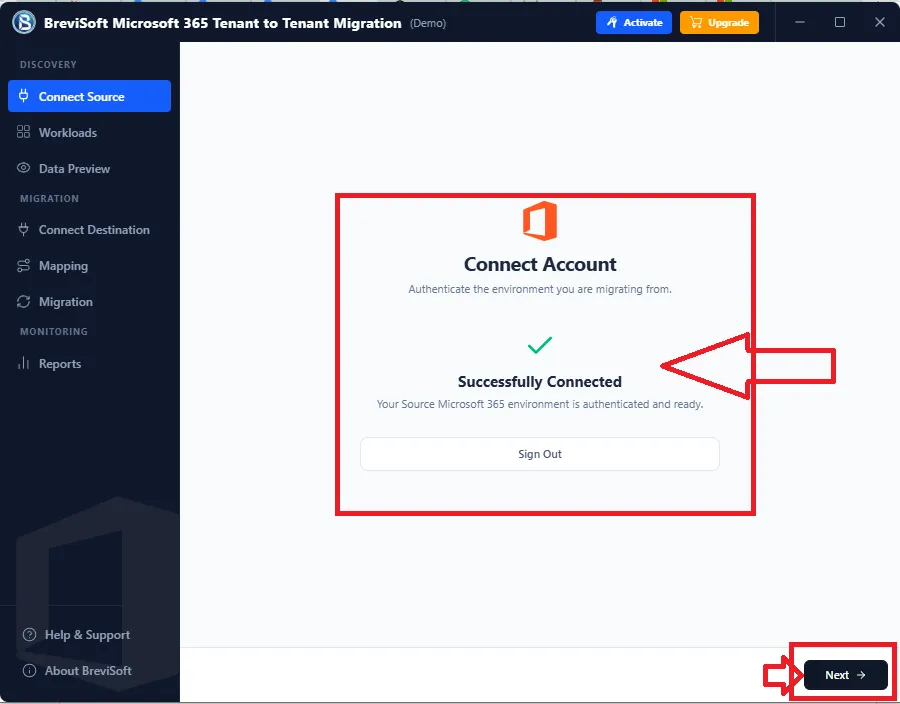
- Connect the destination Microsoft 365 Groups you’re migrating to.
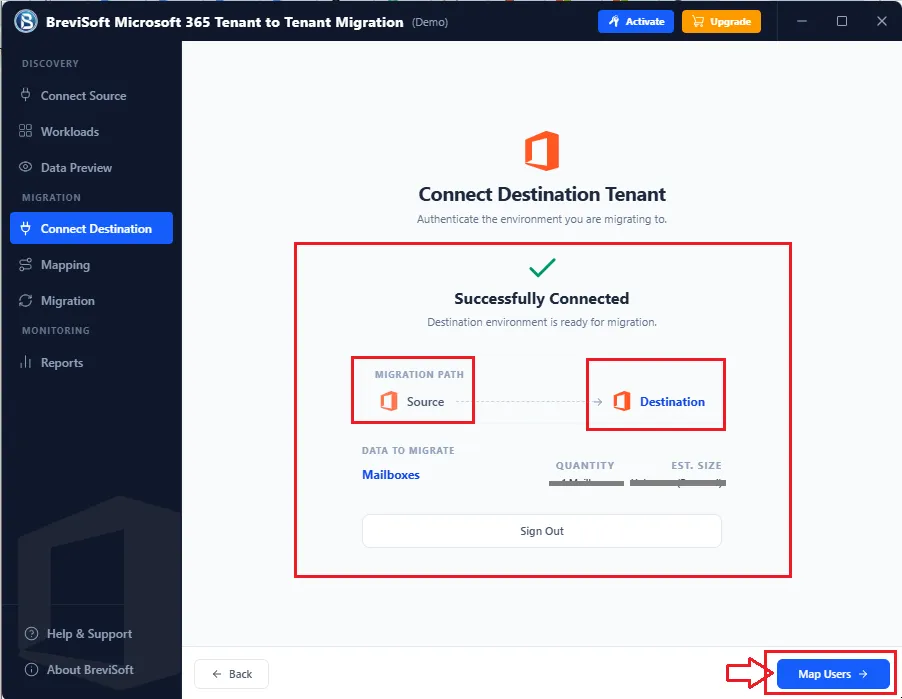
- Preview the public folder content to confirm what’s being migrated.
- Map each public folder to its destination Group.
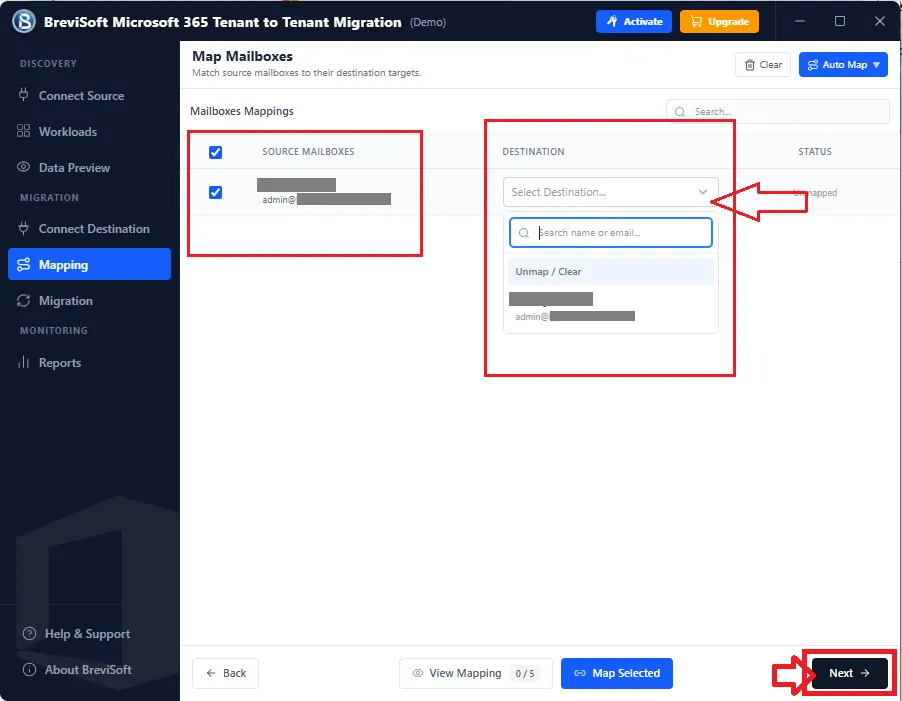
- Start the migration and let the tool handle the transfer in batch.
- Verify the migrated content in each Group once the process completes.
This is generally the most practical option for organizations that need a complete, reliable migration without dedicating significant IT time to scripting or manual data entry. If you’re dealing with PST files instead of public folder content, see our guide on how to import PST files to an Office 365 shared mailbox.
Which Public Folder Migration Method Should You Choose?
The right method comes down to scale, technical comfort, and how much time you have.
| Factor | Admin Tools (Manual) | PowerShell (Official) | Graph API | BreviSoft 365 Tenant Migration Tool |
|---|---|---|---|---|
| Best for | A handful of small folders | Full, Microsoft supported migrations | Custom, developer built workflows | Bulk migrations without scripting |
| Technical skill needed | Low | High | Very high | Low |
| Setup time | Minimal | Significant | Significant | Minimal |
| Scales to large data | No | Yes, with care | Yes, with custom development | Yes |
| Cost | Free | Free | Free (developer time not included) | Paid |
If you’re moving a small number of folders and don’t mind manual work, admin tools get the job done. For a full, Microsoft backed migration and you’re comfortable with PowerShell, the official batch migration is the most thoroughly documented route. If you’re already building custom tooling around Graph API, particularly to get ahead of EWS retirement, that’s worth the investment for the long term. And if you want a complete migration without the scripting or manual work, BreviSoft Microsoft 365 Tenant to Tenant Migration Tool is built specifically for that.
Conclusion
Migrating public folders to Microsoft 365 Groups isn’t mandatory today, but Microsoft’s direction, and the coming EWS retirement, make it a move worth planning for rather than putting off indefinitely. Small migrations can go through Outlook and the admin center manually, larger ones are usually better served by Microsoft’s official PowerShell batch migration, and organizations that want a complete migration without the technical overhead can rely on a dedicated tool like BreviSoft Microsoft 365 Tenant to Tenant Migration Tool to handle it directly. And if your situation actually calls for moving PST files rather than public folder content, our guide on how to import PST to Exchange Server Online walks through that process separately.
Frequently Asked Questions About Public Folder to Microsoft 365 Group Migration
Ans – Yes, though only mail and calendar type public folders are supported. Microsoft provides an official PowerShell based batch migration process, and there are manual and third party tool options as well.
Ans – Yes. The target Groups need to exist before you start the migration, whether you’re using Microsoft’s official PowerShell process or a manual approach.
Ans – Microsoft 365 Groups come with a 50 GB mailbox, and Microsoft recommends keeping the total public folder data you migrate under 25 GB to leave room for future growth.
Ans – No, not automatically. Public folders use a layered permission system, while Groups only support owners and members, so permissions typically need to be reassigned manually after the migration.
Ans – A lot of public folder tooling relies on EWS, and Microsoft has confirmed EWS access will begin being phased out starting October 1, 2026, with full retirement by April 1, 2027. Migrations planned around EWS based tools need to account for that timeline.