Migrating PST files into Exchange Online is a common step when organizations move away from local Outlook data files and onto Microsoft’s cloud hosted mailboxes. This guide covers why you’d want to import PST to Exchange Online, the three main methods available, from Microsoft’s own Import service to a manual Outlook based approach, and how to pick the right one for your situation. For administrators handling large PST collections or tight migration deadlines, BreviSoft PST to Office 365 Import Tool offers a professional method that skips the manual setup Microsoft’s built in tools require, importing PST files directly into Exchange Online mailboxes.
Table of Contents
Why Import PST to Exchange Online?
Most organizations end up with PST files scattered across laptops, network shares, and old backups, and none of that is searchable, backed up, or accessible from anywhere the way a proper mailbox is. Here’s why importing PST to Exchange Online is usually worth doing:
- Centralized, searchable storage: PST files scattered across devices aren’t searchable or backed up. Exchange Online keeps everything in one place, accessible from anywhere.
- Easier compliance and eDiscovery: Data living in Exchange Online can be included in legal holds, audits, and eDiscovery searches far more easily than data sitting in scattered PST files.
- Consolidating old archives: Moving years of local PST files into the cloud clears up local storage and puts an end to archive sprawl.
- Onboarding with existing mail history: New employees or migrated accounts can keep their mailbox history in Exchange Online instead of juggling separate PST files.
- Retiring PST files for good: Once the data is imported, there’s no need to keep relying on fragile, unbacked up PST files as a storage method.
Exchange Online isn’t the only destination worth considering, though. If your organization is moving to a different platform instead, our guide on how to import PST to an IMAP server covers migrations to IMAP based systems specifically.
Best Methods to Import PST to Exchange Online
There are three realistic ways to get PST data into Exchange Online, and which one fits depends on how many files you’re dealing with and how much control you need over the process.
Method 1: Import PST to Exchange Online Using Microsoft 365 Import Service
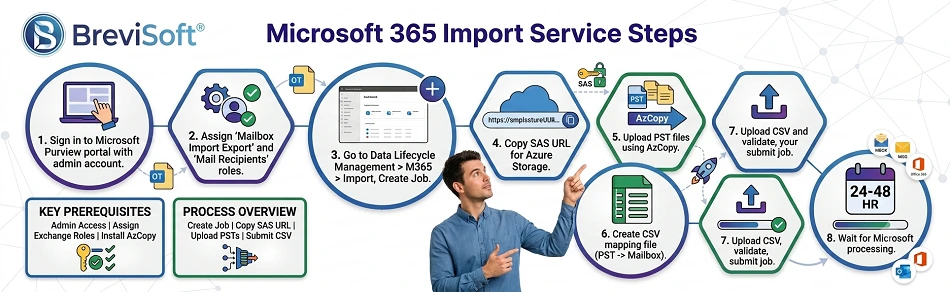
Microsoft’s own Import service, accessed through the Microsoft Purview portal, is built for bulk PST imports and is free to use. The process involves uploading your PST files to a temporary Azure Storage location using Microsoft’s AzCopy tool, then creating an import job with a CSV file that maps each PST to its destination mailbox. Once submitted, Microsoft processes the import in the background, typically within 24 to 48 hours. This method handles multiple files and preserves folder structure well, but it requires admin permissions, comfort with AzCopy and CSV mapping, and some lead time, since it isn’t instant.
Steps to Use Microsoft 365 Import Service:
- Sign in to the Microsoft Purview portal with an admin account.
- Assign yourself the Mailbox Import Export and Mail Recipients roles in Exchange Online.
- Go to Data Lifecycle Management, then Microsoft 365, then Import, and create a new import job.
- Copy the SAS URL provided for the Azure Storage location.
- Use AzCopy to upload your PST files to that location.
- Create a CSV mapping file listing each PST file and its destination mailbox.
- Upload the CSV, validate it, and submit the import job.
- Wait for Microsoft to process the import, typically 24 to 48 hours.
Method 2: Import PST Files to Exchange Online Using Outlook
For a handful of PST files, the manual route through Outlook works fine. Connect the destination Exchange Online mailbox in Outlook, open the PST file through File, Open, and Open Outlook Data File, then drag the folders you need into the mailbox, or use Outlook’s Import and Export wizard to bring the data in directly. This is the simplest method to set up, but it only handles one PST file and one mailbox at a time, which makes it impractical for anything beyond a small number of users.
Steps to Import Using the Import and Export Wizard:
- Open Outlook and confirm the destination Exchange Online mailbox is connected.
- Go to File, then Open & Export, then Open Outlook Data File.
- Browse to your PST file and open it.
- Drag the folders you need into the Exchange Online mailbox, or use File, then Open & Export, then Import/Export to run the wizard instead.
- Confirm the imported items appear correctly in the mailbox.
- Repeat for each additional PST file and mailbox.
Method 3: Transfer PST Files to Exchange Online Using Professional Tool
When you’re dealing with dozens or hundreds of PST files, or need the import done without relying on Microsoft’s Azure tooling, dedicated migration software is usually the better option. BreviSoft Office 365 PST Import Tool is built specifically for this kind of transfer, connecting directly to Exchange Online mailboxes without the network upload and CSV mapping steps Microsoft’s Import service requires.
- Import multiple PST files at once: Map several PST files to their destination mailboxes and run the import as a single batch instead of handling files one by one.
- Preview data before importing: Check the contents of each PST file before committing to the import, so you know exactly what’s going into each mailbox.
- Keep folder structure intact: The tool preserves your original folder hierarchy during the transfer, so nothing needs to be manually reorganized in Exchange Online afterward.
This is generally the fastest route for administrators handling a full migration rather than a handful of individual mailboxes.
Steps to Import PST Files into Exchange Online Using BreviSoft:-
- Launch BreviSoft Import PST to Office 365 Tool and add your PST file or files.
- Preview the contents to confirm you’ve selected the right data.
- Map each PST file to its destination Exchange Online mailbox.
- Start the import and let the tool transfer the data in batch.
- Verify the imported folders and items in each mailbox once the process completes.
How to Choose the Best PST to Exchange Online Migration Methods?
The right method comes down to scale and control. For one or two PST files, the manual Outlook import is fine and doesn’t require any special setup. For a larger, organization wide migration, Microsoft’s Import service is free but takes more setup, technical comfort, and lead time before the data actually lands in mailboxes. If you need to import PST files to Exchange Online quickly, at scale, or without relying on Azure tooling and CSV mapping, professional software like BreviSoft PST to Office 365 Import Tool is usually the more practical choice, especially for IT teams managing migrations for many users at once.
|
Factor |
Outlook (Method 2) |
Microsoft Import Service (Method 1) |
BreviSoft Office 365 PST Import Tool (Method 3) |
|
Best for |
1 to 2 PST files |
Large, organization wide migrations |
Bulk migrations needing speed and simplicity |
|
Cost |
Free |
Free |
Paid |
|
Setup required |
Minimal |
AzCopy, CSV mapping, admin roles |
Minimal, guided workflow |
|
Speed |
Immediate, one file at a time |
24 to 48 hours processing |
Fast, batch processing |
|
Technical skill needed |
Low |
Moderate to high |
Low |
|
Batch import support |
No |
Yes |
Yes |
And if Exchange Online isn’t actually your end destination, it’s worth checking whether your move is closer to an import PST to Gmail account migration instead, since the steps and tools involved are different.
Final Words
Getting PST files into Exchange Online doesn’t have to be complicated, but the right method depends on how much data you’re moving and how much manual setup you’re willing to take on. A handful of files can go through Outlook directly, larger migrations can use Microsoft’s free Import service if you have the time and technical setup for it, and anything beyond that is usually better handled with dedicated software like BreviSoft Office 365 PST Import Tool, which cuts out the manual steps entirely.
Frequently Asked Questions About PST to Exchange Online
Ans – You can use Microsoft’s Import service through the Purview portal for bulk imports, manually import a PST file through Outlook for one mailbox at a time, or use dedicated migration software like BreviSoft Office 365 PST Import Tool for larger or more complex transfers.
Ans – Yes. Microsoft’s Import service uploads PST files directly to Azure Storage and imports them into Exchange Online without needing Outlook on the machine doing the upload. Dedicated migration software BreviSoft 365 PST Import Tool works the same way.
Ans – It depends on the method and file size. Microsoft’s Import service usually processes jobs within 24 to 48 hours after upload. Manual imports through Outlook happen in real time but only handle one file at a time. Dedicated migration software speed varies by tool and file volume.