Table of Contents
Why export OST to MBOX?
MBOX is the format used by Thunderbird, Apple Mail and a number of other email clients. You’ll generally find yourself in need of it for one of three reasons: you’re moving from Outlook to another client; you’re moving from Windows to a Mac; or the Exchange server is gone and you’ve got an old OST as the only copy of your mail.
That third one is the one that’s going to be the stressful one. If Outlook won’t accept the file then you’ll first of all want to Open the OST file without Outlook just to see what’s in it.
Can Outlook export OST to MBOX directly?
No. Outlook only exports to PST or CSV. MBOX isn’t one of the options. If you want to get your data out of an OST in MBOX format you have to go via a middle step or use a tool that’s specifically designed to do that.
There’s another wrinkle. Outlook will only export an OST that is still linked to an active account. If the account has been deleted or the server has been retired then Outlook will simply not open the OST at all. In that scenario you’re going to have to convert an OST to PST format using a third party tool prior to doing anything else.
What Can Go Missing During the Export
Before you start, bear in mind what an MBOX file actually contains. It contains email messages and attachments. It does NOT contain calendars, contacts or tasks. Those require their own export (usually to ICS and VCF respectively).
Watch for these losses:
- Folder structure flattening, so 40 nested folders become one pile.
- Wrong or reset dates on old messages.
- Attachments dropped from very large messages.
- Embedded images turning into broken links
- Items skipped because the OST is corrupt or oversized.
If your file is massive the risk increases. A 40GB OST file is very likely to stall or crash during an export so it’s advisable to get the Large Outlook OST File Issues sorted first by either splitting or trimming the data.
Manual Method: OST to PST to MBOX
This only works if your OST still opens in Outlook. It will take a long time on a large mailbox.
- In Outlook go to File > Open & Export > Import/Export.
- Choose Export to a file, then Outlook Data File (.pst).
- Pick the mailbox, tick Include subfolders and then Save the PST.
- Install Thunderbird and the ImportExportTools NG add-on.
- In Thunderbird use Tools > Import to import the PST. On Windows this step requires Outlook to be installed.
- Right click each folder and export it as an MBOX file using the add-on.
It works if you do step 6 for every folder; on a mailbox with 200 folders that’s a very long afternoon. Check a few of the folders against the original afterwards as that’s where the dates and attachments are likely to have gone astray.
Export OST to MBOX with BreviSoft OST to PST Converter Tool
The BreviSoft OST to PST converter tool bypasses the middle steps entirely. It reads the OST directly so you don’t need Outlook, Exchange or a working account at all. Orphaned and damaged files are perfectly fine.
- Install and launch the BreviSoft OST to PST Converter tool.
- Click Add File and select your OST.
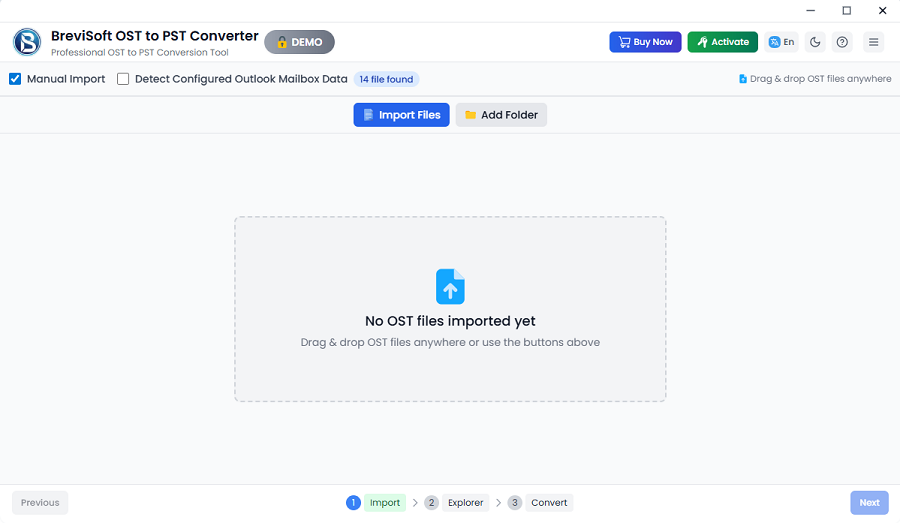
- Let it scan, then go on to preview the folders, emails and attachments.
- Pick MBOX as the output format (you could also pick PST, EML, MSG or another of the supported email client formats).
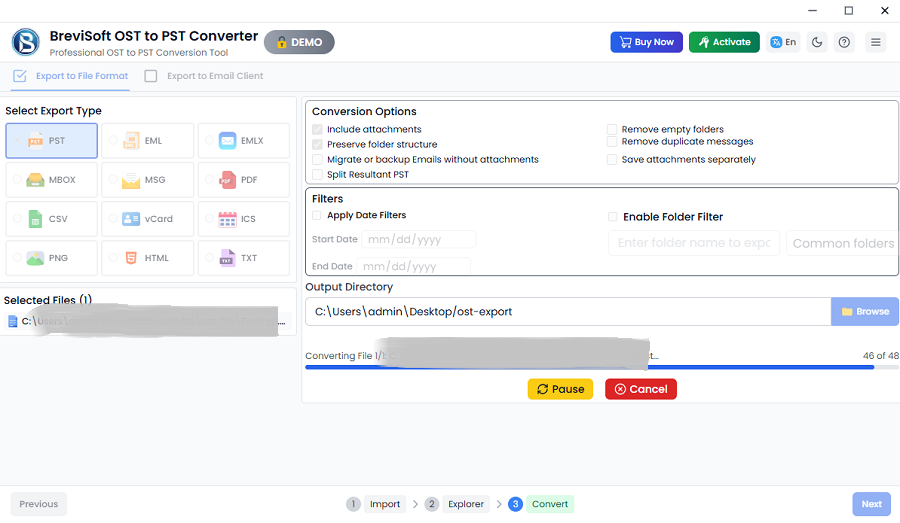
- Filter by date or by folder if you only want part of the mailbox.
- Pick a destination folder and go ahead and start the export.
The folder structure is all there, the dates are correct and the attachments are all present with each message. If a company were to shut down its old Exchange server and a manager needed the mail of five former staff members in Thunderbird then you’d convert the OST files to MBOX, import them and the mail would be in the correct folders.
You can also split the large output into smaller files which prevents the big exports from hanging.
Tips to Avoid Data Loss
Back up the original OST before you touch it at all. Copy it to another drive. Never work on your only copy.
Run a small test first. Convert one folder or one date range, import it into the new client and compare the message counts. If 1,200 emails go in and 1,200 come out then you can trust the rest.
Export contacts and calendars separately as the MBOX file won’t contain them. And of course keep the OST for at least 30 days after the move just in case.
Conclusion
Exporting an OST to MBOX sounds straightforward but Outlook doesn’t actually provide that option. The manual method is a long way around and involves a number of steps. Each step in that process adds risk, particularly with large files, with deleted accounts and with deep folder hierarchies. That’s why people end up losing dates, attachments and folder order completely without realising it until weeks down the line.
If your OST still opens and you only have a few folders then the PST and Thunderbird method is perfectly fine. If the file is large, damaged or cut off from the server then you need to use a tool designed for that. The BreviSoft OST to PST Converter Tool will convert your OST to MBOX and other email client formats in a few clicks with a preview prior to conversion. Just try the trial on one file first, check the result and then go ahead and convert the rest.