Trying to coordinate schedules across a team should be straightforward. In practice, opening a shared calendar in Microsoft Outlook is still one of those tasks that frequently breaks down.
Part of the confusion comes down to Microsoft maintaining two distinct interfaces: the traditional Classic Outlook (the long-standing Win32 desktop application) and the New Outlook for Windows (the lightweight web-based interface). Both handle shared calendars differently, and neither handles cross-platform files—like Google Calendar exports, Apple Calendar schedules, or raw .ics files—without occasional hitches.
Below, you will find the step-by-step native setup for both Outlook versions, where those built-in tools fall short, and how a dedicated utility like the BreviSoft ICS Converter Tool solves common cross-platform calendar issues.
Table of Contents
Part 1: How to Add a Shared Calendar Natively in Outlook
If your coworker is on the same internal Microsoft 365 or Exchange organization, you can pull up their schedule directly inside your app.
1. New Outlook for Windows (Modern App)
If your interface features a simplified ribbon and matches Outlook on the web, you are on the New Outlook:
- Click the Calendar icon on the far-left sidebar.
- Under the mini-month view on the left, click Add calendar.
- Select Add from directory from the side menu.
- Verify your primary work account is selected under Select an account to search from, then type your colleague’s name or email address into the search box.
- Under Add to, choose where you want it listed (such as People’s calendars), then click Add.
- Back on your main screen, check the box next to their name under your calendar list to overlay or place their schedule alongside yours.
(Note: If you received an email invite stating someone shared their calendar with you, you can simply open the email and click Accept to mount it automatically.)
2. Classic Outlook for Windows (Traditional Desktop App)
If your interface uses the traditional top ribbon with tabs like File, Home, and Send/Receive:
- Switch to your calendar view by clicking the Calendar tab at the bottom-left (or press Ctrl + 2).
- On the Home tab, find the Manage Calendars section.
- Click Add Calendar and choose your preferred source:
- From Address Book: Best for company colleagues. Search their name, double-click it so it appears in the Calendar -> field, then click OK.
- Open Shared Calendar: A direct shortcut to type in an email address.
- From Internet: Use this if someone shared an .ics link or a Webcal subscription feed.
- Check the box under Shared Calendars in the left sidebar to display it.
- Click the small arrow on the tab of their calendar to merge it into an Overlay View with yours.
Where Native Methods Fall Short
While built-in tools work for standard internal accounts, real-world workflows often run into snags:
- The “Busy” Wall: If your coworker shared their calendar with basic permissions, you only see generic “Busy” blocks without meeting titles, notes, or locations.
- Sync Errors: Classic Outlook’s Cached Exchange Mode can fall out of sync, displaying errors like “Cannot display the folder.”
- Import Failures: You might frequently face the common issue of an ICS File Not Opening in Outlook, either due to syntax discrepancies between different mail clients or corrupted local cache files.
- The .ics Clutter Problem: When an external client or partner sends a standalone .ics file, opening it in Outlook often dumps all entries into your personal calendar, mixing external events into your daily schedule.
- No Previews Without Importing: Windows provides no native way to inspect what is inside an .ics file—such as meeting notes, attachments, or recurring rules—without committing it to an active calendar profile first.
Part 2: The Professional Solution — BreviSoft ICS Converter Tool
When native Outlook permissions fail, or you are juggling calendar files exported from Google Workspace, Apple Calendar, or offline backups, running everything through Outlook’s built-in importer can create clutter.
The BreviSoft ICS Converter Tool provides a standalone alternative. Instead of adjusting profile settings and clearing cache errors, you can use it to inspect, clean up, and convert shared calendar files independently.
Key Features:
- Standalone Preview: Open and inspect shared .ics files without adding them to your mailbox. Check event notes, time zones, attendees, and attachments in an interactive viewer.
- Multi-Format Export Options:
- PST / MSG: Mount external events into Outlook as a clean, separate data file without polluting your main calendar.
- CSV: Open and organize schedule data directly in Microsoft Excel for hours tracking, planning, or billing.
- PDF: Quickly convert ICS File to PDF to generate read-only, printable documentation for compliance audits, client billing, and meeting records.
- Direct Cloud Migration: Push calendar entries straight to Office 365, Gmail, or Exchange without manual import/export cycles.
- Automatic Duplicate Removal: Prevent duplicate events caused by repeated manual imports with built-in deduplication filters.
- Date-Range Filtering: Select specific date ranges (such as a single quarter or project window) and leave historical clutter behind.
Quick Steps: Managing a Shared .ics File with BreviSoft
- Launch the Software: Install and open BreviSoft ICS Converter on your PC (compatible with Windows 11, 10, and older versions).
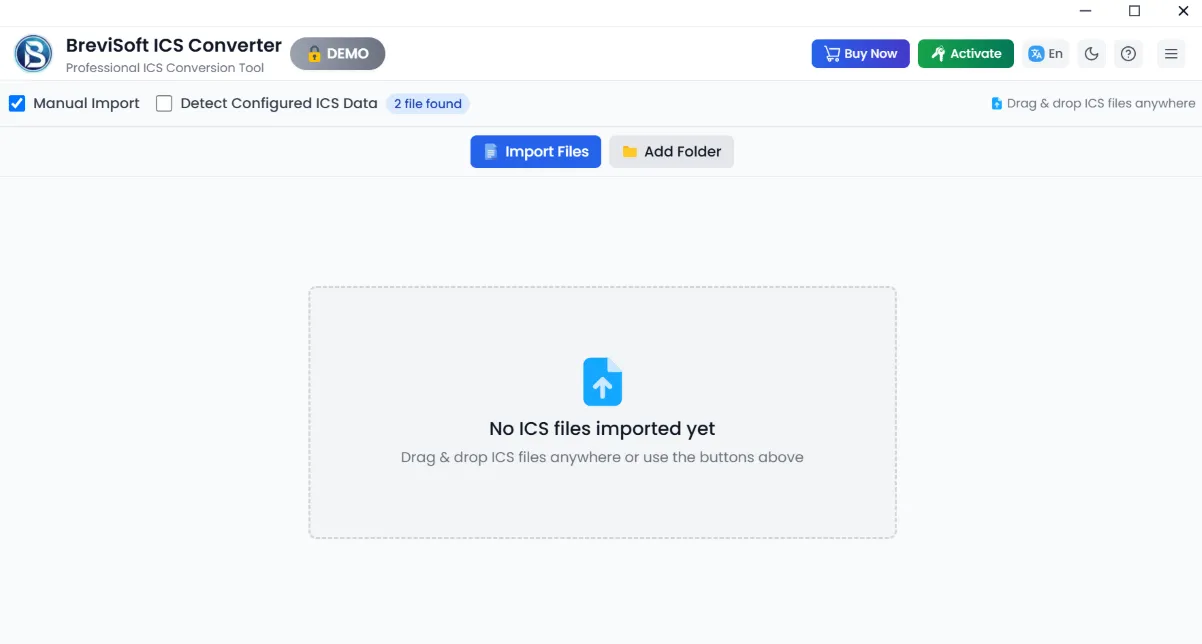
- Load Your Calendars: Click Add File for a single calendar, or Add Folder to process a batch of .ics files at once.
- Inspect the Content: Select any loaded file to preview its agenda, organizer details, and recurring rules directly in the viewer pane.
- Choose Your Output: Select PST for Outlook, CSV for spreadsheets, PDF for documentation, or Office 365 to push data straight to the cloud.
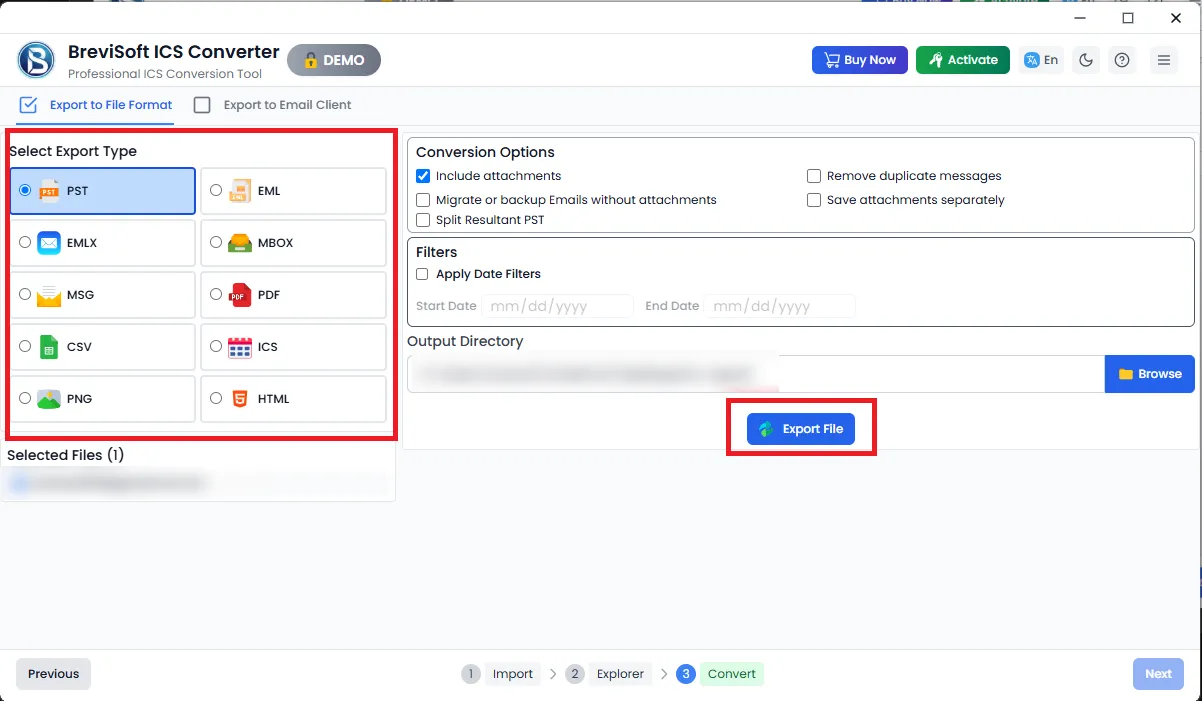
- Set Filters & Convert: Set your target date range, enable duplicate removal if needed, choose your destination folder, and click Convert.
Feature Comparison: Native Outlook vs. BreviSoft ICS Converter
|
Feature / Task |
Built-In Outlook |
BreviSoft ICS Converter |
|
Inspect raw .ics files |
Must import first to view details |
Built-in viewer with complete metadata |
|
Batch Processing |
One file at a time, manually |
Batch-processes entire folders |
|
External Files (Google / Apple) |
Potential sync and format glitches |
Retains recurring patterns and formatting |
|
Export to PDF or Excel |
Limited or unsupported natively |
One-click export to PDF, CSV, TXT, etc. |
|
Duplicate Prevention |
Requires manual cleanup |
Automatic detection and filtering |
|
Outlook Dependency |
Requires active Outlook setup |
Works completely standalone |
Conclusion
Managing team schedules does not need to be complicated. If you only need to check an internal colleague’s availability, the built-in Add Calendar menus in New and Classic Outlook handle the job. When you are managing offline .ics files, moving calendars between Google and Microsoft accounts, or working around sync errors, the BreviSoft ICS Converter Tool offers a clean, independent way to keep your calendar data accurate and organized.
Frequently Asked Questions
Ans – This occurs when the calendar owner sets your permission level to “Free/Busy” rather than “Full Details.” To resolve this, the calendar owner must open their calendar properties, find your name under the Permissions tab, and change the access level to “Can view titles and locations” or “Can view all details.”
Ans – Native Outlook merges opened .ics files straight into your primary calendar. The most straightforward way to inspect an .ics file without altering your personal agenda is to use a viewer tool like BreviSoft ICS Converter, which lets you review all dates, notes, and attendees prior to importing or converting.
Ans – Classic Outlook supports basic exports to .csv, but the resulting files often lose recurring events and clean column alignments. New Outlook does not support direct PDF or CSV exports. Using a dedicated converter allows you to export .ics files to structured CSV files or formatted PDF documents in a single step.
Ans – No. The software functions independently. You can open, read, filter, and convert .ics files to PDF, CSV, PST, or cloud targets even if Microsoft Outlook is not installed on your system.