An ICS file stores calendar events such as meetings, appointments, reminders, and schedules. However, users may sometimes find that an ICS file is not opening in Outlook or cannot be imported into New Outlook. This issue can occur because of incorrect app associations, Outlook settings, file compatibility, or damaged calendar data. In this guide, we explain three practical methods to fix ICS file won’t open in New Outlook issues. You can try Outlook’s built-in import options, reset the Windows default application for ICS files, or use the BreviSoft ICS File Converter Tool as a professional solution to convert ICS files into various formats and manage calendar data more easily.
Table of Contents
Why Are .ICS Calendar Files Not Opening in New Outlook?
Several reasons can cause an ICS file not to open or import correctly in New Outlook:
- Incorrect default application association for
.icsfiles. - Unsupported or damaged calendar data.
- Incorrect Outlook import settings.
- Browser or download-related file issues.
- Compatibility problems with the current Outlook version.
- Incorrect file permissions or file extension.
If you are facing an ICS file not opening in Outlook, try the following methods.
Method 1: Import .ICS Files Directly via New Outlook Web & App Settings
New Outlook provides calendar options that can help you import calendar files.
- Open New Outlook and go to Calendar.
- Look for the Add calendar or import option.
- Select Upload from file where available.
- Browse and select your
.icsfile. - Choose the calendar where you want to add the events.
- Select Import and check whether the events appear correctly.
If the file still cannot be imported, try the next method.
Method 2: Reset Windows Default App Associations for .ICS Files
If double-clicking an ICS file does nothing or opens it as plain text, the Windows file association may be incorrect.
- Right-click the
.icsfile. - Select Open with.
- Choose Outlook or the appropriate calendar application.
- Enable Always use this app to open .ics files if the option is available.
- Open the file again.
You can also check Windows Settings → Apps → Default apps and review the application associated with the .ics extension.
This method can help fix double click ICS file not opening Outlook issues.
Method 3: Use BreviSoft ICS Converter Tool for Instant Fixes & Bulk Import (Professional)
If the ICS file is not importing properly or you need to convert calendar data into another format, the BreviSoft ICS File Converter Tool provides a professional alternative.
It can help convert ICS calendar data into various supported file formats, making it easier to access, organize, or migrate calendar information. The software The software also lets you open ICS file into different formats based on your needs.
Steps to Convert ICS Files Using BreviSoft
- Download and Runs BreviSoft ICS File Converter Tool.
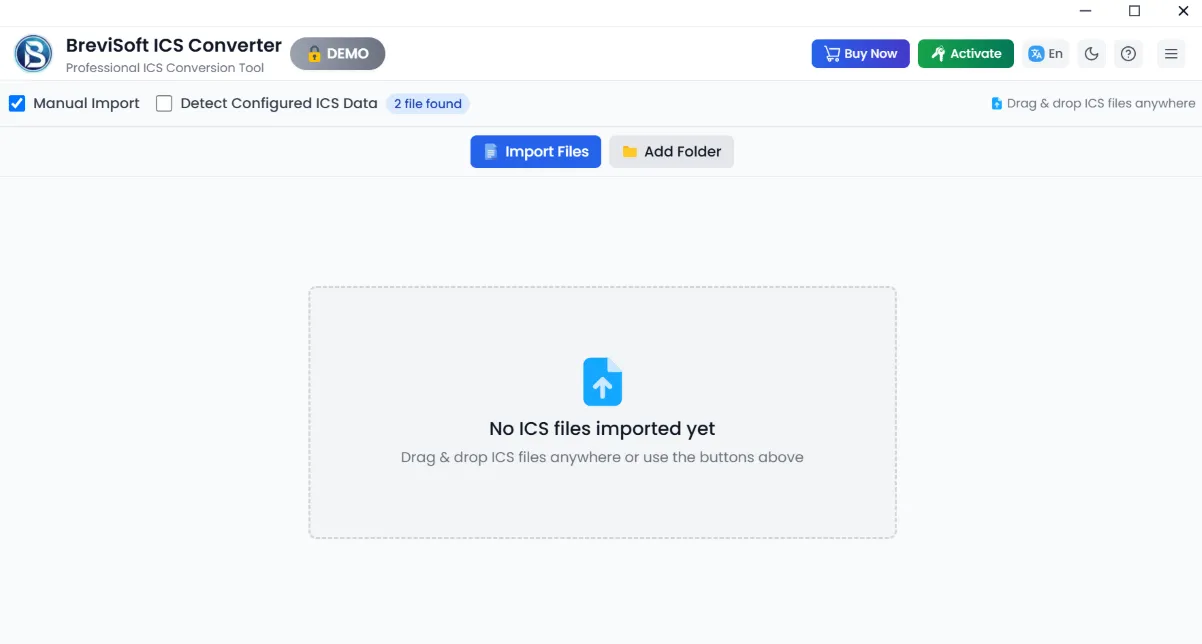
- Add ICS Files – Upload one or multiple
.icsfiles.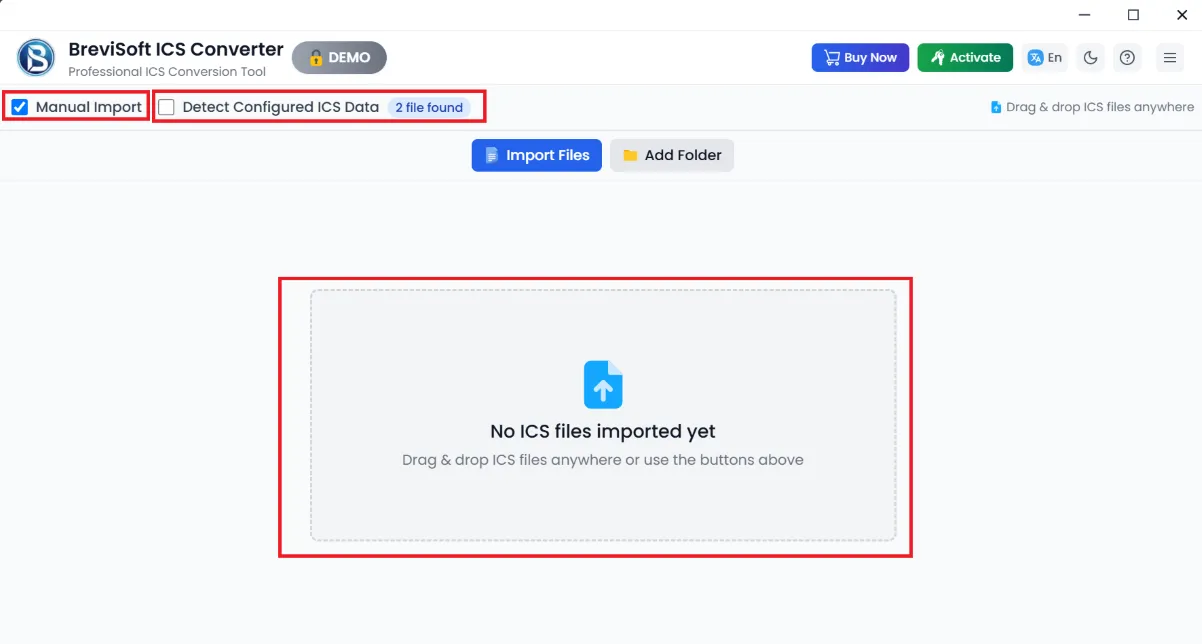
- Preview Calendar Data – Check the available event information.
- Select Output Format – Choose the required destination format.
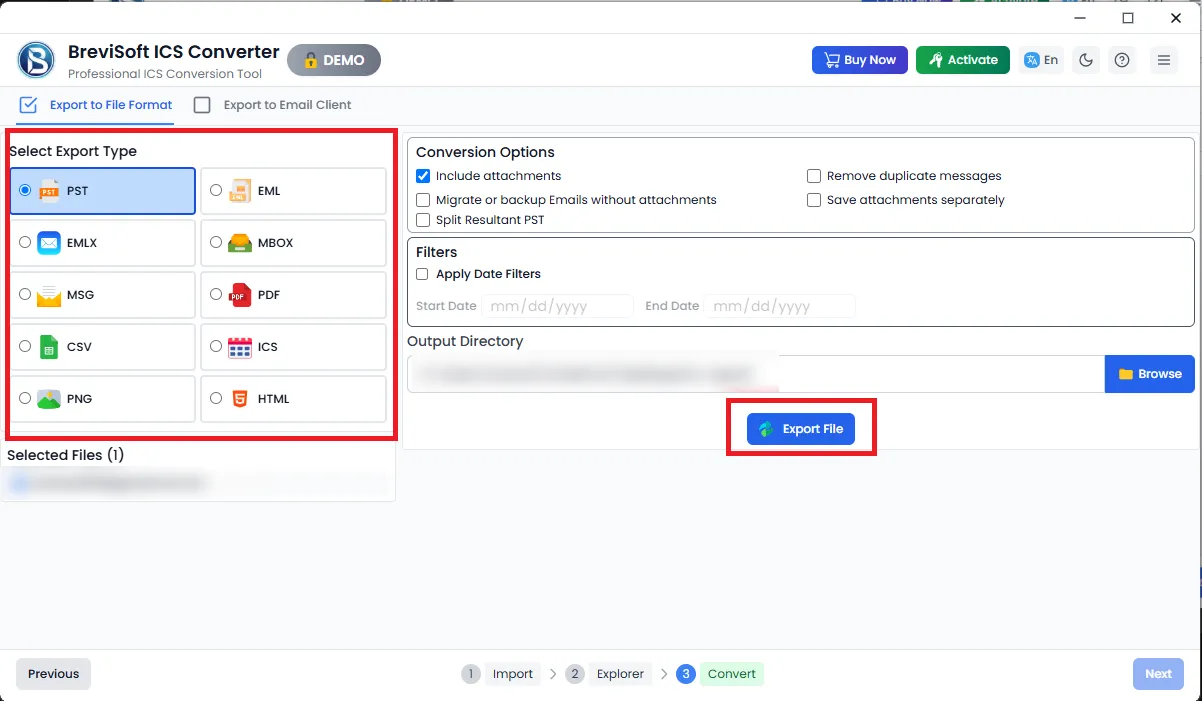
- Convert ICS Files – Start the conversion process.
- Save Converted Data – Access the converted calendar files from the selected location.
This method can be useful when you cannot import ICS file into Outlook 365 and need to convert the calendar data before using it with another application.
Quick Tips to Prevent .ICS File Errors in Outlook
Follow these tips to reduce common ICS file problems:
- Keep Outlook updated to the latest available version.
- Download ICS files from trusted sources.
- Check that the file extension is
.ics. - Avoid editing ICS files manually unless necessary.
- Make sure the calendar file is not damaged.
- Check the default application associated with
.icsfiles. - Keep a backup of important calendar data before conversion.
Conclusion
An ICS file not opening in Outlook can often be resolved by checking Outlook’s import options or resetting the Windows default app association. If the file still cannot be imported or you need to convert calendar data into another format, the BreviSoft ICS File Converter Tool offers a professional conversion method. Choose the approach that best fits your calendar data and Outlook setup.
Frequently Asked Questions (FAQs)
Ans – This can happen when Windows does not have the correct application association for .ics files. Check the Open with settings and associate the file with the appropriate calendar application.
Ans – BreviSoft ICS File Converter Tool is designed to process ICS calendar files and convert their data into supported formats. For very large files, check the tool’s current system and file-size requirements before processing.
Ans – You can open an ICS file using the available calendar or Outlook import options on Mac. If double-clicking does not work, try opening the file through the appropriate application or import menu.