Table of Contents
Why Switch Emails from GoDaddy to Google Workspace?
GoDaddy is suitable for domain registration and shared hosting, but when your team has more than a few inboxes, regular webmail begins to seem limiting.
Google Workspace combines Gmail with Drive, Meet, Calendar, Docs, and Sheets. For teams that are already using these applications, having everyone manage their email through the same account means that you won’t need to keep switching between tabs.
It’s also easier to look after all these aspects. The Google Admin Console enables you to manage user security, IMAP and POP access, and group aliases altogether in one place. You’ll be able to save a great deal of troubleshooting time if you have to manage mailboxes for clients or employees.
Be careful about timing your transition. Otherwise, users will find that their old messages are missing when they log in on Monday morning.
Before You Start
The main reason for most migration problems is simple errors in the setup—such as IMAP being switched off, having invalid authentication tokens, or experiencing DNS delays—the actual transfer of the data is almost never the real problem.
Check your GoDaddy email plan
Start by determining what runs your GoDaddy email since you’ll need to know:
- Whether it’s GoDaddy Professional Email (IMAP/POP) or GoDaddy-hosted Microsoft 365
- The exact IMAP/POP server hostnames and secure ports
- Valid credentials or app-specific passwords for every user
- Total mailbox sizes and how deep the folder structures go
- Which custom folders, archives, and rules need to survive the move
Prepare a list of all the users who are currently active; this list will then serve as your mapping file when you are setting up the Google Workspace accounts.
Prepare your Google Workspace account
Before handling any real data, set up your Google Workspace destination by creating user accounts that correspond to the original usernames (for example, support@yourcompany.com) and assigning the appropriate Google Workspace licenses.
When the migration tool is bringing in the old emails, make sure that your MX records remain directed at GoDaddy; if you change them too early it could cause the new mail to be split between the two servers, leading to complications.
Run through this checklist first:
- You have to check your custom domain in the Google Admin Console.
- Arrange all the user accounts for the destination.
- Assign the correct Google Workspace licences.
- Using a standard IMAP client like Outlook or Thunderbird, check the login for each source mailbox.
- Ensure that IMAP access is turned on with GoDaddy.
- Set aside a downtime window for the final MX record switch.
- If the users are using cached Outlook profiles then back up the local .pst or .ost files.
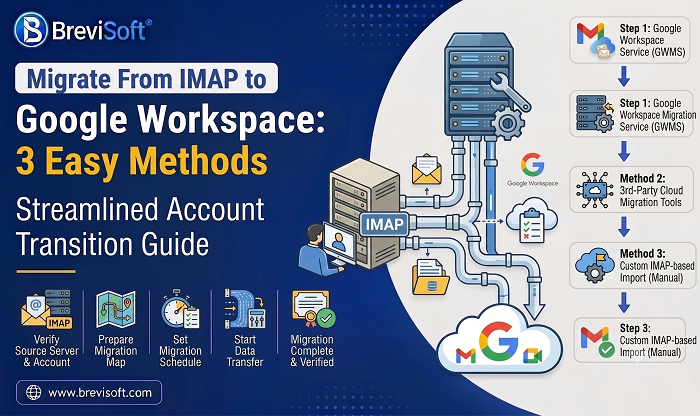
Method 1: Google Workspace Data Migration Service (Recommended)
Should you wish to keep all your data within Google’s cloud, you should make use of the built-in Data Migration Service, as it transfers your mailbox data directly into Google Workspace and does not necessitate having an intermediate server or a desktop client.
Step 1: Open the Google Admin Console
Log in to admin.google.com with a super administrator account, go to the data migration section (Google at times puts this under Apps or Account settings), select email as the type of data and then pick your source system.
Step 2: Configure the service
Select the type of source server and input the connection details; in the case of a standard GoDaddy IMAP configuration, you will generally need:
- For example, the hostname of the IMAP server from which the connection is coming (imap.secureserver.net)
- The port number, usually 993 with SSL/TLS
- The source mailbox username and password
- A CSV mapping file if you’re migrating several users in a batch
Before you begin, make sure that your mapping spreadsheet is correct since a single typing error could cause important company emails to end up in the wrong inbox.
Step 3: Start and monitor
Begin the migration and then monitor the logs as the process is running. Even if Google indicates that a mailbox has been “completed”, don’t just accept that statement. Log into a few of the destination accounts using webmail or an IMAP client such as Outlook and check the custom folders, the sent items, and the attachments.
Pros and cons
Pros:
- Built into Google Workspace administration
- Nothing extra to install or maintain
- Handles straightforward mailbox migrations well
- Gives you detailed error reporting in the console
Cons:
- Setup depends on whether GoDaddy hosts standard IMAP or Microsoft 365
- Large batch mappings need carefully formatted CSV files
- Tracking down authentication problems can be slow
Method 2: Google Workspace Migration for Microsoft Exchange (GWMME)
GWMME is a tool designed primarily for use with Microsoft Exchange or Microsoft 365 environments; it isn’t the appropriate option when your GoDaddy email account uses standard IMAP, but it can be used if you have a corporate Microsoft 365 subscription.
Step 1: Download and install GWMME
Obtain the official installer from Google’s documentation and put it on a staging Windows machine or server which has the required network access. You should have local administrator rights and the appropriate Google Workspace API permissions already in place.
Step 2: Authorize and map user accounts
Log in to the system with your Google Workspace admin credentials and then upload the user mapping files that link each source Exchange or Microsoft 365 account with the appropriate Google account.
Step 3: Run the migration
Switch on the utility, set the date ranges and the data scopes, and then keep an eye on the console logs for any dropped connections or authentication timeouts. When this has been done, compare the logs with those in the destination inboxes.
Pros and cons
Pros:
- Built for enterprise, Microsoft-backed environments
- Solid logging for large administrative rollouts
Cons:
- Doesn’t work with standard GoDaddy IMAP email plans
- Takes more technical setup and configuration
Method 3: Third-Party Automated Migration Tool
When you have a large number of mailboxes, built-in tools can make the process slow due to the need for manual mapping or other restrictions; in such situations, use an automated tool such as the BreviSoft IMAP Migration Tool.
The tool eliminates the need for manual drag-and-drop operations. It establishes a direct connection with your GoDaddy IMAP account and Google Workspace and transfers the mailboxes between servers by using multiple threads. It also transfers IMAP mailboxes to Exchange Online and other cloud environments.
When a third-party tool makes sense
Consider it when:
- You’re migrating dozens of GoDaddy IMAP accounts at once
- You want control over folder structures and date filters
- You’d rather not set up an enterprise utility like GWMME for plain IMAP mailboxes
- You need a repeatable process for onboarding clients
Before you start, check that your GoDaddy mailboxes support standard IMAP connections and confirm that the Google Workspace security policies allow third-party apps to connect using secure authentication tokens.
Steps to migrate email from GoDaddy to Google Workspace using BreviSoft:
- Install the BreviSoft IMAP Migration Tool and then open it.
- Use GoDaddy as the source and Google Workspace as the destination.
- Enter the GoDaddy IMAP Server email ID, password, port, and login.
- Also give the details of the Google Workspace account that is the destination.
- Set all options according to your requirements.
- Click on the Migration button and start the migration process.
Comparison: Manual vs. Professional Methods
| Feature | Google Data Migration Service | GWMME | BreviSoft IMAP Migration Tool |
|---|---|---|---|
| Best suited for | Supported source services | Supported Exchange scenarios | Supported IMAP mailbox migrations |
| Installation | Browser-based admin service | Desktop/server utility | Dedicated migration software |
| Setup | Google Admin console | Migration utility configuration | Source and destination connection |
| Multiple mailboxes | Depends on the migration setup | Depends on the supported scenario | Depends on the product version and license |
| Compatibility | Depends on source type | Exchange compatibility must be verified | Both mailboxes must support the required IMAP access |
| Cost | Included as a Workspace service feature, subject to plan and configuration | Check current Google availability and requirements | Check current product pricing and license terms |
| Main consideration | Choose the correct source type | Not a universal GoDaddy migration solution | Verify features and authentication support before starting |
The method you choose depends on your current setup; if you have a simple GoDaddy IMAP setup, an IMAP-specific migration tool is easier to use than one designed for Exchange.
Post-Migration Steps (Crucial for Email Delivery)
The transfer of emails is only one aspect of the job; after you’ve done that, you should check that the email system is working properly.
Start by making sure that all the necessary users are able to sign in to Google Workspace and have access to their previous messages.
Now test the sending and receiving.
Send a message from an external account to a Google Workspace address that has been migrated. Then reply from Google Workspace and verify the response in the external account.
This is when the DNS change takes place.
Once you are ready to use Google Workspace as your live email service, make sure that the domain’s MX records are updated in accordance with Google’s current instructions.
Make sure that you have SPF, DKIM, and DMARC. These records are useful for verifying email and can influence whether messages end up in the inbox or the spam folder.
Also check:
- Email aliases
- Forwarding rules
- Groups
- Shared mailboxes or delegated access
- Email signatures
- Mobile devices
- Outlook or other mail clients
- Website contact forms
- SMTP settings used by applications
If you can, continue to keep the old GoDaddy mailboxes active for a time. This way, you have a backup as you verify that everything is working properly.
Conclusion
There’s no need for moving your GoDaddy emails to Google Workspace to be a difficult task—you just need to select a migration method that suits the way your email is set up.
For administrators who wish to work within Google Workspace, Google’s Data Migration Service is a suitable starting point; however, GWMME is more appropriate when the source environment matches its Exchange-oriented design.
With the BreviSoft IMAP Migration Tool, there is another practical way of moving mailbox data from GoDaddy mailboxes into Google Workspace without having to copy the emails from each account one by one.
Whatever method you choose, be careful when carrying out the final DNS change. Firstly, migrate your data and check it, test sending and receiving, and only then move your actual mail to Google Workspace.
FAQs:-
Ans – Yes, it is possible to migrate your GoDaddy email to Google Workspace provided that the source mailbox settings and authentication method are supported; with respect to IMAP-based GoDaddy accounts, you can make use of Google’s migration service or an IMAP migration tool.
Ans – For a small number of accounts that are supported, the Google Data Migration Service can provide a simple solution. When you have multiple IMAP mailboxes, you can reduce the amount of manual work by using an automated IMAP migration tool such as the BreviSoft IMAP Migration Tool.
Ans – Yes, but the process depends on whether you’re using a personal Gmail account or a managed Google Workspace account. Google Workspace is generally the better choice for business users who need centralized administration and custom-domain email.
Ans – Usually, you should plan the migration before changing your MX records. The timing of the DNS switch matters because it determines where new incoming messages are delivered. Complete the migration and verification steps before making Google Workspace your live mail destination.