Microsoft Outlook stores mailbox data in two primary file formats: OST (Offline Storage Table) and PST (Personal Storage Table). While PST files can be imported directly into Outlook, OST files cannot because they are linked to the Outlook profile and Exchange, Microsoft 365, or IMAP account that created them. If you’ve moved to a new computer, lost access to your Exchange account, or need to recover mailbox data from an orphaned OST file, you’ll first need to convert the OST file to PST.
In this guide, you’ll learn how to import OST to Outlook Classic and New Outlook safely, understand why direct OST import isn’t supported, and discover the easiest way to migrate your mailbox using the BreviSoft OST to PST Converter Tool.
Table of Contents
What Is an OST File?
An OST (Offline Storage Table) file is a local copy of your Outlook mailbox created when you use Microsoft Exchange, Microsoft 365, Outlook.com, or an IMAP account. It lets you access emails, contacts, calendars, tasks, and other mailbox items even without an internet connection. Once you’re back online, Outlook automatically synchronizes changes with the mail server.
Unlike PST files, OST files are tied to the Outlook profile that created them. If the profile is deleted or the Exchange account becomes unavailable, the OST file becomes orphaned and Outlook cannot open or import it directly.
Why Outlook Classic or New Outlook Doesn’t Support Direct OST Import
Microsoft Outlook does not support the direct import of OST (Offline Storage Table) files because they are designed as offline cache files rather than portable data files. An OST file is automatically created when you configure an Exchange Server, Microsoft 365, Outlook.com, or IMAP account in Outlook. It maintains a synchronized copy of your mailbox, allowing you to access emails, contacts, calendars, and other items even when you’re offline.
Unlike a PST file, an OST file is securely linked to the Outlook profile and email account that created it. This association helps maintain data integrity and synchronization with the mail server. If you copy an OST file to another computer or Outlook profile, Outlook cannot verify its relationship with the original account, preventing it from being imported or opened directly.
For this reason, Outlook’s built-in Import and Export Wizard only supports PST files. If your original Outlook profile or Exchange account is unavailable, the recommended approach is to convert the OST file to PST using a trusted tool like the BreviSoft OST to PST Converter. The converted PST file can then be imported into Outlook Classic without affecting your original mailbox data.
Can You Import an OST File into Outlook?
No. Microsoft Outlook does not provide a built-in option to import OST files. The Import and Export Wizard only supports PST files because OST files are offline cache files associated with a specific Outlook profile.
If you need to access data stored in an OST file, the recommended approach is:
- Convert the OST file to PST.
- Import the PST into Outlook Classic.
- Access the mailbox from Outlook Classic or synchronize it with supported Microsoft 365 accounts.
Method 1: Import OST to New Outlook by Converting OST Using BreviSoft
The simplest way to import OST data into Outlook is by using the BreviSoft OST to PST Converter Tool. It converts healthy, orphaned, encrypted, and even damaged OST files into Outlook-compatible PST files while preserving the original mailbox structure.
Steps to Export OST to PST For Importing OST to New Outlook
- Step 1: Install and launch the BreviSoft OST to PST Converter.
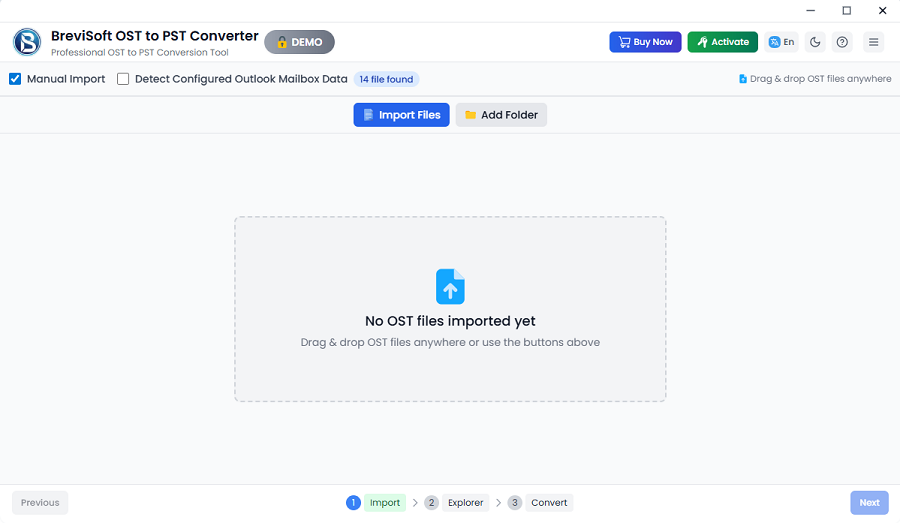
- Step 2: Click Browse and select the OST file from your computer.
- Step 3: Preview mailbox folders, including emails, contacts, calendars, notes, tasks, and attachments.
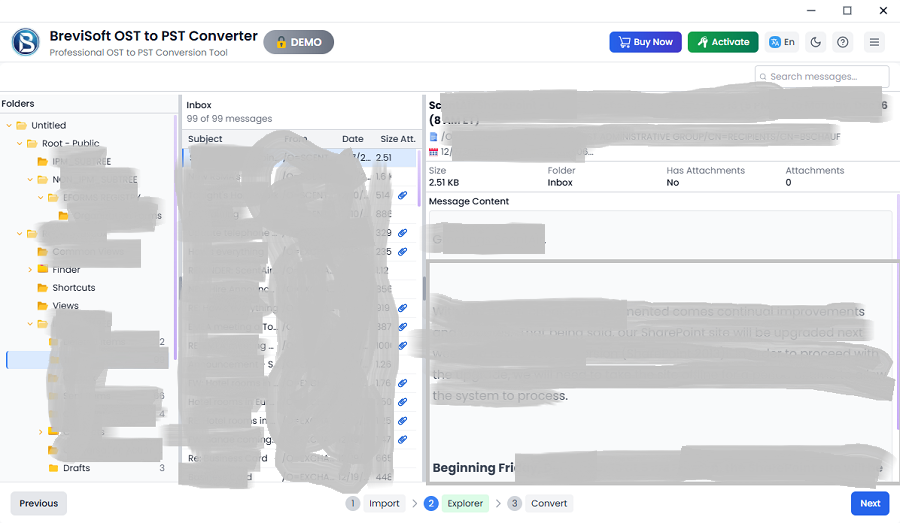
- Step 4: Select PST as the output format and choose a destination folder.
- Step 5: Click Convert to start the conversion process.
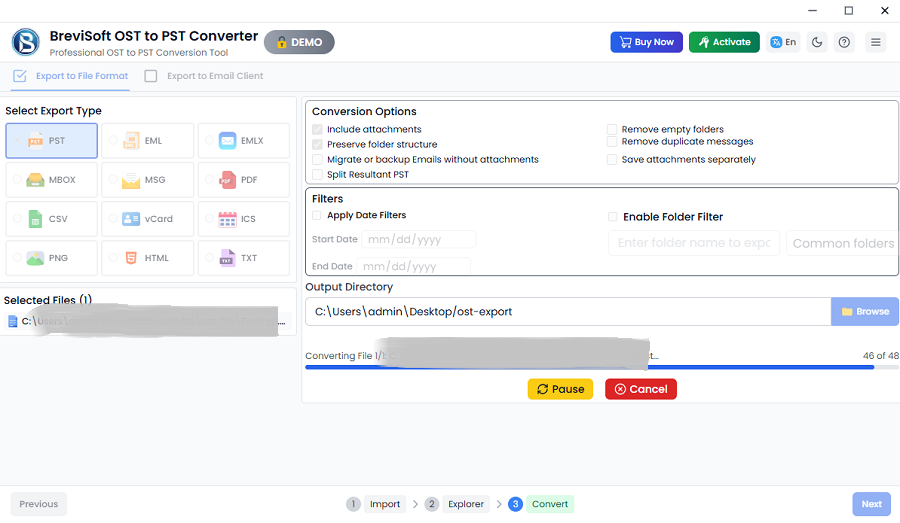
- Step 6: Save the generated PST file.
Once the conversion is complete, the PST file is ready to be imported into Outlook.
Method 2: Import OST into Outlook Classic
After converting the OST file, import the generated PST into Outlook Classic.
Follow the Steps to Import OST to Classic Outlook
- Open Microsoft Outlook Classic.
- Go to File → Open & Export → Import/Export.
- Select Import from another program or file.
- Choose Outlook Data File (.pst).
- Browse and select the converted PST file.
- Choose how Outlook should handle duplicate items.
- Select the mailbox folder and enable Include subfolders.
- Click Finish.
Outlook will import your mailbox, including emails, contacts, calendars, tasks, notes, journals, and attachments.
Method 3: Access PST in New Outlook
The New Outlook for Windows currently does not include the traditional Import and Export Wizard available in Outlook Classic. As a result, PST files cannot be imported directly.
The recommended workflow is:
- Convert the OST file to PST.
- Import the PST into Outlook Classic.
- Synchronize the mailbox with your Microsoft 365 or Exchange account if required.
- Open the New Outlook to access the synchronized mailbox.
Until Microsoft introduces native PST import functionality, Outlook Classic remains the preferred application for mailbox migration.
Common Errors While Importing OST to Outlook and Their Solutions
Importing Outlook mailbox data is generally straightforward when using a PST file. However, users may encounter issues due to corrupted files, profile problems, unsupported formats, or Outlook limitations. Below are the most common errors and practical solutions.
|
Error |
Possible Cause |
Solution |
|
Cannot import OST file |
Outlook doesn’t support OST import |
Convert OST to PST before importing. |
|
Outlook Data File is corrupted |
PST or OST file corruption |
Repair the file or recreate the PST using BreviSoft OST to PST Converter. |
|
Import/Export Wizard is missing |
Using the New Outlook |
Use Outlook Classic to import the PST file. |
|
PST file is too large |
Large mailbox size |
Split the PST during conversion or archive older emails. |
|
Outlook freezes during import |
Large PST or insufficient system resources |
Close other applications and import the PST in smaller batches if necessary. |
|
Duplicate emails appear |
Incorrect duplicate handling option |
Select Do not import duplicates or Replace duplicates during the import. |
|
Folder hierarchy is missing |
Improper conversion or import |
Use a professional OST to PST converter that preserves the original structure. |
|
Some mailbox items are missing |
Damaged OST file |
Scan the OST file again and export it using a reliable conversion tool. |
Conclusion
Since Microsoft Outlook does not support importing OST files directly, converting the OST file to PST is the most reliable and secure method for migrating mailbox data. Once converted, the PST file can be easily imported into Outlook Classic using the built-in Import and Export Wizard. For users of the New Outlook, importing the PST through Outlook Classic remains the recommended workflow until Microsoft expands native import capabilities.
If you’re dealing with an orphaned, encrypted, oversized, or damaged OST file, the BreviSoft OST to PST Converter Tool provides a fast and dependable solution. It preserves emails, attachments, contacts, calendars, tasks, notes, metadata, and folder hierarchy, ensuring a smooth migration with minimal effort.
Whether you’re upgrading your computer, recovering data after an Exchange Server failure, or migrating to a new Outlook profile, converting OST to PST before importing is the safest way to protect your valuable mailbox data.
Frequently Asked Questions
Ans – To import PST to Outlook Classic, open Outlook and navigate to File > Open & Export > Import/Export. Select Import from another program or file, choose Outlook Data File (.pst), browse for the PST file, and follow the on-screen instructions to complete the import.
Ans – Currently, Microsoft does not provide a built-in option to import PST to New Outlook. The recommended approach is to import the PST into Outlook Classic first. If you’re using a Microsoft 365 or Exchange account, the imported mailbox data can then synchronize and become accessible in the New Outlook.
Ans – An OST file is an offline cache linked to the Outlook profile and mail server that created it. Because it isn’t a portable data file, Outlook does not allow direct OST import. Converting the OST file to PST is the safest and most effective way to migrate mailbox data.
Ans – The safest method is to convert the OST file to PST using a professional tool like the BreviSoft OST to PST Converter. This preserves emails, contacts, calendars, attachments, folder hierarchy, and metadata before you import the PST into Outlook Classic.