OneDrive duplicate files are common. If you sync across a phone, a laptop, and maybe a work PC, you’ve probably seen the same file show up twice or even three times. It doesn’t happen all at once. It builds up slowly, and one day you notice your storage is almost full and you’re not sure why. This guide gets into why duplicate files show up in OneDrive in the first place, how to find and remove duplicate files in OneDrive using both manual and professional methods, and how to keep the problem from coming back, including where a tool like BreviSoft OneDrive Duplicate File Finder Tool can save you a lot of time along the way.
Table of Contents
Common Causes of OneDrive Duplicate Files
Before diving into removing duplicate files, it’s worth understanding why OneDrive duplicate files happen so often in the first place. A few of the usual suspects:
- Sync conflicts across devices – Edit the same file on two devices before syncing catches up, and OneDrive will often save both versions instead of picking one, usually tagging the second copy with something like “filename-PCName.ext.”
- Manual copying into synced folders – Drag a file into a OneDrive folder that already has it, or one that syncs from somewhere else entirely, and you’ve got duplicate files in OneDrive before you even notice.
- Multiple upload sources – Auto camera uploads from a phone, combined with manually copied photos from that same device, often produce two versions of identical images.
- Restoring old backups – Restore a backup into a synced folder without checking what’s already there first, and you can double up entire folders in one go.
- Shared folders synced by more than one person – When several people sync the same shared folder locally, small naming or timing differences end up creating duplicate files in OneDrive that are really just separate uploads of the same content.
None of this means you’re doing something wrong. It’s just what happens naturally when syncing across multiple devices.
How to Find and Remove Duplicate Files in OneDrive Using Best Methods
There are really two paths here. Check things manually, or let dedicated software do the heavy lifting. Which one makes more sense usually comes down to how many files, and how many folders, you’re actually dealing with.
Manual Methods for Finding OneDrive Duplicates
Got a small OneDrive account or just one messy folder? Manual checking can still get you there. Here’s roughly how:
- Open OneDrive on the web or through File Explorer and head to the folder you want to check.
- Switch to a list view sorted by name, so conflicted copies and near-identical file names are easier to spot.
- Look for tags like “conflicted copy,” a device name tacked onto the file name, or a trailing “(1)” or “(2).”
- Sort by file size next, since identical files will almost always share the exact same size.
- Open anything you suspect is a duplicate side by side and confirm before deleting.
- Check OneDrive’s Version History on anything important, since what looks like a duplicate is sometimes just an earlier version worth keeping.
Fine for a handful of files. But once you’re dealing with thousands spread across shared folders and multiple synced devices, this gets slow fast, and it’s easy to get wrong.
Professional Methods to Find & Remove Duplicate Files in OneDrive
For larger OneDrive accounts, dedicated software is just the more sensible route, and BreviSoft OneDrive Duplicate File Finder Tool is built specifically for this kind of cloud-synced cleanup. Here’s roughly what using it looks like:
Follow the Steps to Remove OneDrive Duplicate Files Using BreviSoft:-
- Install BreviSoft OneDrive Duplicate Remover Tool and connect it to your OneDrive folder or account.
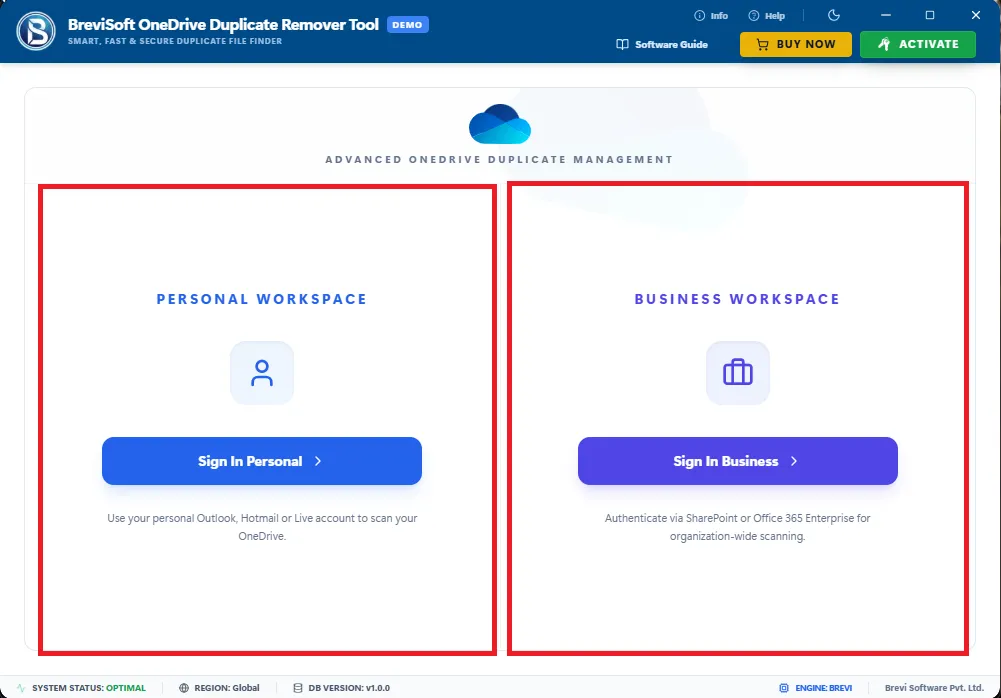
- Choose whether to scan your entire OneDrive or specific folders.
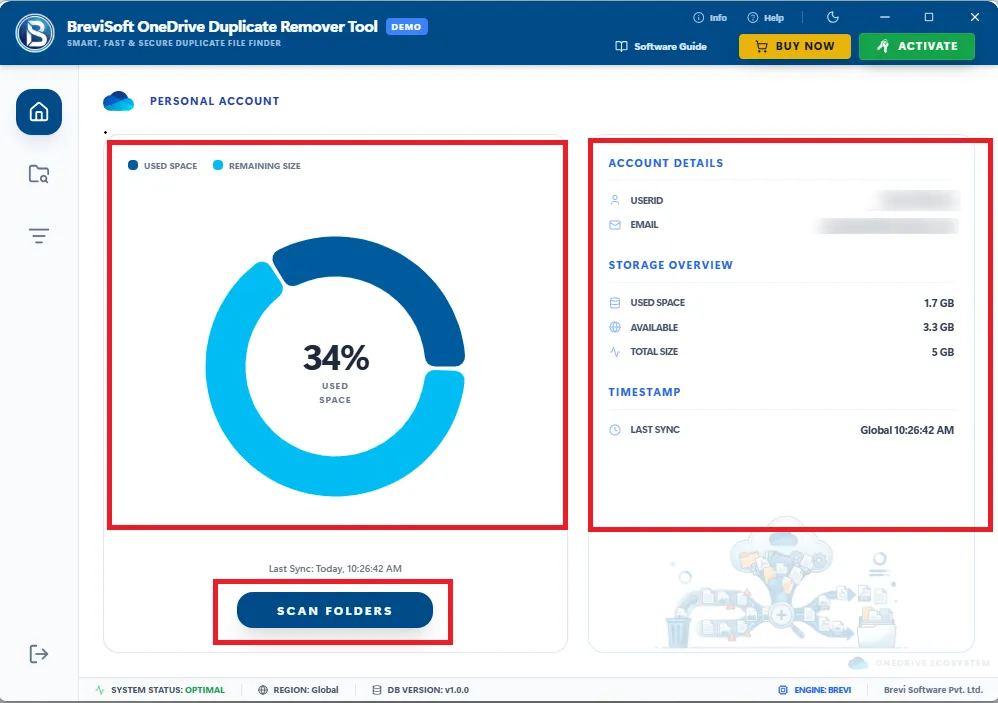
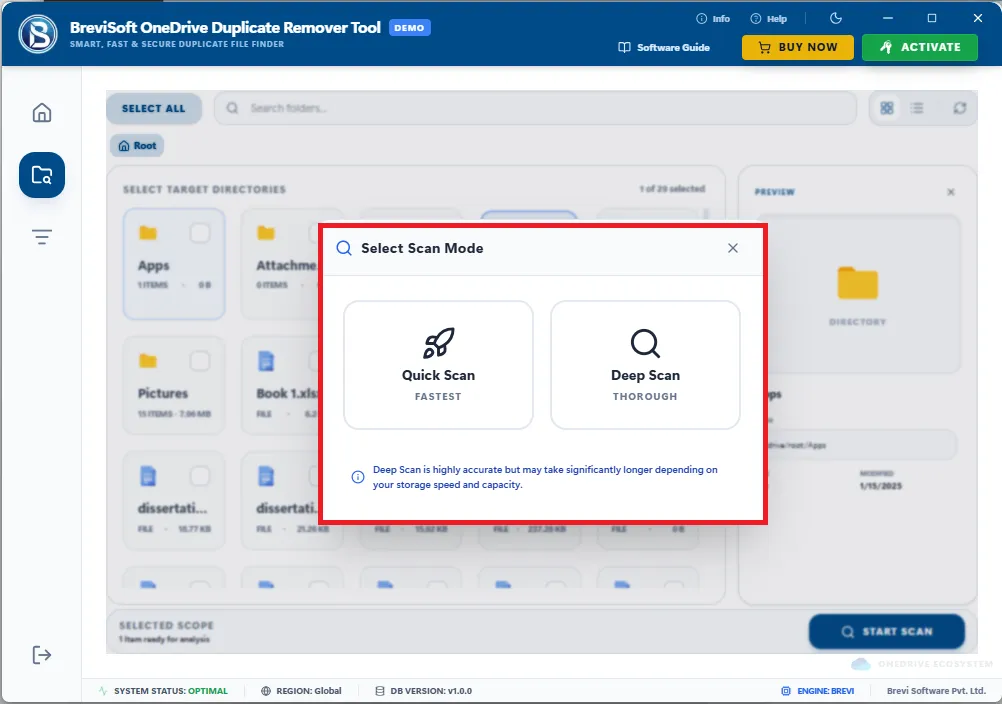
- Choose Scan Mode and Run the scan and let it compare files by name, size, and content together.
- Preview the results, which are grouped so you can see exactly what matches what.
- Select what to remove and delete duplicate files from OneDrive in a single pass.
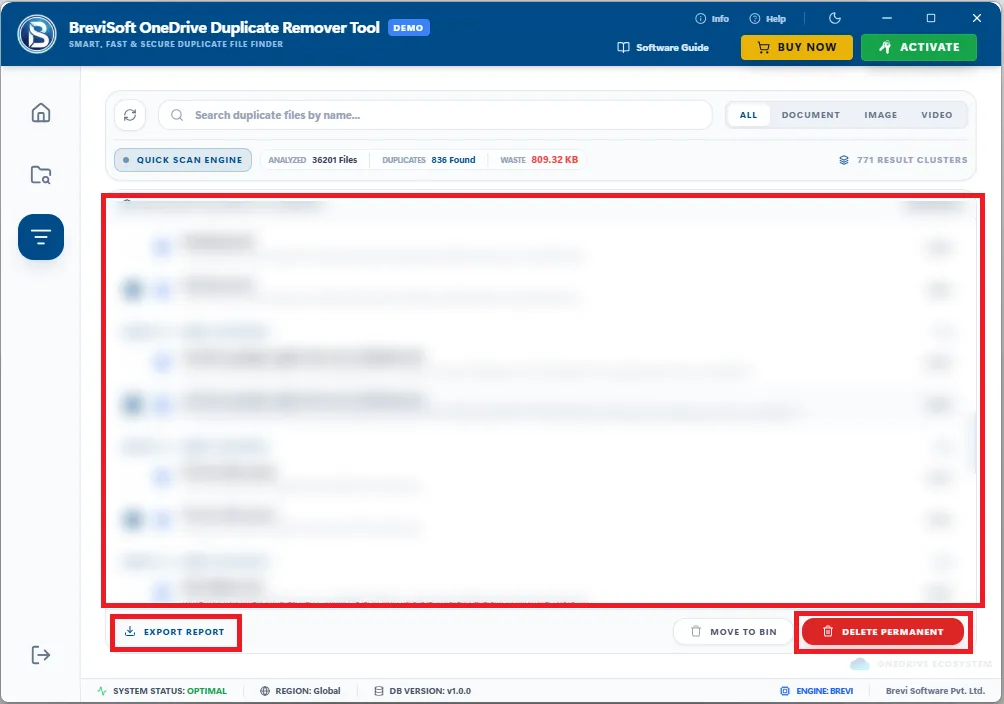
This catches a lot more than a manual pass usually would, especially near-duplicates and conflicted copies that aren’t always obvious just from scrolling through a folder.
Here’s a quick side-by-side, if you’re weighing which route to take:
| Method | Best For | Accuracy | Effort Required |
|---|---|---|---|
|
Manual Check |
A single folder or small account |
Low to moderate |
High |
|
BreviSoft OneDrive Duplicate File Finder Software |
Large OneDrive accounts, shared folders |
High |
Low |
Why Use BreviSoft OneDrive Duplicate File Finder?
Generic duplicate finders built for local drives don’t always play nicely with cloud-synced folders. And OneDrive has its own quirks, conflicted copies, sync delays, shared folder overlaps, that a regular tool might not even account for. That’s really where BreviSoft OneDrive Duplicate Remover Tool stands apart, since it’s built with those cloud-sync situations in mind from the start.
Instead of just comparing file names, it checks actual file content to confirm true duplicates, which matters a lot in OneDrive, where conflicted copies often carry completely different names but hold identical data underneath. It’s designed to work smoothly with how OneDrive actually syncs, so cleaning up duplicates doesn’t accidentally trigger new sync conflicts or affect files still shared with collaborators.
What really stands out is the control it gives you. Nothing gets deleted automatically. You see exactly what’s flagged, and why, before confirming anything. And because it’s built around how OneDrive syncs in the first place, it’s a lot less likely to misfire on conflicted copies or shared files than a generic tool would be.
Safe Practices for Removing OneDrive Duplicates
Deleting the wrong file in a synced folder can create more problems than it solves, so a little caution goes a long way here:
- Check sync status first – Make sure OneDrive has actually finished syncing before deleting anything, so you’re not removing a file that hasn’t backed up elsewhere yet.
- Avoid deleting from multiple devices at once – Cleaning up on two devices at the same time can create new sync conflicts instead of resolving old ones.
- Confirm shared files before deleting – Removing a file from a shared OneDrive folder can delete it for every collaborator, not just you, so double check ownership and sharing settings first.
- Use the Recycle Bin as a safety net – Both the local Recycle Bin and OneDrive’s own online Recycle Bin can help you recover something if it gets removed by mistake.
- Pause sync during large cleanups – Pausing sync temporarily while running a big deletion pass can stop OneDrive from re-uploading files mid-cleanup.
- Check version history before deleting anything old – What looks like a duplicate is sometimes just an earlier draft worth holding onto.
How to Prevent Duplicate Files in OneDrive
Cleaning up once helps, sure, but stopping duplicates from reappearing is really what saves you time in the long run:
- Stick to a single sync source per device instead of manually copying files into folders that already sync automatically.
- Resolve sync conflicts as soon as they show up, rather than letting conflicted copies pile up unaddressed.
- Keep file naming clear and consistent, so near-identical files are easier to catch before they multiply.
- Turn off camera upload on one device if photos are already syncing from another, so you’re not doubling up uploads.
- Check shared folders now and then, especially ones synced locally by more than one person.
- Run a duplicate scan on a regular schedule instead of waiting until the account feels cluttered.
Final Words
Duplicate files in OneDrive are annoying, but they’re not hard to fix once you know where they come from. A quick manual check works fine for a small folder. For a full account with years of synced files, a dedicated tool like BreviSoft OneDrive Duplicate File Finder Tool gets the job done faster and with less guesswork. Either way, a little regular cleanup goes a long way toward keeping your OneDrive storage under control.
Frequently Asked Questions
Ans – Mostly it comes down to sync conflicts. Edit a file on two devices before syncing catches up, and OneDrive saves both versions instead of picking one, which is why you’ll often see a second copy tagged with a device name.
Ans – Generally, yes, as long as you confirm the files actually match first and check whether they’re shared with anyone else before removing them.
Ans – For a small folder, manual sorting by name and size works well enough. For a full account or shared folders, though, a dedicated OneDrive duplicate file finder like BreviSoft’s tool is far more accurate and saves a lot of time.
Ans – It shouldn’t, as long as sync has fully finished before you delete anything and you’re not making changes from multiple devices at once.
Ans – Mostly it comes down to sticking to one sync source per device, resolving conflicts quickly when they show up, and not manually copying files into folders that already sync automatically.