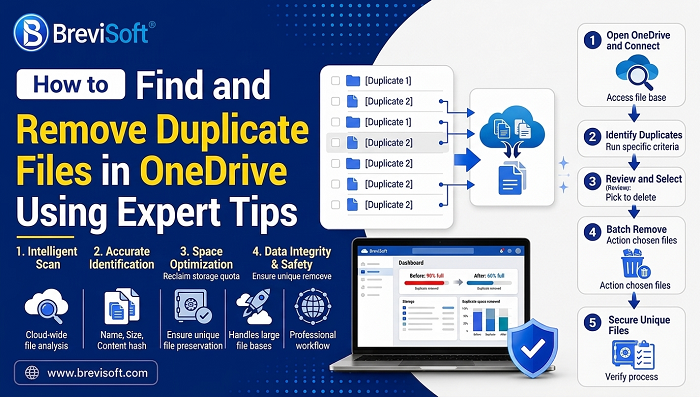
If you’ve ever scrolled through your OneDrive Pictures folder and spotted the same photo three times over, you’re not imagining things. Duplicates creep in constantly, since a file gets uploaded twice, a device syncs the same album again, or a folder gets copied “just in case” and never cleaned up. Left alone, they quietly eat into your storage and turn a simple photo library into a mess you dread opening.
You can hunt these down yourself by comparing file names, sizes, and dates. But if you’re dealing with thousands of images, that gets old fast, and that’s where a tool like BreviSoft OneDrive Duplicate Remover comes in handy. It’s built specifically to find and clear out duplicate files and photos across both OneDrive Personal and Business accounts. Below, we’ll walk through both the manual approach and the faster route.
Table of Contents
Why Does OneDrive Keep Duplicating Photos?
There’s no single culprit, since it’s usually a combination of things:
- The same pictures get uploaded more than once, often without realizing it.
- Photos sync in from several devices at once.
- Images get copied between folders and never deleted from the original spot.
- Old backups get restored or moved back into an active folder.
- More than one OneDrive location is being used to sync the same content.
- A sync gets interrupted, so the upload is retried and creates a second copy.
None of these are unusual, since they’re just how cloud storage tends to behave over time. The problem is that the clutter adds up, and before long your Pictures folder is twice the size it needs to be.
Detecting Duplicate Photos the Manual Way
Compare Size and Date
Start by sorting your photos by file size or date modified. If two images share nearly identical sizes and were added around the same time, there’s a decent chance they’re the same shot. That said, don’t treat this as proof, because two different photos can easily land on similar sizes, so it’s worth opening them side by side before you delete anything.
Look for Repeated File Names
OneDrive’s search and sort tools can also help you spot naming patterns that give duplicates away, like IMG_001.jpg sitting right next to IMG_001 (1).jpg. That “(1)” is usually a giveaway that the file was uploaded twice. Again, take a second to actually look at both images first; similar names don’t always mean identical content.
Deleting Duplicates by Hand
Once you’ve confirmed which files are genuine duplicates:
- Select the copies you don’t need.
- Hit Delete.
- Head into the OneDrive Recycle Bin if you want them gone for good.
- Give the deleted files one last look before you empty the bin, since mistakes happen.
This works fine if you’re only dealing with a handful of extra photos. Once you’re into the hundreds, though, it stops being practical.
A Faster Way to Clear Out Duplicates
Manually checking every file in a large photo collection just isn’t realistic. This is where a dedicated duplicate finder earns its keep, since it scans the location you choose and flags likely duplicates far quicker than doing it by eye.
Using BreviSoft OneDrive Duplicate Remover
BreviSoft OneDrive Duplicate Remover was built for exactly this: finding and removing duplicate files and photos from OneDrive Personal and Business accounts without the manual legwork. The process is straightforward:
- Download & Runs BreviSoft Duplicate Remover Tool.
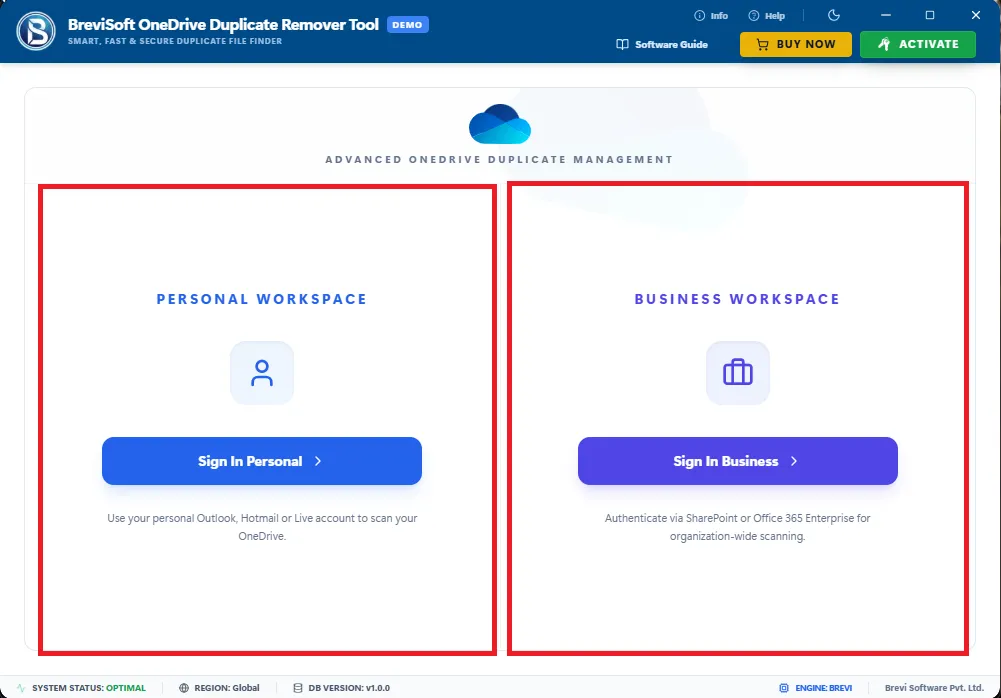
- Connect the OneDrive account by entering the login details after that you can scan.
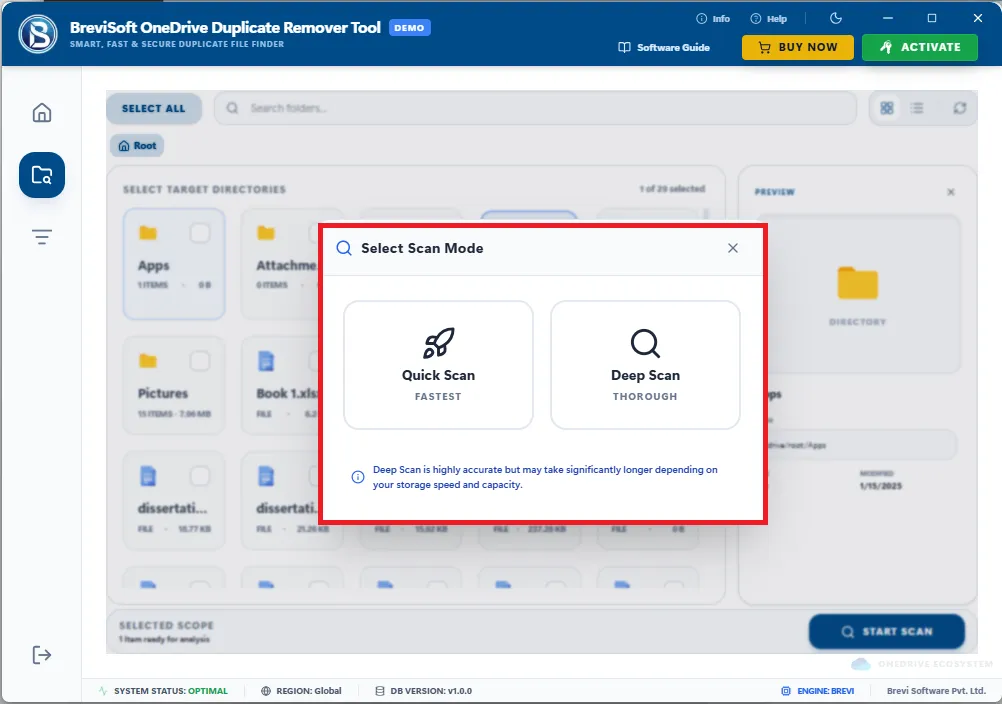
- Point it at the files and folders you want checked.
- Review the duplicates it turns up.
- Choose which copies to get rid of.
- Remove them.
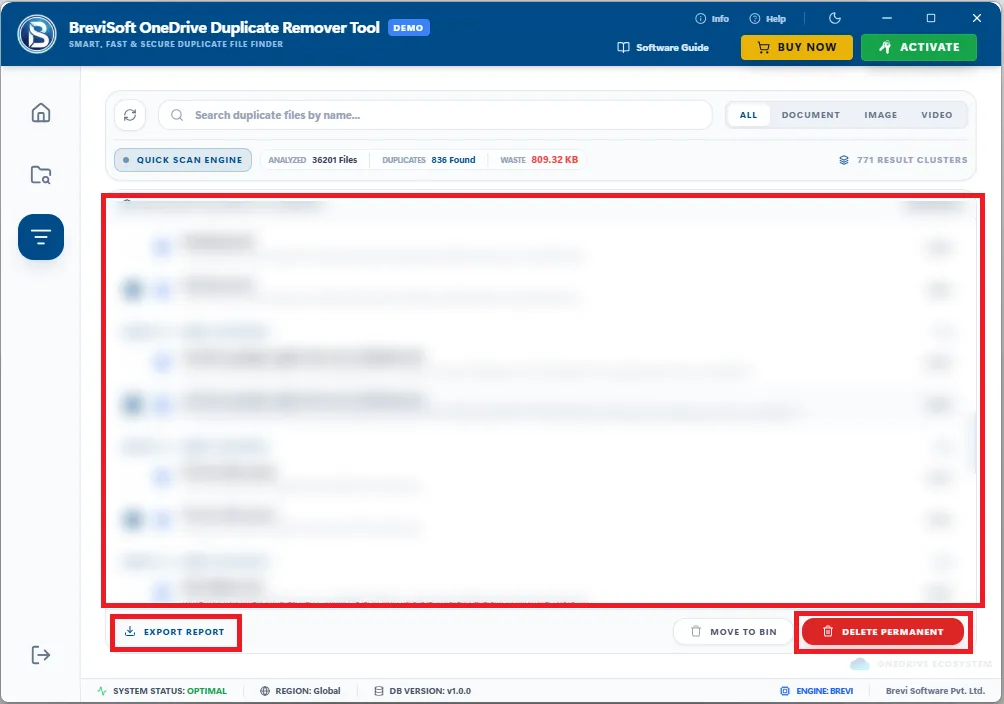
It won’t replace your own judgment entirely, so you’ll still want to glance over the results, but it takes care of the heavy lifting.
Keeping Duplicates From Piling Up Again
A little habit-building goes a long way here:
- Don’t re-upload the same folder more than once.
- Leave OneDrive sync running on your main device only.
- Keep photos sorted into clearly labeled folders.
- Check what’s already there before adding new pictures.
- Skip creating extra backup copies of folders you’ve already backed up.
- Run a duplicate scan every so often, just to stay ahead of it.
Wrapping Up
Duplicate photos aren’t a big deal on their own, but they add up, and eventually they turn OneDrive into a folder you avoid rather than use. If your collection is small, checking names, sizes, and dates by hand will get the job done. If it’s grown into the hundreds or thousands, learning how to find and remove duplicate files from OneDrive with a dedicated tool like BreviSoft OneDrive Duplicate Remover offers a much faster route to a clean, organized Pictures folder, and it works on both Personal and Business accounts.
Frequently Asked Questions
Ans – For a small library, just compare names, sizes, and dates by hand. For anything larger, a dedicated BreviSoft OneDrive duplicate remover will save you a lot of time.
Ans – BreviSoft OneDrive duplicate removal tool can flag multiple duplicates at once, so you can review them together and clear them out in one pass instead of one file at a time.
Ans – Not really, since it has search and sorting tools, but nothing that actually compares files to identify duplicates the way a dedicated BreviSpft OneDrive Duplicate Finder tool does.
Ans – Usually it comes down to repeated uploads, syncing from multiple devices, files copied between folders, or backups being restored.