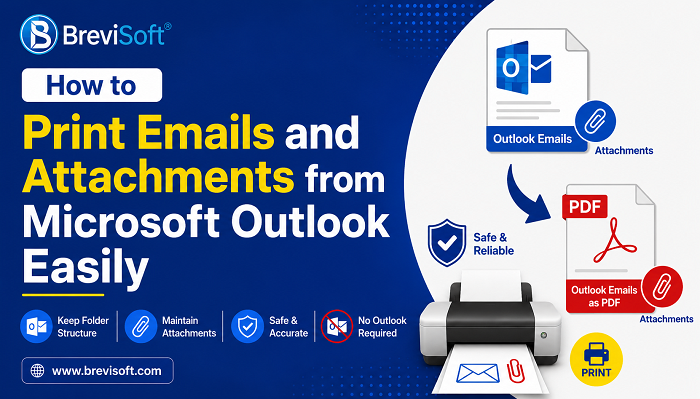
Microsoft Outlook is widely used by professionals and organizations for communication on a day to day basis. But Outlook save emails in PST format, making it necessary for outlook to get access to data. Users export Outlook emails as PDF with attachments to share easily, archive and preserve emails.
This guide covers why you would need to convert Outlook emails into PDF format, methods to export Outlook emails into PDFs, and the limitations of those methods, and finally a recommended solution in the BreviSoft PST Converter that allows migrating outlook emails into PDF format (with attachments too) in bulk.
Table of Contents
Need to Convert Outlook Emails to PDF File Format?
The PDF is a universally known file type that doesn’t need Microsoft Outlook to be opened on any device. Users can archive and share important email communication by converting their Outlook emails to PDF.
Saving Outlook emails as PDF is particularly suitable for legal documentation, audit, compliance and long-term archiving. Different PDF files retain the same email formatting, structure and content. Further, PDF are not reliant on PST files which can be lost to corruption or problems with versions of Outlook.
How to Save Outlook Emails as PDF with Attachments in Bulk?
There is no native feature in Microsoft Outlook to bulk export emails to PDF with attachments. The manual method is time-consuming and impractical for large mailboxes.
BreviSoft PST Converter is a professional utility to overcome these limitations and to perform the task effectively. In a nutshell, the utility is built to convert Outlook emails into PDF in batch while also maintaining attachment, folder structure and email format.
Brevi Software is an expert Outlook data management that is used by IT administrators, legal teams, and enterprises for secure email conversion.
PDF Output of Outlook Email Data
BreviSoft PST Converter enables the user to export multiple Outlook data items such as:
- Write emails with subject line and formatting
- Attachments to an email (embedded, appended, or separately saved)
- Calendar items
- Contacts and address details
- Tasks and notes
Thus, it makes possible to save the entire Outlook mailbox data into PDF file for later use. BreviSoft also provides the capability to convert PST to CSV, enabling mailbox data to be used in spreadsheets and databases for organisations that require structured data rather than documents.
Manual Method to Save Outlook Email Messages as PDF
Now, for Outlook you can save an email as PDF using Microsoft Print to PDF. This is great when you want to convert individual emails but is not recommended for bulk conversion or attachments.
While you would need to print all emails separately with manual conversion attachments still need to be individually saved or converted.
How to Export Individual Outlook Emails as PDF — Step by Step Guide
- To do this, open up Microsoft Outlook and select an email.
- Click File → Print.
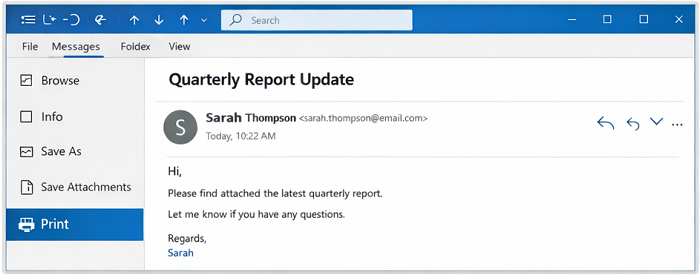
- Select Microsoft Print to PDF as the printer.
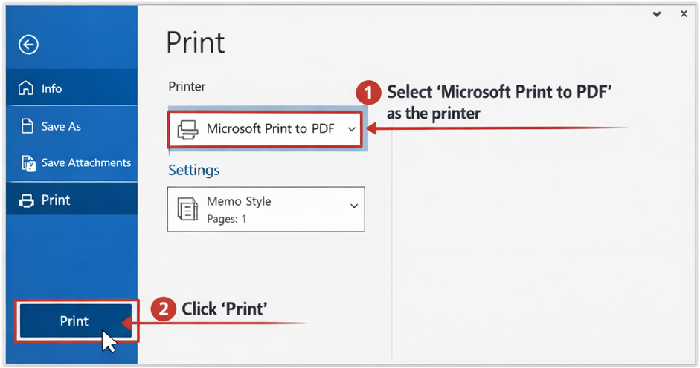
- Click Print, then choose a destination to save the PDF.
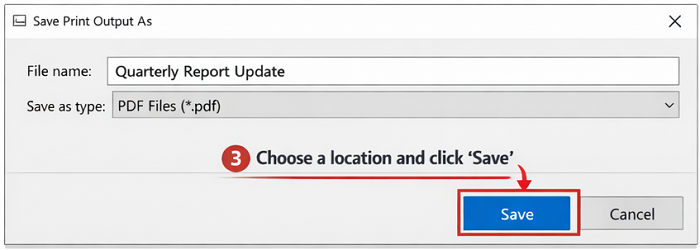
This method only converts the text of the email message, and does not automatically include attachments.
Steps to Convert Batch Outlook Emails into PDF Files
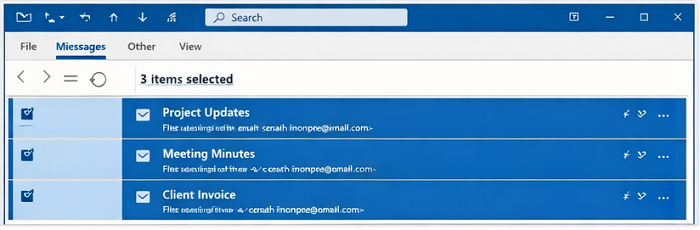
- Open up Microsoft Outlook, and select all the emails you want to convert (hold down Shift for a multiple selection).
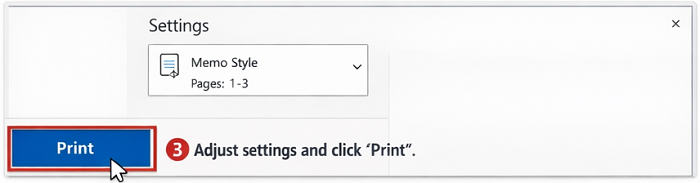
- Select File → Print and then choose Microsoft Print to PDF from the printer options.
- Modify any print settings to your liking and press Print.
- Finally, choose a folder to save the output pdf files.
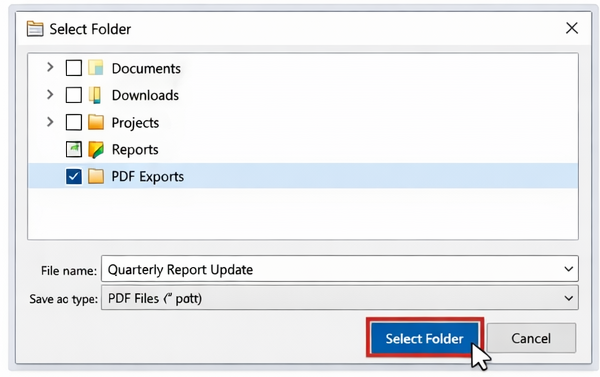
While Outlook supports selecting several emails at once, it forces you to confirm each batch and does not offer advanced controls. Attachments are poorly managed, and on a massive scale conversion can become painful.
In case of bulk export with attachment an automated solution comes in handy. The manual conversion is not recommended for PST files users who have a large both to Import PST file into Office 365 shared mailbox, where automation and complete data integrity would be the key.
Outlook’s Built-in Print Feature: Common Shortcomings
- No automatic attachment inclusion
- Manual and time-consuming process
- No bulk export automation
- No custom PDF layout or naming
- This content is not suitable for professional or legal advice
This makes manual conversion cumbersome for the business users as well.
The Ultimate Solution for Bulk Export Outlook Emails to PDF with Attachements
BreviSoft PST Converter is an effective and secured tool to export Outlook emails into PDF. This will save manual effort and provide a smooth conversion process with zero data loss.
Guide to Export Multiple Outlook Emails into PDF with Attachments using BreviSoft
- Open BreviSoft PST Converter on your computer.
- Add PST File(s); Choose Add Folder or Add File option.
- Preview and choose emails to export.
- Select PDF as the format for export.
- Set Options for Attachments (embed or save separately)
- Choose the location where you want to save PDF files.
- To convert Outlook emails to PDF in bulk, click Convert.
Major Features of BreviSoft PST Converter
- Bulk Export: Convert Multiple Outlook Emails to PDF in One Go
- Attachment: Embed attachment, append, or cold storage
- Advanced filters: Export emails in a certain date range or folder
- Customize PDF: Page layout, margins, headers and footers
- Preserving Folder Structure: Retain original mailbox hierarchy
- Wide PST Support: Migrate oversized PST files seamlessly
The tool does not require Outlook installation and supports all popular versions of Outlook.
Author’s Viewpoint
Outlook has a basic option to print emails, but it is unsuitable for mass email-to-PDF conversion exploits with attachments. For users dealing with large mailboxes or needing professional documentation, this simply will not do — an automated solution is crucial.
BreviSoft PST Converter is the best utility available in the software market that will help users to convert Outlook emails into PDF format with attachments without losing a single bit of data.
Frequently Asked Questions:-
Ans- Yes, BreviSoft PST Converter allows to bulk export Outlook emails with attachments.
Ans – Yes Outlook email attachments can be embedded, appended or saved as separate files as per the requirement/needs of the user.
Ans – No, this tool works separately and does not need any installation of Ms Outlook for conversion.
Ans – Yes, it retains integrity and formatting of an email making it usable for professional archiving.