Table of Contents
What Is the “Gmail Import Mail from Outlook Not Working” Issue
You follow the steps. Settings, account info, hit import. Nothing happens.
Or it starts, crawls to some random percentage, and just… stops. You wait. Still nothing.
That’s Gmail import not working from Outlook, in a nutshell. And honestly, it’s not one problem. Could be a POP setting that’s off somewhere. Gmail’s servers could be finicky. Could be two-factor authentication on your Outlook account quietly blocking the whole thing, with zero explanation.
A few usual culprits:
- POP isn’t switched on properly in Outlook.
- Wrong server details typed into Gmail.
- Modern authentication on the Outlook side, which Gmail’s importer struggles with.
- Firewall or security software getting in the way.
- IT admin restrictions on the Outlook account itself.
Doesn’t really matter which one it is. You’re stuck either way. Let’s fix it.
Top Guides to Fix “Importing Mail from Outlook to Gmail Is Not Working” Error
Before you throw your hands up and start copying emails by hand, run through these first. Most people find their fix in one of the first three.
Check POP and IMAP Settings in Outlook
Nine times out of ten, this is where it goes wrong. Gmail’s importer needs POP access, and if Outlook isn’t set up right, none of it works.
Quick check:
- Log into Outlook.com or your desktop Outlook settings.
- Go to Settings, then Mail, then Forwarding and IMAP (or POP, depending on your version).
- Make sure “Let devices and apps use POP” is turned on.
- Pick whether messages stay or get deleted after download.
- Save it.
Feels like a small thing, but it trips up more people than everything else combined. POP off, or set wrong, and Gmail can’t grab a thing. The import just quietly stalls, no warning given.
Verify POP Server Details in Gmail
Even with POP switched on in Outlook, Gmail still needs the right connection details, or it won’t budge.
Check these when setting up the account in Gmail:
- POP server: outlook.office365.com.
- Port: 995.
- “Always use a secure connection (SSL)” ticked.
One digit off in the port, or that box left unchecked, and the connection just fails. Gmail’s not exactly generous with error messages either. You’ll get a vague message, or nothing at all.
Still stuck? Pull the account out of Gmail’s import settings completely and start over. A clean retry fixes it more often than you’d expect.
Re-Authenticate or Re-Add the Account
This one solves it more than people give it credit for.
Outlook accounts tied to Microsoft 365 or a work setup often run security that Gmail’s basic import just can’t handle. Looks fine on the surface, fails quietly underneath.
Give this a shot:
- Head to Gmail’s Accounts and Import settings.
- Remove the Outlook account.
- Wait a bit.
- Add it back fresh.
- Use an app-specific password if two-factor authentication is on.
That last part catches a lot of people off guard. A regular password won’t cut it with two-factor authentication turned on. You need an app password instead, and Microsoft lets you generate one in your account security settings.
Direct Import Outlook Emails to Gmail Using BreviSoft PST Converter
Tried all of that and still stuck? Time to stop fighting Gmail’s tool altogether.
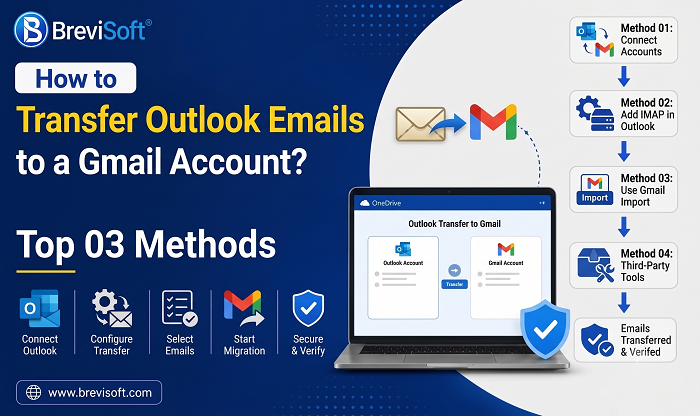
BreviSoft PST Converter Tool skips the whole POP-and-hope approach. It works straight off your Outlook PST file and converts it into something Gmail actually accepts. No fragile server connection needed. The software directly transfers Outlook emails to a Gmail account without data loss.
Why it tends to work when nothing else does:
- Doesn’t rely on Gmail’s POP import at all.
- Handles two-factor authentication accounts without extra hoops.
- Keeps folders and attachments exactly where they should be.
- Works even with admin-locked Outlook accounts.
- No stuck bars, no cryptic errors, no guesswork.
If you’ve burned hours tweaking settings only to watch that progress bar freeze one more time, this is usually where people just give up on the built-in tool and convert the file directly instead.
Conclusion
Gmail’s import tool works, mostly, until it doesn’t. POP settings, server info, authentication quirks- any one of them can quietly wreck the whole process and leave you with a frozen progress bar and no answers. The fixes above work for most people. But if you’ve checked POP, double-checked the server details, and re-authenticated the account, and it’s still not moving, BreviSoft PST Converter Tool skips the mess entirely and just gets your emails into Gmail.
Sometimes the real fix isn’t fixing the broken tool. It’s walking away from it.
Frequently Asked Questions
Ans – Usually one of a handful of things: POP not set up right in Outlook, wrong server details in Gmail, or an authentication method Gmail’s importer just doesn’t handle well. Two-factor accounts cause this a lot.
Ans – Pull the account out of Gmail’s import settings and add it back fresh. Still nothing? Double-check that POP is on in Outlook and that your server details in Gmail are correct.
Ans – Start with POP in Outlook, then check the server address and port in Gmail. Still broken? Re-authenticate using an app-specific password if two-factor authentication is enabled.
Ans – Sometimes it’s the account itself; work or school accounts locked down by IT often block this entirely. Gmail’s import just won’t connect in that case, and a direct tool like BreviSoft PST Converter ends up being the more reliable route.
Ans – Yes. BreviSoft PST Converter works directly off your Outlook PST file, converting it straight into a Gmail-friendly format, no POP settings or import tool needed.