Table of Contents
Why Enterprises Need Office 365 Cross Tenant Migration?
It is rather uncommon to end up with two tenants. Such a situation does occur; for example, you might buy out a competitor, sell off a division, or combine two brands under a single name, as a result of which about half of your staff find themselves in a tenant that is not under your control.
Having two tenants does involve a real financial cost since you have to pay for duplicate licenses, spend duplicate admin time, and acquire duplicate security tools as well. Users are also unable to see each other’s calendars properly and the global address list remains divided. A finance team of 40 people which sends an email every hour to a partner team in the other tenant experiences that inconvenience every day.
Which is why Office 365 cross-tenant migration appears on almost all IT roadmaps drawn up after a deal has been concluded. In the case of mergers and acquisitions, migration to Office 365 is the most frequent reason, then come divestitures and consolidation motivated by compliance requirements.
Office 365 Cross Tenant Migration Checklist and Prerequisites
Before you begin to use PowerShell, make sure you have carried out the necessary preparation work, since the majority of failed projects fail at this stage rather than during the actual migration. Use the following Office 365 cross-tenant migration checklist as your starting point.
- In both tenants (as Global Administrator or as Exchange Administrator along with Application Administrator).
- Licenses for the target tenant are bought and ready to be assigned.
- A security group within the source tenant that is set up to include every mailbox you intend to move.
- A list containing the source mailboxes together with their ExchangeGuid, ArchiveGuid, and legacy DN values.
- A group of 5 to 10 users who had been tested.
- A written rollback plan.
The same prerequisites apply to the migration of M365 tenants. In this case, both tenants must have Exchange Online; the source mailboxes have to be in the cloud, which means that if you are still using a hybrid setup with on-premises Exchange, you should sort that out first. The users in the target tenant must be set up as mail users rather than as full mailboxes and must have the correct attributes applied to them; if you omit this step, the move request will fail on the very first day.
Make sure that the domain situation is clear too. A domain can only be assigned to one tenant at a time, and in order to add it to the target you’ll have to take it out of the source. You must carefully plan that moment since it has an effect on mail flow.
Reviewing Licensing Requirements for Office 365 Cross Tenant Migration
People are often surprised by licensing. The following explains the cross-tenant mailbox migration licensing requirements in simple terms.
In the target tenant each migrated user must have a valid Exchange Online licence, for example Exchange Online Plan 1, Plan 2, or a Microsoft 365 E3 or E5 plan. It should be assigned before the cutover takes place. If the migrated mailbox remains in the target tenant without a licence, Microsoft will delete it after a 30 day grace period. That is a painful way of losing a CEO’s mailbox.
The licenses retained by the source tenant will stay in place until you carry out the conversion or delete the original accounts. Allow for an overlap period of a few weeks. In the case of moving 500 users and paying approximately $20 per user per month for the new plan, an overlap of two months would amount to about $20,000 that you should have allocated for the plan.
Ensuring Data Security and Compliance
Moving mail involves the transfer of regulated data; decide from the beginning which people are permitted to carry out the migration and what they are allowed to see.
Set up a specific service account or app registration for the project and delete it when you’ve finished. Make sure that audit logging is enabled in both tenants so that you have a record of all actions. Review the retention policies and legal holds in the source tenant. In the case where a mailbox is subject to a litigation hold, you must obtain approval from your legal team before moving it, and you also have to verify that the target tenant has applied a similar hold.
Data residency is also an issue; if the source tenant keeps its data in the EU and the target tenant is in the US, then questions about the GDPR arise quickly. Therefore, you should consult your compliance officer before choosing a migration date, not afterwards.
Choosing Your M365 Tenant to Tenant Migration Method
You have two actual choices: you can make use of Microsoft’s native cross-tenant mailbox migration or you can use a third-party tool.
With native tools there is no extra cost in terms of licensing and they function adequately when carrying out mailbox-only moves with the help of a skilled Exchange administrator. Third-party tools are appropriate when you also need to deal with OneDrive, SharePoint, Teams, or when you have a long list of users and are short of admin time. A good guideline is that native tools are suitable if there are fewer than 100 users and only mailboxes are involved; if you have more than 500 users or if your requirements go beyond mail, you should seriously consider using a tool.
Before carrying out a tenant to tenant migration for any M365 environment, you should first carry out a pilot, no matter which method you choose.
Using Microsoft Native Tools for Office 365 Cross Tenant Migration
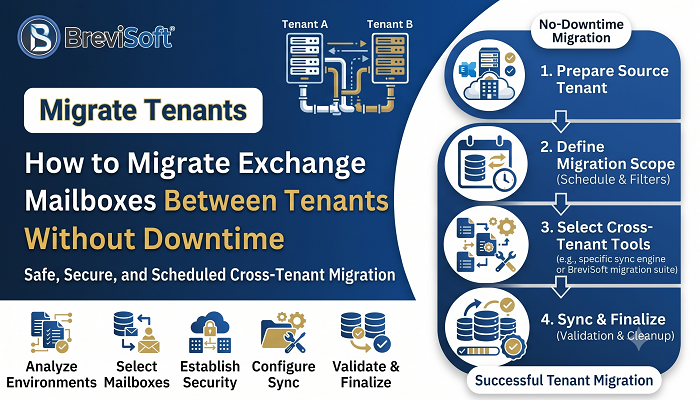
The mailbox migration between tenants in Microsoft’s Exchange Online makes use of the Mailbox Replication Service. The following is a short-form step-by-step guide to the cross-tenant mailbox migration.
The first step is to prepare the tenant in question. You should set up an application registration in Microsoft Entra ID with the Mailbox.Migration permission and generate a secret, then record the application ID.
In step 2, set up the migration endpoint by logging into the target tenant and running the New-MigrationEndpoint command, using the details from the source tenant and the app credentials.
Step 3. Establish the organisation relationship. In both tenants, use New-OrganizationRelationship or Set-OrganizationRelationship. In the target, set MailboxMoveEnabled to true together with the RemoteInbound capability and in the source use RemoteOutbound.
Step 4. Give consent. The source tenant admin approves the app by using a consent URL; otherwise the process cannot proceed.
In step 5 you have to create the mail users who need the source ExchangeGuid and, if an archive exists, the ArchiveGuid as well as X500 proxy addresses constructed from the old legacy DN. This is the step which leads to more errors than any other. Make sure you get it right.
In step 6, run the batch by using New-MigrationBatch together with the endpoint and a CSV file containing the email addresses. While Microsoft supports a maximum of 2,000 mailboxes per batch, it is easier to keep an eye on batches consisting of 200 to 500 mailboxes.
In step 7, complete and convert the setup; after synchronisation has finished the source mailbox will become a mail user that points to the target and the target mail user will become a full mailbox; then assign the licences and carry out some tests.
It should be noted that the native route handles only mailboxes; for OneDrive, SharePoint, Teams chats, and Power Platform items another method is required.
Selecting Third-Party Tools for Cross Tenant Mailbox Migration
Third-party software charges its fee when time is short. You should choose a tool which is able to transfer mail, calendars, contacts, archives, and shared mailboxes, one that supports delta syncs so that you can switch over with only a minimal delay, and one that provides clear reports.
If you’re looking for a tool that’s designed for this type of work, then you should look at the BreviSoft Microsoft 365 Tenant to Tenant Migration Tool. This is a third-party solution which migration specialists use when carrying out cross-tenant projects. The tool automates the attribute mapping and batch processing which would otherwise take administrators several hours writing PowerShell scripts, and it decreases the likelihood of a typing error causing a move request to fail. As with any other tool, you should first test it on a small pilot group.
Managing User Identity and Authentication
The aspect of identity that people notice is their UPN; if a person’s UPN changes from name@oldcompany.com to name@newcompany.com, then their Outlook profile, Teams sign-in, and MFA registration will all be affected by this change.
Plan for these items:
- Set up the target accounts in advance, either by doing it manually or by using Entra Connect or Cloud Sync.
- Match users on the basis of a stable attribute, for example their employee ID, rather than their display name. Two individuals who are called “John Smith” will quickly find out what this means.
- Request users to re-register their MFA on a specific day and ensure that the help desk is prepared.
- After the cutover Outlook should ask you to create a new profile or at least request your sign-in.
The single sign-on applications associated with the old tenant also need to be updated and should be identified as early as possible. A sales team that loses access to the CRM on a Monday morning won’t be easy to deal with.
Handling Mailbox Permissions and Shared Mailboxes
The permissions do not transfer with the mailbox and in the new tenant all the permissions such as Full Access, Send As, and Send on Behalf have to be set up again.
Before you begin, export all the permissions from the source; all you need is a CSV file created from a simple Get-MailboxPermission and Get-RecipientPermission report. After the move, reapply the permissions using a script and then manually verify 10 percent of them.
Shared mailboxes can be moved as part of the normal process and do not require a licence if they are under 50 GB; move them in the same batch as the people who use them or at least during the same weekend, since a shared support mailbox which is moved a week after its team have left has left users stranded. Likewise, calendar delegates and room mailboxes need to be given the same attention.
Configuring Mail Flow and Namespaces
The way emails are handled will determine whether the migration seems smooth or chaotic; during the project it is necessary for both tenants to know where each person resides.
The mail user objects are used to deal with this situation. The source tenant has a mail user that forwards messages to the target address, and the target tenant has the actual mailbox. The targetAddress should be set to the user’s onmicrosoft.com routing address so that messages can be delivered to them no matter where their mailbox is located.
The difficult aspect is the shared domain. Until you have moved the main domain, use a subdomain like migration.company.com or keep the two tenants on separate domains. On the day that the move takes place, take the domain out of the source, check that it is there in the target, update the MX, SPF, DKIM, and DMARC records and keep a close eye on the first few hours. A few days before hand, reduce the DNS TTL to 300 seconds so that the changes propagate more quickly.
Cross Tenant Mailbox Migration Errors and Troubleshooting
Mistakes will occur; they are the typical ones encountered during cross-tenant mailbox migration and when troubleshooting such migrations.
The recipient mailbox is missing or has incorrect attributes; the operation fails since the ExchangeGuid does not match the source. Solution: copy the exact GUID from the source mailbox and update the mail user.
The X500 address is missing and old replies and calendar entries fail. Solution: add the LegacyExchangeDN source as an X500 proxy address on the target.
Failure to obtain consent or permission. The migration endpoint is unable to connect with the source. Solution: make sure that consent for the app has been given and that the organization relationship is the same in both tenants.
The mailbox move either hangs or fails when dealing with large items; if an item exceeds the size limit, the folders are corrupted or the mailbox is near 100 GB, this results in long delays. The solution is to use Get-MigrationUserStatistics including the DiagnosticInfo parameter to locate the item that is stuck, and then either clean it up or set a bad-item limit.
The user is present but does not have a licence. Although the move is successful the mailbox cannot be used. Solution: assign the licence immediately.
If you encounter something new, you should read the entire error message since it typically identifies the attribute that failed.
Minimizing Downtime During Mergers and Acquisitions Office 365 Tenant Migration
In the case of migrating an Office 365 tenant as part of a merger or acquisition, the pressure arises because of the deal timeline, since executives want a single email address by the first day.
You ought to be able to achieve this by using staged waves—having a pilot in week one, a small business unit in week two, and the main group in weeks three and four. People should be moved in teams so that colleagues who work together turn the system on on the same night. The final sync should be carried out on a Friday evening and the process should be completed by Sunday so that Monday becomes a test rather than a cutover.
Ensure that the previous tenant is kept for a minimum of 30 days after the last move, so that you can carry out a rollback and also deal with any stragglers who missed their deadline.
Communication and Training Best Practices
When people are aware of what is coming, they manage migration effectively; therefore, the first notice should be sent three weeks in advance, followed by a reminder one week before, and then a message saying “tonight is the night” the day before.
Make your messages brief and include only the information about what has changed, what remains the same, and whom to contact. A one-page guide featuring screenshots of the new Outlook sign-in process leads to more reduced help desk calls than a 20-page manual. Hold a 30-minute live Q&A session for managers since it is they who handle the questions that the help desk does not receive.
When you’ve moved the system, have extra support staff available on the phone for the first 48 hours and anticipate that about 10 to 15 per cent of users will need assistance.
Real-World Examples of Exchange Online Cross Tenant Mailbox Move
The following are three typical situations.
The manufacturer takes over a smaller company, purchasing a supplier that has 300 users. The admin team follows the standard procedure, starts by moving 50 pilot users and discovers that half of the intended mail users do not have X500 addresses. They then correct the script and complete the remaining tasks in three weekends.
There is a divestiture with a strict deadline: a division comprising 800 users has to vacate the parent company’s tenant within 60 days on the basis of a transition services agreement. The team is using a third-party tool since it also needs to move SharePoint and OneDrive, and email remains up to date thanks to Delta syncs until the last weekend.
Rebrand by taking on a new name; a company with 150 users is changing its name and would like a fresh tenant. One administrator carries out the process natively within two weeks since only the mailboxes need to be moved and the group is small.
Conclusion
A reliable Cross Tenant Mailbox Migration depends on proper preparation. Make sure that you have the correct licenses, mail users, permissions, and domain plan before you begin, and the actual migration will then be straightforward. First carry out a pilot project, make sure to communicate early, and keep the source tenant active for a month.
For a small project involving only email, Microsoft’s built-in tools are sufficient. But when the project is large, hurried, or includes more than just mailboxes, a tool such as the BreviSoft Microsoft 365 Tenant to Tenant Migration Tool can help to save time and reduce errors.
Frequently Asked Questions
Ans – A single mailbox between 10 and 20 GB typically takes a few hours, while a full project—including planning, the pilot, and the cutover—usually takes 4 to 8 weeks.
Ans – Microsoft’s cross-tenant mailbox move applies only to Exchange Online mailboxes; other workloads must use separate methods or a third-party BreviSoft Tenant Migration tool.
Ans – It depends on scale and scope. For small, mail-only moves, native works. For large or multi-workload projects, an automated tool saves effort.