Table of Contents
What is cross-tenant exchange mailbox migration?
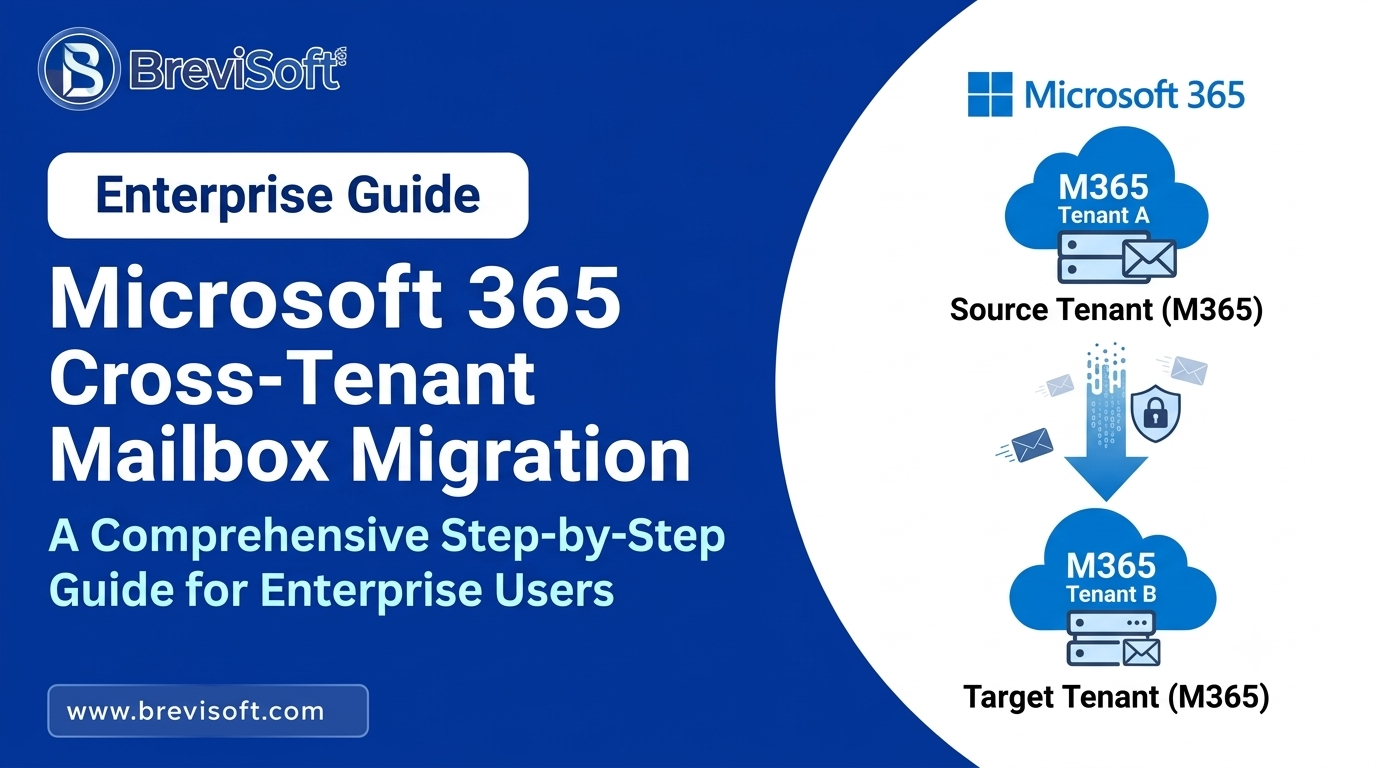
Cross-tenant Exchange mailbox migration refers to the process of transferring user mailbox data from one Microsoft 365 tenant to another.
For example, suppose a company has users in:
Source tenant: oldcompany.onmicrosoft.com
and wants to move them to:
Target tenant: newcompany.onmicrosoft.com
The mailbox had to be moved to the target Microsoft 365 environment, and as per the migration plan this could involve the emails, folders, calendars, contacts, tasks, and other types of mailbox content.
The difficult aspect is getting the timing right.
People will still receive emails even though a migration has begun; they go on sending messages, setting up appointments, replying to customers, and adding contacts. If you make a copy of a mailbox on a Monday and switch over on a Friday without having synchronized the changes made during those days, the destination mailbox might not have the most recent information.
Which is why staged migration suits many organizations better.
Start by moving the main portion of the data, then sync the changes, and finally finish the cutover.
Why Migrate Exchange Mailboxes Between Microsoft 365 Tenants?
There are a number of reasons why an organization might need to move its Exchange mailboxes from one tenant to another.
A merger of companies is another typical example; two businesses may have been running separate Microsoft 365 tenants before they combined their operations into a single environment.
Acquisitions give rise to the same requirement, namely that the users of the company being acquired have to move into the Microsoft 365 tenant of the acquiring organization.
Other common reasons include:
- Microsoft 365 tenant consolidation
- Company restructuring
- Domain changes
- Business separation
- Organizational changes
- IT environment standardization
- Moving users from a temporary tenant to a permanent tenant
The object is generally identical in that the user’s mailbox data is moved while business communication continues as normal.
It is precisely here that the migration plan becomes important.
If the migration of the mailbox is poorly planned, it can lead to emails being missed, authentication failures, a disrupted mail flow, problems with the calendar, or unnecessary downtime for users. By carrying out the process in stages, the IT team are given the opportunity to test each component before making the final switch.
What Causes Downtime During Exchange Mailbox Migration?
Downtime is generally not the result of copying the mailbox data.
The more serious problems occur during the last transition.
For instance, suppose the mailbox is 30 GB and the migration process takes a number of hours; in that case, you won’t want users to have to wait until the full 30 GB has been transferred before they can carry on with their work, because by the time the transfer is complete, new emails and calendar changes might already have been added.
Other causes include:
- Incorrect source or target configuration
- DNS changes made too early
- MX record problems
- Incorrect mailbox mapping
- Authentication failures
- Missing permissions
- Large amounts of data left for the final migration
- Failed synchronization
- Incorrect mail-flow configuration
- Users accessing the old mailbox after cutover
- Insufficient testing before production migration
The way to proceed in practice is to shift most of the data before the final cutover.
In this way, the last migration will deal only with the changes that occurred after the first synchronization.
Prerequisites for Cross-Tenant Mailbox Migration
Before you begin, make sure that both Microsoft 365 tenants are ready.
Do not start using the migration tool right away since preparation will save you time later on.
1. Verify that the source tenant has access.
Ensure that you have the necessary administrative access to the source Microsoft 365 tenant.
You should know:
- Source tenant details
- User mailbox list
- Mailbox sizes
- User login information
- Required permissions
- Current domain configuration
- Existing mail-flow settings
Make a list of all the users who are to be migrated.
2. Set up the target Microsoft 365 tenant.
Before mailbox migration starts, the tenant who will be using the destination should be ready.
Set up the necessary user accounts and make sure that the right Microsoft 365 licences are available.
Also check the configuration of the target domain.
Wait until migration day to do these tasks.
3. Prepare User Mapping
It is necessary to have a clear mapping from source to target.
For example:
|
Source Mailbox |
Target Mailbox |
|
john@oldcompany.com |
john@newcompany.com |
|
maria@oldcompany.com |
maria@newcompany.com |
|
david@oldcompany.com |
david@newcompany.com |
It is particularly important in such a situation when hundreds of users are involved.
4. Check Mailbox Sizes
It can take a lot longer to migrate large mailboxes.
For each user note the approximate size of their mailbox. This enables you to estimate the time that will be required for the migration and allows the users to be divided into reasonable batches.
5. Review Mail Flow
Look at the current MX records, connectors, accepted domains, forwarding rules, and all the other mail-flow settings.
Before making any changes, you must know precisely the way in which messages enter and leave the source environment.
6. Choose a method of migration
Whether or not the migration options available with Microsoft 365 are sufficient for a small environment will depend on the specific situation.
A professional migration tool can be used to cut down on repetitive administrative tasks when it comes to a larger migration.
The BreviSoft Microsoft 365 Tenant to Tenant Migration Tool is intended for use by professionals in migrating mailboxes from one Microsoft 365 tenant to another. It offers a structured workflow for transferring the data from supported mailboxes in the source tenant to the destination tenant and can be used when it is necessary to deal with multiple mailboxes in planned batches.
How to Migrate Exchange Mailboxes Between Tenants Without Downtime
The most safe course of action is to break the project down into stages.
Do not regard migration day as a single huge operation.
Use the following workflow.
Step 1: Prepare the Source and Target Tenants
Begin by making sure that both tenants are ready.
Make sure that administrator access, licenses, domains, user accounts, mailbox availability, permissions, and migration requirements are checked.
Make your migration list then.
In the case of a small organisation, the setup could be a spreadsheet with 20 or 30 users; in a large organisation you could have hundreds or thousands of mailboxes spread across several batches.
Group users logically.
For example:
Batch 1: IT team
Batch 2: Finance
Batch 3: Sales
Batch 4: Management
Batch 5: Remaining users
It is useful to start with IT users since they will be in a position to spot problems before the migration affects all users.
Step 2: Create and Prepare Target Mailboxes
It is necessary to prepare the mailboxes at the destination prior to transferring the data.
Ensure that the target user accounts exist and that they have the required Microsoft 365 licenses.
Make sure that the mapping between the source mailbox and the target mailbox is correct.
For example:
john@oldcompany.com → john@newcompany.com
A typo in this instance could result in data being sent to the incorrect destination.
Before beginning the main migration, test a few of the target accounts.
You must also determine when the users will be given their new login credentials and the manner in which they will access Outlook following the cutover.
Step 3: Start the Initial Mailbox Sync
Now transfer the bulk of the mailbox data.
This marks the first major stage of synchronization.
The aim is simple; that is to manage as much of the current mailbox data as possible before the final cutover.
You shouldn’t have all 40 GB of email in the mailbox waiting until migration night, so it’s best to move the majority of it beforehand.
The BreviSoft Microsoft 365 Tenant to Tenant Migration Tool offers an automated way that is professional for handling this stage when organisations are managing several mailboxes.
The tool is intended to assist IT administrators in carrying out mailbox migrations between Microsoft 365 tenants as part of a structured workflow. Rather than having to deal with each mailbox individually, administrators can set up the source and destination environments, choose the mailboxes they need, and then manage the migrations in batches.
Supported mailbox content may include:
- Emails
- Email folders
- Calendars
- Contacts
- Tasks
- Other supported mailbox data
The migration scope must always be verified in relation to the version and configuration in use.
The first sync must be regarded as the bulk-data stage.
Wait until the final cutover takes place.
Check the results of the migration and look for any failed mailboxes, connection errors, authentication problems, items that were skipped, or any other warnings.
Step 4: Run Incremental Syncs Before Cutover
The section that contributes to reducing downtime.
Work continues by the users after the first sync.
New emails arrive.
People reply to messages.
The calendar entries are either added or modified.
Contacts may be updated.
The necessary changes must get to the destination mailbox before the final switch.
Before carrying out the cutover, carry out the necessary incremental synchronisation so that the target environment has the latest available mailbox data.
IT administrators are able to carry out the migration using a structured, batch-based workflow with the BreviSoft Microsoft 365 Tenant to Tenant Migration Tool, rather than having to process each mailbox manually once again.
A simple migration schedule might look like this:
Monday: Initial mailbox synchronization
Tuesday: Incremental synchronization
Wednesday: Review errors and synchronize changes
Thursday evening: Final migration
Friday morning: User verification
Your actual schedule will depend on mailbox size, number of users, network speed, migration volume, and business requirements.
The key point is simple.
Don’t leave a large amount of mailbox data for the final cutover.
Step 5: Plan the Final Cutover Window
The final cutover should happen when user activity is low.
For many businesses, this may mean an evening, weekend, or another period when fewer people are using email.
Before starting, notify users.
Tell them:
- When the migration begins
- When they should stop using the old mailbox
- When the new mailbox will be available
- Whether Outlook needs to be restarted
- Whether they need to sign in again
- How to report missing emails or other problems
Make the cutover window seem realistic.
If the time it takes to carry out the final synchronisation is usually 45 minutes, then do not schedule a maintenance window of 20 minutes.
Allow yourself a bit more time for verification.
Step 6: Complete the Final Mailbox Migration
Carry out the final synchronization and migration now.
By this stage, the majority of the mailbox data should already be in the destination.
The main focus of the last stage should be on recent changes.
That is why the earlier stages of synchronization are important.
When the last mailbox migration has been completed, make sure that the destination mailbox contains the data that was expected.
Before you declare that the migration is complete, check with a number of users.
When dealing with large projects, it is better to carry out the migration in batches one after another rather than switching all users at the same moment, unless your migration design specifically requires this.
Step 7: Update DNS and Mail Flow Settings
Once the mailbox migration has been carried out, you should update the necessary mail-flow and DNS configuration.
This may include:
- MX records
- Autodiscover configuration
- SPF records
- DKIM configuration
- DMARC configuration
- Mail connectors
- Accepted domains
- Other mail-flow settings
The changes to the DNS may take some time to propagate.
It would be a mistake to suppose that every sender will right away use the new destination.
After the change, check the incoming and outgoing mail.
Send test messages from internal users as well as from external accounts.
Check both directions.
Step 8: Verify Mailbox Data After Migration
Do not close the migration project when the final mailbox has reported success.
Verify the data.
Check:
- Recent emails
- Older emails
- Sent items
- Inbox folders
- Custom folders
- Attachments
- Calendars
- Contacts
- Tasks
- Mailbox permissions
- User access
- Outlook connectivity
Select a number of users from each migration batch for detailed testing.
Having a successful migration status does not necessarily imply that the user experience is perfect.
Problems are discovered through testing with real users whereas they may not be shown in migration logs.
How to Minimize Downtime During the Final Cutover
The simplest method of reducing downtime is to keep the final migration small.
Consider it in this way.
When you carry out the complete migration of the mailbox during the cutover, users might have to wait for several hours.
When most of the mailbox has already been copied, the last stage involved is much smaller.
Use this sequence:
Initial sync → Incremental sync → Final sync → DNS/mail-flow change → User verification
Also consider these practical steps:
Keep Users Working Until the Cutover
Do not request users to cease using email in the days leading up to the migration.
Let them carry on working with the source mailbox until the cutover is planned.
Run the Final Sync During Low Activity
Select a time when users are unlikely to be sending or receiving a large amount of messages.
Communicate Clearly
Users must know the precise moment at which they should cease using the old mailbox.
A simple message can stop numerous problems.
Keep the Source Environment Available Temporarily
Do not remove the source environment right away after the migration.
Make it available for verification and for troubleshooting in accordance with your organization’s retention and security requirements.
Monitor Mail Flow
After making changes to the DNS and mail-flow, send the test emails.
Check both the external and internal delivery.
Verify Important Users First
After the migration, carry out extra checks for the management, finance, customer support, and other essential departments.
What takes place to emails, calendars, and contacts during a migration?
It’s not just a matter of migrating the Inbox.
Every day, users make use of a number of different types of data.
Emails
As part of the migration process, the existing messages are moved from the source mailbox to the destination mailbox.
It also applies to messages contained in folders that are supported by the migration method chosen.
Email Folders
Custom folders are important since a great many users arrange their projects and customer conversations by hand.
Check the folders after the migration has been carried out.
<h3class=”main_heading”>CalendarsFor business users, calendar data is especially important.
After migration, check the meetings, recurring appointments, invitations, and all other calendar information.
Contacts
The contacts of the user should also be checked following the migration of the mailbox.
Users should be particularly attentive to those who have a large number of contacts.
Tasks and Other Mailbox Data
The mailbox data that is supported might also be transferred depending on the migration method and the configuration.
Before you begin a production migration, make sure that you verify the specific data types that your migration method supports.
Common Problems During Cross-Tenant Exchange Migration
A well-organized migration may still run into difficulties.
Authentication Errors
Wrong credentials, permissions, or tenant settings may stop access to a mailbox.
Before you retry the migration, make sure that the authentication settings are checked on both sides.
Incorrect Mailbox Mapping
An incorrect mapping from source to target can cause data to be sent to the wrong mailbox.
Go through your mapping file carefully.
Large Mailboxes Take Longer
The 2 GB mailbox and the 60 GB mailbox won’t be completed at the same speed.
Whenever possible, group the large mailboxes apart.
DNS Propagation Delays
Following a change of DNS, certain senders might carry on using the old information for a while.
Rather assume that the change took place instantly and instead keep an eye on the mail flow.
Missing Recent Messages
It frequently occurs when the first synchronization is finished too soon and no further incremental synchronization is carried out.
Carry out one more synchronization before the final cutover.
Calendar or Contact Issues
After the migration, the mailbox data should be checked rather than assuming that everything had been transferred perfectly.
Users Continue Using the Old Mailbox
This may cause confusion as a result of the migration.
Make sure that users are given a clear cutover time along with the instructions.
Professional Microsoft 365 Tenant to Tenant Migration Tool
If you only need to move a small number of mailboxes, handling the administration manually will be feasible.
When the number of users increases, the amount of work involved changes.
It is necessary for someone to keep track of mailbox mappings, migration batches, failed users, synchronization status, recent changes, and the verification that takes place after migration.
The BreviSoft Microsoft 365 Tenant to Tenant Migration Tool can be used as a professional migration solution here.
It is intended for organizations which want to transfer Microsoft 365 mailbox data from one tenant to another without having to carry out repetitive manual processing for each user.
The tool offers a structured workflow when it comes to managing mailbox migration and is especially useful to IT administrators who work with a number of mailboxes.
Common use cases include:
- Microsoft 365 tenant consolidation
- Company mergers
- Business acquisitions
- Tenant-to-tenant mailbox migration
- Organizational restructuring
- Domain changes
- Large mailbox migration projects
A professional migration process can likewise provide support for the staged method mentioned in this article.
The first step is to arrange the source and destination tenants.
Chose the mailboxes that are needed and begin the initial migration.
Once the bulk data has been transferred, carry out the necessary synchronization steps and then do the final migration during the planned cutover window.
It means that less work needs to be done right at the last minute.
That point is important for IT teams.
The aim is not just to move the mailboxes; it is to move them in a controlled and traceable manner while keeping the disruption to business as low as possible.
Before carrying out a production migration, carry out a test with a small number of users and make sure that the emails, folders, calendars, contacts, attachments, and user access have been correctly transferred.
When the test migration appears satisfactory, then carry out the rest of the batches.
Best Practices for a Smooth Cross-Tenant Mailbox Migration
A few simple practices will make the whole project easier.
Begin with a pilot batch.
Start off by moving a small number of users and use those results to correct the configuration issues before migrating all of them.
Make and keep a sheet that lists the mailboxes.
Make a record of the source mailbox, the target mailbox, the batch number, the migration status, and any errors.
Start the first synchronization early.
You shouldn’t wait until migration night to transfer most of the mailbox data.
Use incremental synchronization.
Work continues to be carried out, so the new changes to the mailboxes must be synchronised before the final cutover.
Plan the cutover carefully.
Select a time when there is little user activity and leave sufficient time for verification.
Check the DNS and the mail flow.
Look at the MX, SPF, DKIM, DMARC, connectors, and all the other necessary settings.
Keep users informed.
It is better to issue a brief and clear migration notice than to leave employees to work it out for themselves.
Test after migration.
Look at the most recent messages, the old emails, the folders, the calendars, the contacts, the attachments, and your Outlook access.
Keep migration logs.
Make sure to record any mailboxes that succeed, fail, or are pending so that you know precisely what took place in each batch.
It is necessary to use a professional migration tool when carrying out larger projects.
The BreviSoft Microsoft 365 Tenant to Tenant Migration Tool can be of assistance to organizations that have a large number of mailboxes by helping them to organize and automate the mailbox migration process, thus reducing the amount of repetitive manual work that IT administrators have to do.
Conclusion
An entire organization needn’t have its email stopped during a cross-tenant Exchange mailbox migration.
The best way to deal with it is to divide the task over a longer period of time.
Start by preparing both tenants. Set up the target mailboxes. Move most of the mailbox data when the initial synchronization takes place. Make sure the users can continue working while the more recent changes are synchronised. Finally, carry out the complete migration during a planned cutover period.
The process means that the final migration is smaller and easier to control.
The BreviSoft Microsoft 365 Tenant to Tenant Migration Tool offers an organized and automated method for managing the transfer of mailboxes for organizations that have multiple Microsoft 365 mailboxes.
No matter what the project is—whether it’s a merger, an acquisition, a consolidation of tenants, a change of domain, or some general restructuring of Microsoft 365—thorough preparation and the implementation of synchronized stages are the essential factors for minimizing disruption.
The smoother the migration day will be, the less data you leave for the final cutover.
Frequently Asked Questions About Cross-Tenant Mailbox Migration
Ans – Right, it is possible to migrate a Microsoft 365 mailbox from one tenant to another, but the specific procedure will vary according to your migration scenario, the configuration of your tenant, the requirements for the mailbox, and the migration method that is supported.
For big projects, it is possible to use a professional migration solution such as the BreviSoft Microsoft 365 Tenant to Tenant Migration Tool to help with organizing the mailbox transfer.
A staged migration method can significantly reduce downtime.
The standard procedure involves first carrying out an initial synchronization, then continuing to synchronize the new changes, and finally finishing up the migration during a planned cutover period.
Service disruption or user action might still be necessary in certain cases, depending on the environment and the migration configuration.
Do not base your conclusions on just one copy of an early mailbox.
Start off by carrying out the initial synchronization, then get users to carry on working, and finally carry out the incremental synchronization before the final cutover.
The last migration must include the remaining recent changes.
The mailbox migration might involve emails, folders, calendars, contacts, tasks, and other types of supported mailbox content, depending on the migration method and the way it is configured.
Before starting a production migration, make sure that you verify the exact data types that are supported.
There is no definite time.
The time taken will vary according to the size of the mailbox, the number of users, the network conditions, the migration method, the source and target settings, and the quantity of data being transferred.
A step-by-step method allows the main part of the migration to take place before the final switch.
Yes. The tool is designed as a professional Microsoft 365 tenant-to-tenant migration solution and can be used to manage mailbox migration in an organized workflow for multiple users.
For larger projects, administrators can plan the migration in batches rather than manually processing every mailbox one at a time.