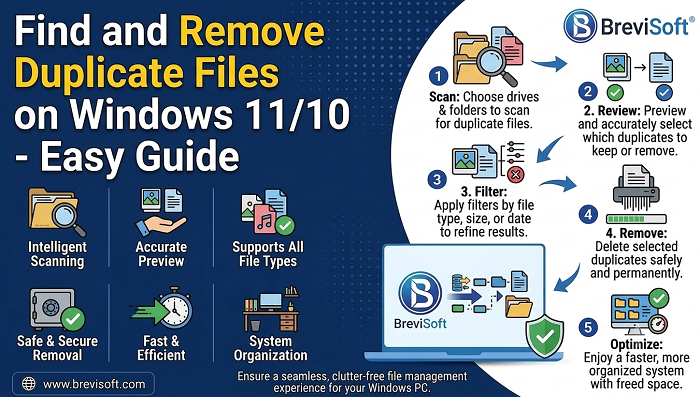
Is your computer or PC running slower than usual? Are you system constantly running out of storage space despite not having too many large files? You likely have a culprit hiding in plain sight: duplicate files. Whether it’s multiple copies of photos downloaded from your phone, the same files saved multiple times from a browser, draft documents stored in different folders, or music files accidentally downloaded twice, duplicate files slowly and steadily eat up gigabytes of valuable storage on your computer. In this blog, we’ll explore the best ways to find and safely remove duplicate files from your PC, helping you free up disk space in Windows, boost your system’s performance, and reclaim your storage.
Table of Contents
What Basically Duplicate files are on your computer?
Duplicate files on a computer are similar or identical copies of the same file saved at multiple locations. The creation of these files is not intentional and can occur unintentionally through downloads, backups, file transfers, or repeated saving processes. Over time, a large number of duplicate files take up unnecessary storage space on your computer and can slow down the performance. It also makes it harder to organize and find important documents. So, deleting duplicate files on PC helps you to keep your computer clean, efficient, and easier to use.
Why is it necessary to remove duplicate files?
Removing duplicate files from your computer offers you multiple benefits, some of which are mentioned below:
- If you have a large number of duplicate files and at the same time their size is also large, then the best option is to remove them from your computer and free up your storage space.
- Fewer files mean less clutter, which means users can easily operate the computer and do multiple tasks efficiently and faster.
- Deleting duplicate files in Windows makes your backup process faster and prevents confusion when searching for the correct version of a document.
- Sometimes, users need to back up files from their computer to a hard disk. Removing duplicate files beforehand makes the backup process smoother.
- Removing duplicates will also help you to maintain the integrity of the other important files.
These are some important necessities that prompt users to remove duplicate files from the computer. So, don’t worry, we come with the solutions as well, which will allow users to clean duplicate files on PC (Windows 10/11).
Important Precautions that Users Must Need to Follow
Before you start deleting, keep these critical tips in mind to avoid data loss:
- Backup Your Files: Make sure you take a backup of your important files into an external drive or cloud storage before initiating the mass cleanup process.
- Exclude System Folders: Never delete duplicates from the Windows or Program Files directories. Many system files are intentionally duplicated to ensure stability.
- Check Before Deleting: Similar files are not always duplicates. Sometimes they are different versions of the same document or photos taken in burst mode.
- Empty the Recycle Bin: After deleting files, empty your Recycle Bin to actually free up the space on your drive.
The following are the simple steps you can take to easily clean up your PC, reclaim valuable space, and keep your machine running smoothly.
02 Best Methods to Free Up Space by Deleting Duplicate Files on PC
Here we are going to discuss the two best and all-time usable methods for deleting duplicates from your PC or computer.
Method 1: Remove duplicate files on your PC Using Manual Methods
Step-by-step guide to find and delete duplicate files on your Windows:
- First of all, you need to open File Explorer by clicking Windows + E on your keyboard.
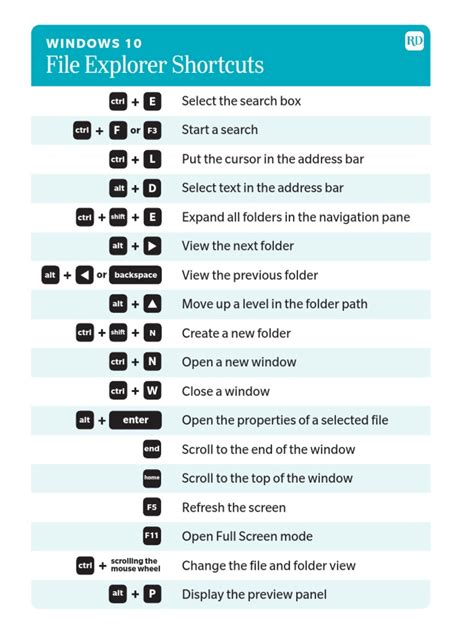
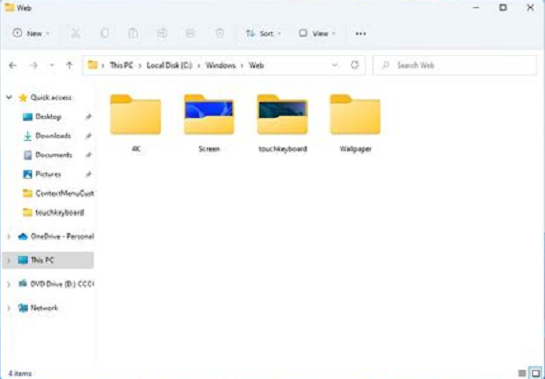
- Once you open the screen, you need to go to the folder from which you want to delete duplicates.
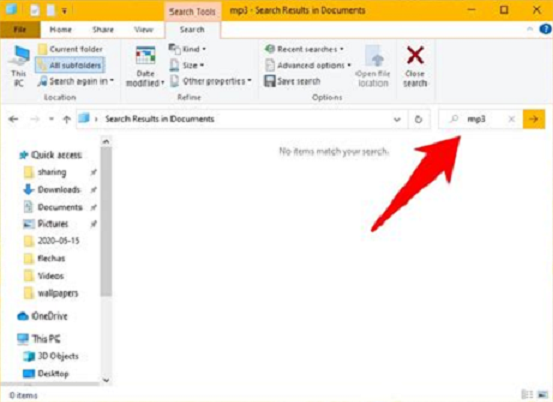
- Type a file extension such as .doc, .jpg, .pdf, or .mp4 in the search bar.
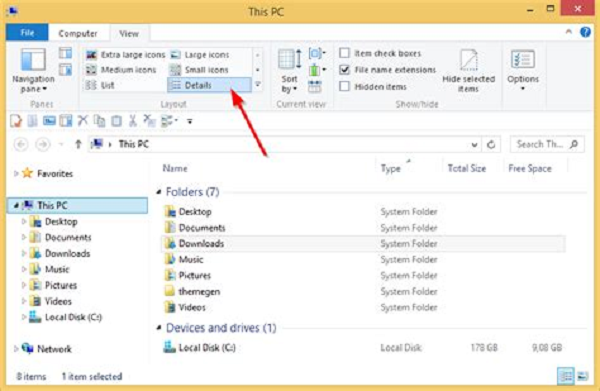
- Click the View tab and select Details to see file information clearly.
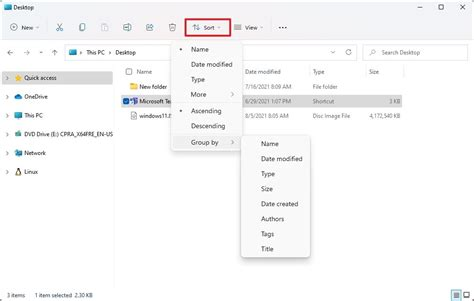
- Sort by Name, Size, or Date Modified to make duplicates easier to spot.
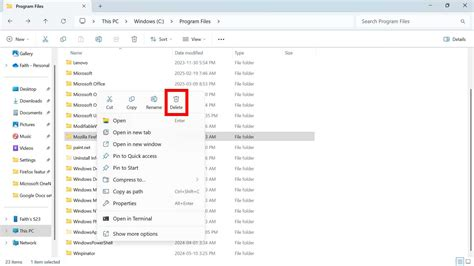
- After that, you need to compare the files visually, and once you find duplicates, right-click on the particular file and delete its unnecessary copies.
Method 2: Delete Duplicate files on your Computer/PC Using Professional Methods
The manual way to find and remove duplicates from a PC is one of the most efficient processes to do, we all know. However, it includes too many major limitations, such as the process being time-consuming, offering limited search criteria, no availability of automated deletion, risk to lose duplicates, and difficulties for non-tech users as well. So, the reliable and most trustworthy way, according to the professionals, is to go with the BreviSoft Fast Duplicate File Finder & Remover Tool.
The software allows users to manage and remove duplicate files on their computers. It can scan your system and detect identical files by analyzing their names, sizes, or actual content, and offers functionalities to remove similar items in a single go. Additionally, the platform supports multiple file formats, so you need to configure your system, and the solution will automatically detect and remove duplicates regardless of file type or size.
How to delete duplicate files on Windows 10/11?
The best way to find and remove duplicate files in Windows is given below:
- Download, Install and Run the BreviSoft Duplicate File Remover Software.
- Choose options: Select Files, Scan Folder or System Analysis.
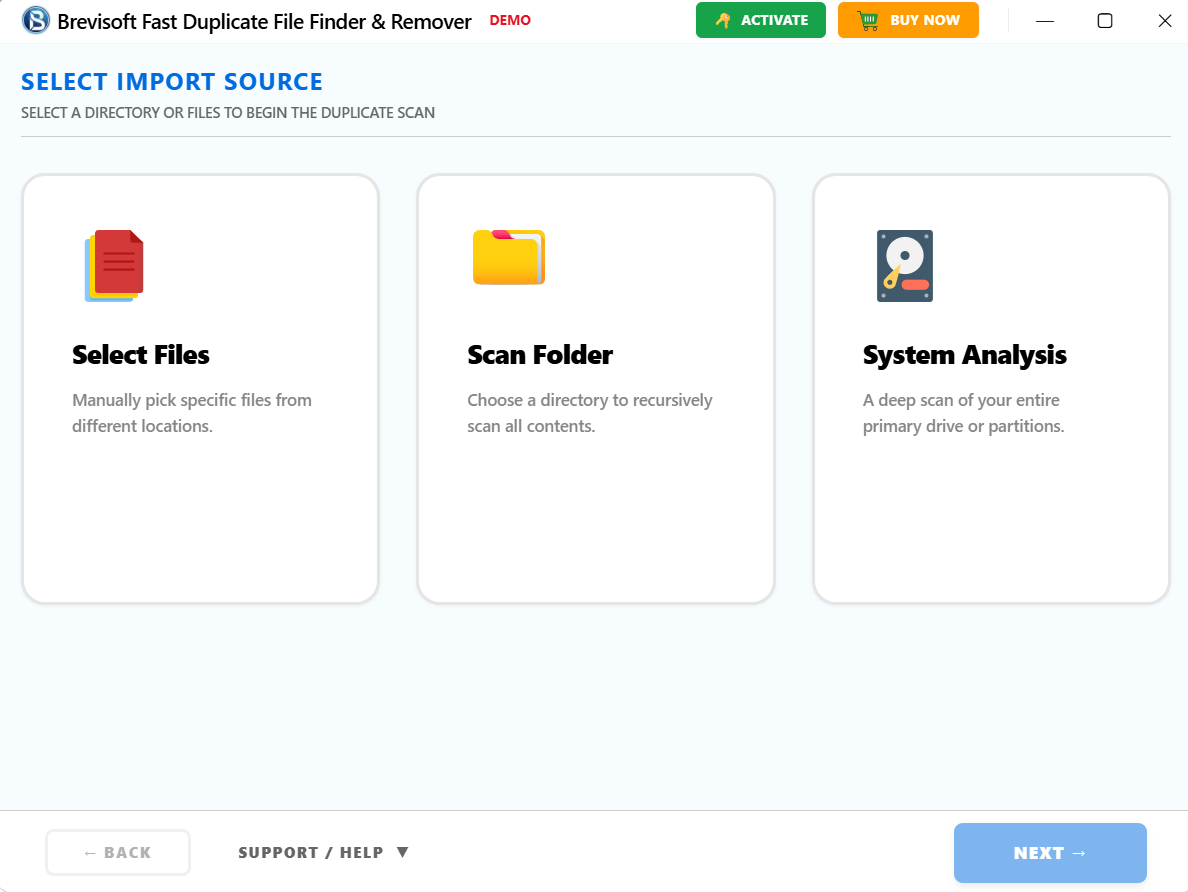
- Here, we opt for the Select Files option to initiate the process.
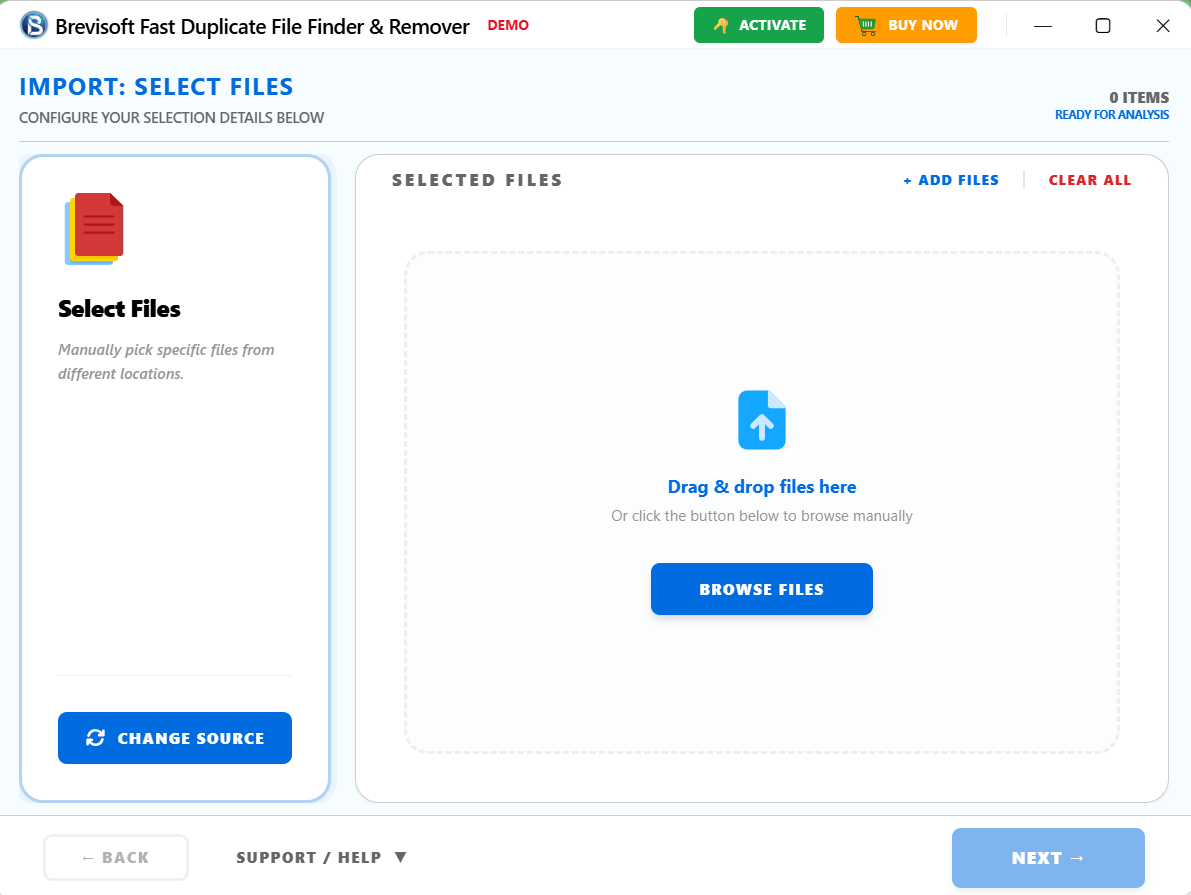
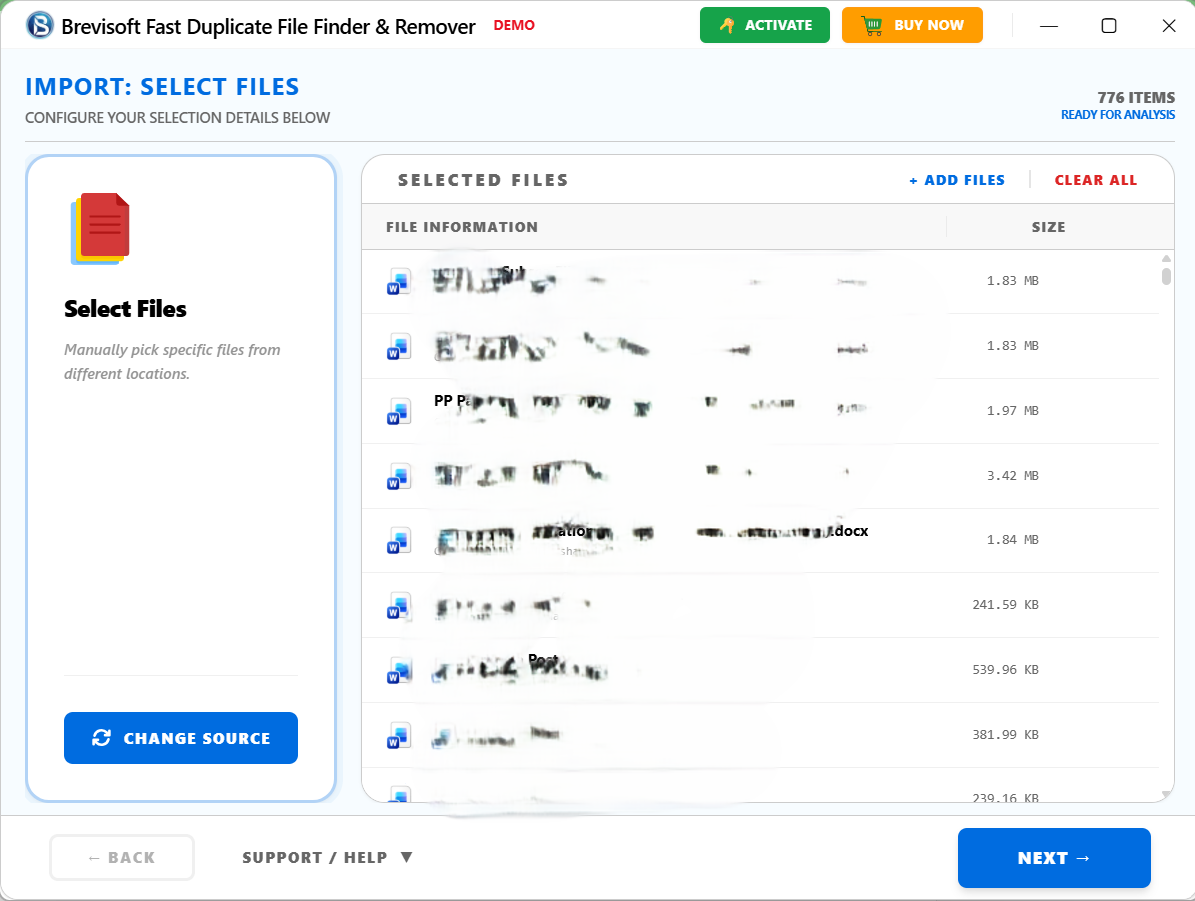
- Browse files from your computer or click Add Files and then click Next.
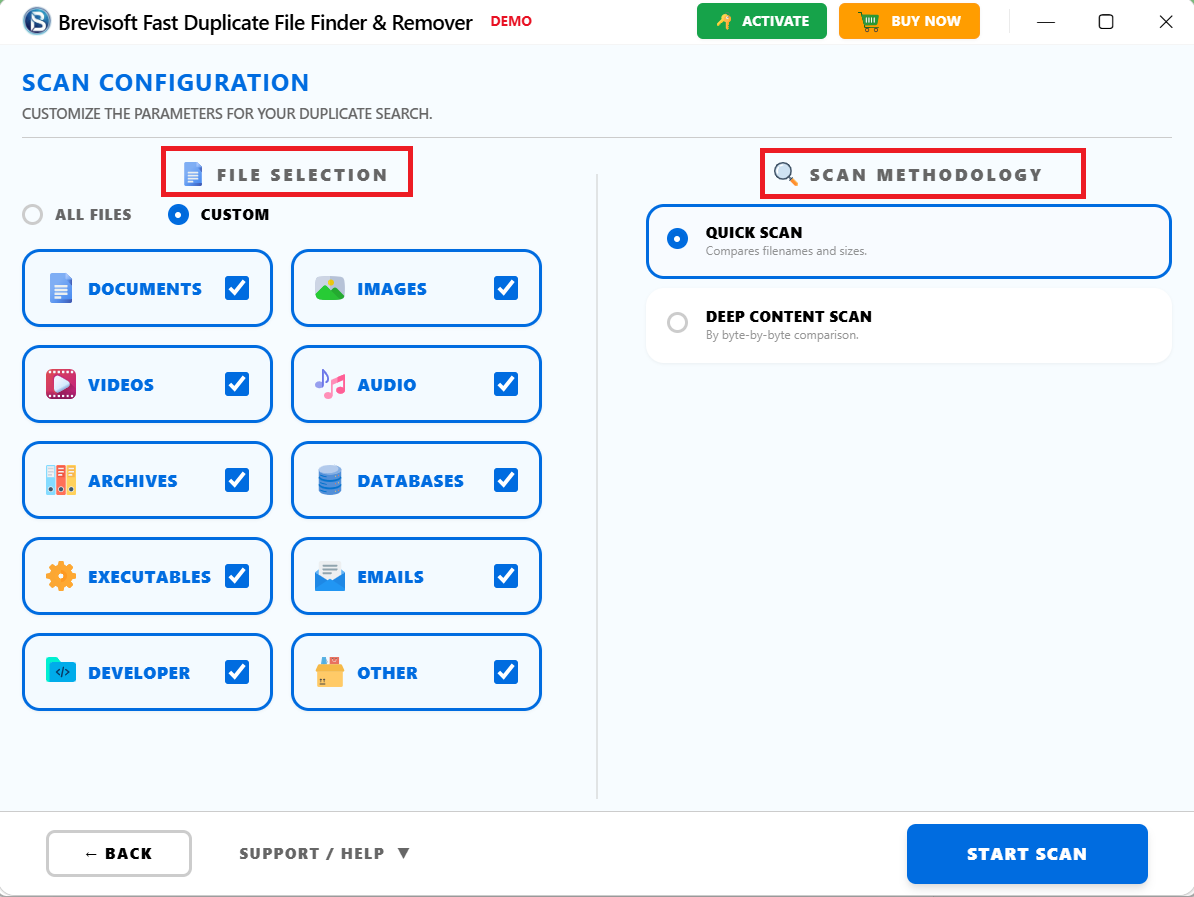
- The software shows you options for file selection: All Files or Custom.
- Also, the method to scan whether Quick or Deep Content Scan.
- According to your requirement, select File selection and Scanning Mode.
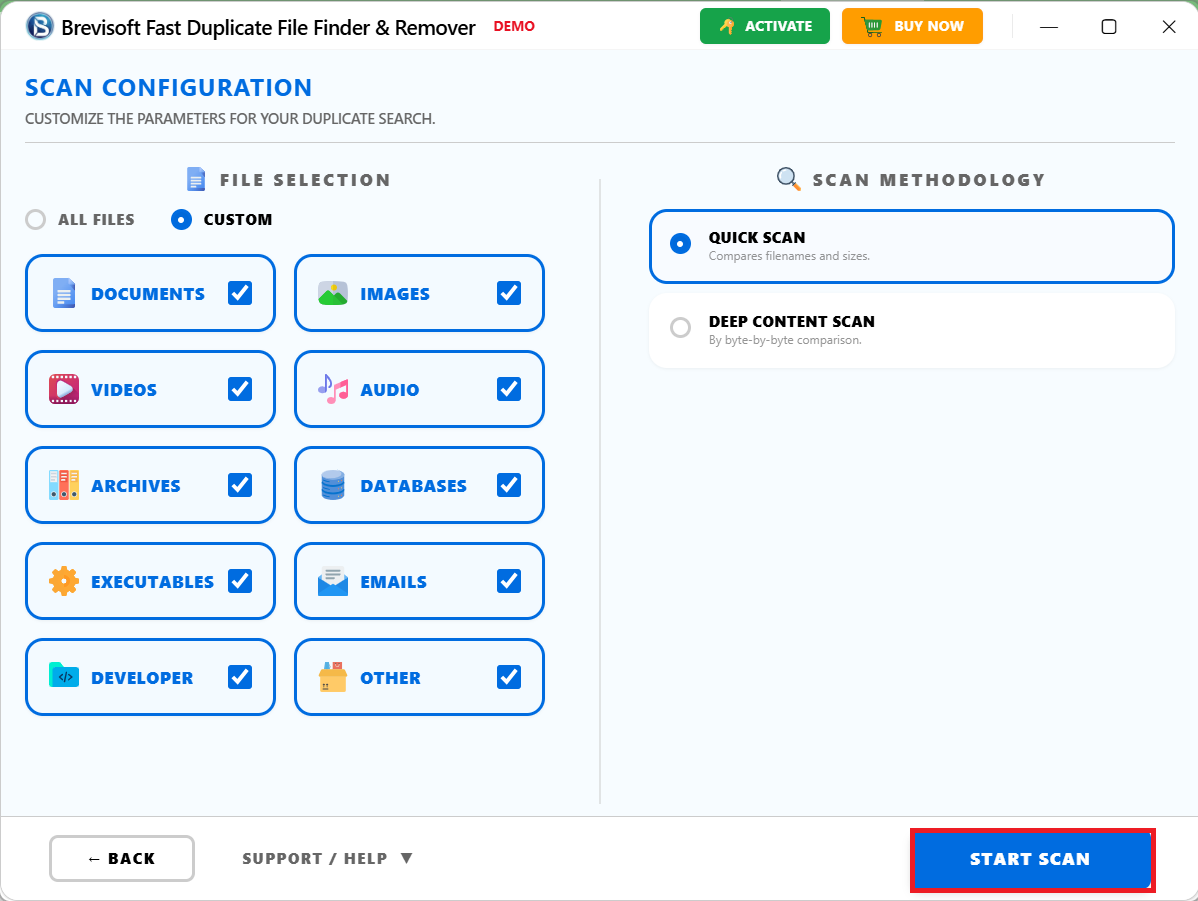
- Click on the Start Scan button to initiate the further process.
- Soon the software shows you lists of duplicate files present.
- Select and delete duplicated files permanently from your computer.
- You can also download the process report in the form of a CSV/PDF file.
Conclusion
The methods explained above will help you clean up your PC, remove duplicate files, and maintain an organized folder structure. Duplicate files on a computer have become very common these days, but managing and removing them can be quite challenging. Sometimes users forget to delete duplicates, while at other times they intentionally download multiple copies of the same files. Regardless of the reason, the main issue lies in identifying and removing these duplicates from the PC. In this blog, we have described two easy-to-use methods for freeing up space by deleting duplicate files. Choose the one that suits you best and enjoy a smoother experience.
FAQs
Ans – Deleting identical files does free up a lot of storage space. Duplicate files (like duplicate photos, videos, documents or emails) can eat away a big chunk of your disk without bringing anything to the table. Deleting them can free up storage, boost performance and organize your files better. However, it is best to use a reliable tool like BreviSoft Fast Duplicate File Finder Tool that can clearly detect and safely remove duplicate files.
Ans – You can remove duplicate files manually or automatically:
✅ Through Manual Method: Go in search folders already listed and then sort out files by name/size, and deleting duplicates one at a time (horsework & error-prone).
✅ Automated Method (Recommended): There is a third-party application BreviSoft Fast Duplicate File Finder Tool, which scans your computer and deletes duplicate files based on developed algorithms.
It definitely saves time and lessens the chance that you might delete an important file.
Ans – In this guide, we discussed the best duplicate file remover and how to scan your PC for duplicates. The BreviSoft Fast Duplicate File Finder Tool is unique because it:
✅ Employs intelligent scanning methods (filename, size, content-based comparison)
✅ Allows several files types: pictures, videos and documents
✅ Provides preview options before deletion
✅ Ensures safe and selective removal
For individuals and organizations alike, its user-friendly interface makes it a potential solution to time management woes.
Ans – A duplicate photo cleaner helps recover space by extracting identical or similar photos that take,它’s unneeded storage. Photos can consume massive amounts of disk space, so removing duplicates can help make a particularly big difference. Not only can you find duplicates, but tools like BreviSoft Fast Duplicate File Finder Tool helps the user to find and delete similar images too, freeing up space more effectively.
Ans – Yes, it is completely secure when you use BreviSoft Fast Duplicate File Finder Tool. The software features several safety mechanisms including:
✅ File preview before deletion
✅ Select Copies to keep Smart options (Automatically keep one copy)
✅ Exclusion of system-critical files
Note: Can move files to recycle bin instead of permanent delete
Hence these features will guarantee to delete the unnecessary duplicates only while your data stays.