You know that feeling when your C drive is somehow full and you can’t figure out why? Duplicate files are often the culprit. A photo gets saved twice during a backup. A PDF gets downloaded again because you forgot you already had it. An old project folder gets copied “just in case” and then never deleted. None of that feels like much on its own. But it adds up, and before long you’re staring at a drive that’s mysteriously full of files you don’t remember making. This guide gets into what duplicate files actually are, why bothering to clean them up is worth your time, and a few different ways to track them down and remove them safely on Windows 11 and Windows 10. We’ll also touch on where a tool like BreviSoft Duplicate File Finder & Remover Tool fits into all this.
Table of Contents
What Are Duplicate Files?
Simple version: a duplicate file is a copy of something you already have. Sometimes it’s obvious, same name, same content, just sitting in a different folder. Other times it’s harder to spot. The names don’t match, but the data underneath is identical. Think “Report.docx” next to “Report (1).docx.” Different labels, same file, and that “(1)” is usually just Windows avoiding a naming clash the second time you saved.
Nobody sets out to create duplicates on purpose. They creep in through ordinary habits. Copying files between folders as a backup. Syncing photos from a phone and a laptop into the same cloud account. Downloading an attachment twice without noticing. Restoring an old backup without checking what’s already there first. Any one of these barely registers. Do it repeatedly for a couple of years, though, and the numbers get bigger than you’d expect.
Why Should You Find and Remove Duplicate Files?
It’s tempting to ignore this, but the payoff is bigger than just a bit of free space.
Storage adds up quickly, and freeing it up matters even more if you’re on a laptop with a smaller SSD. Folders also get easier to work with once you’re not scrolling past four versions of the same document to find the right one. Backups run faster and take up less room when they’re not duplicating the same data twice. And shared drives or synced folders tend to get messy fastest of all, so cleaning those up especially pays off.
None of these on their own is life changing. Together, though, they make a real difference in how manageable your system feels.
How to Find Duplicate Files on All Windows Platforms
There’s more than one way to go about this, and honestly it mostly comes down to scale. A couple dozen files? Do it by hand. An entire drive that hasn’t been touched in years? You’ll want help.
Find Duplicate Files Manually
Small folder, not many files? Doing it manually isn’t unreasonable. Here’s roughly how:
- Open File Explorer and head to the folder in question.
- Switch to Details view so name, size, and date modified are all visible together.
- Click the Name or Size column to sort, so similar files land near each other.
- Look for matching sizes or names that seem suspiciously close.
- Before deleting anything, open the suspects and check they actually match.
It’s free, and you don’t need to install a thing, which is nice. The problem is it doesn’t scale. Past a few hundred files, and especially across multiple drives, this turns into more of a chore than a task.
Use Windows Search to Find Duplicate Files
One step up from browsing by hand is narrowing things down with Windows’ own search first.
- Open File Explorer, click into the search bar.
- Try filters like
type:orsize:to cut the results down. - Sort what’s left by name or date so similar files sit close together.
- Go through the flagged results by hand to confirm they’re real duplicates.
Worth remembering: Windows Search wasn’t built for this job specifically. It only looks at surface details, name and size, never the actual content. So it’ll miss duplicates with different names sometimes, and other times flag files that just look alike but aren’t.
Use a Duplicate File Finder Software
Past a certain point, dedicated software just makes more sense than doing it yourself, and BreviSoft Duplicate File Finder & Remover Tool is a solid example of what that looks like in practice.
Install a trusted tool, choose the drives or folders to scan, run it, then go through the grouped results and pick what to remove. That’s roughly the whole process. The advantage is speed and accuracy since these tools check entire drives automatically and compare more than just file names, so there’s a lot less second guessing involved.
If you’re trying to decide which methods fits your situation:
| Method | Best For | Accuracy | Effort Required |
|---|---|---|---|
| Manual Search | A handful of files in one folder | Low to moderate | High |
| Windows Search | Narrowing down files by type or size | Moderate | Moderate |
| Duplicate File Finder Software | Large drives, entire systems | High | Low |
How to Remove Duplicate Files Safely on Windows 11/10
Deleting duplicates themselves is easy. Not losing something you actually needed along the way is where a little care pays off.
- Back up anything important first, especially before a bulk delete.
- Run your scan, whichever way you’re doing it, manually, through Windows Search, or with software.
- Actually go through the results instead of clicking “delete all” the second it finishes.
- Double check you’re keeping the right copy, not the one missing metadata or sitting in the wrong path.
- Send files to the Recycle Bin first rather than deleting permanently, just as a safety net.
- Leave anything system related alone unless you’re sure it’s safe. Some “duplicate looking” files are actually needed by other software.
None of this adds much time. It’s the difference between a cleanup that goes smoothly and one that costs you a file you needed later.
How a Duplicate File Finder Detects Duplicates
Not every duplicate finder works the same way. The decent ones stack a few checks together rather than relying on file names alone.
Compare File Names
The simplest check possible: does the name match, or come close? Fine as a starting point, not much beyond that. Two files can share a name and hold totally different content, and just as easily, two identical files can carry names that look nothing alike.
Compare File Size
Matching sizes narrows things down further, since identical files are naturally the same size as each other. Still not bulletproof though. Every so often two unrelated files just happen to land on the exact same byte count by coincidence.
Compare File Content
This is where it gets reliable. A byte by byte or checksum based comparison looks at what’s actually inside the file rather than its label. Match the content exactly, and you’ve got a real duplicate, regardless of name or location.
Find Duplicate Photos, Videos and Documents
Some tools go further and catch near duplicates too: a photo resized down, a video re-exported at a different quality, a document edited slightly after the fact. Matters a lot for anyone managing a media library, where the same photo often ends up saved three or four slightly different ways without anyone meaning for that to happen.
Quick comparison of the detection methods:
| Detection Method | What It Checks | Reliability |
|---|---|---|
| File Name | Matching or similar names | Low |
| File Size | Matching file sizes | Moderate |
| File Content | Byte-by-byte or checksum comparison | High |
| Media Analysis | Near-duplicate photos, videos, documents | High (for media files) |
Best Way to Find and Remove Duplicate Files on Windows 10/11 and Below Versions
Manual checking and Windows Search each have their place, but neither was really built for a full drive cleanup. That’s where the BreviSoft Duplicate File Finder & Remover Tool comes in.
It works across Windows 11, Windows 10, and older versions, scanning drives quickly while comparing files by name, size, and content together, so what gets flagged is actually accurate. Getting going with it is pretty simple:
Steps to Find and Remove Duplicate Files on Windows Using BreviSoft
- Download and install BreviSoft Duplicate File Finder & Remover on your PC.
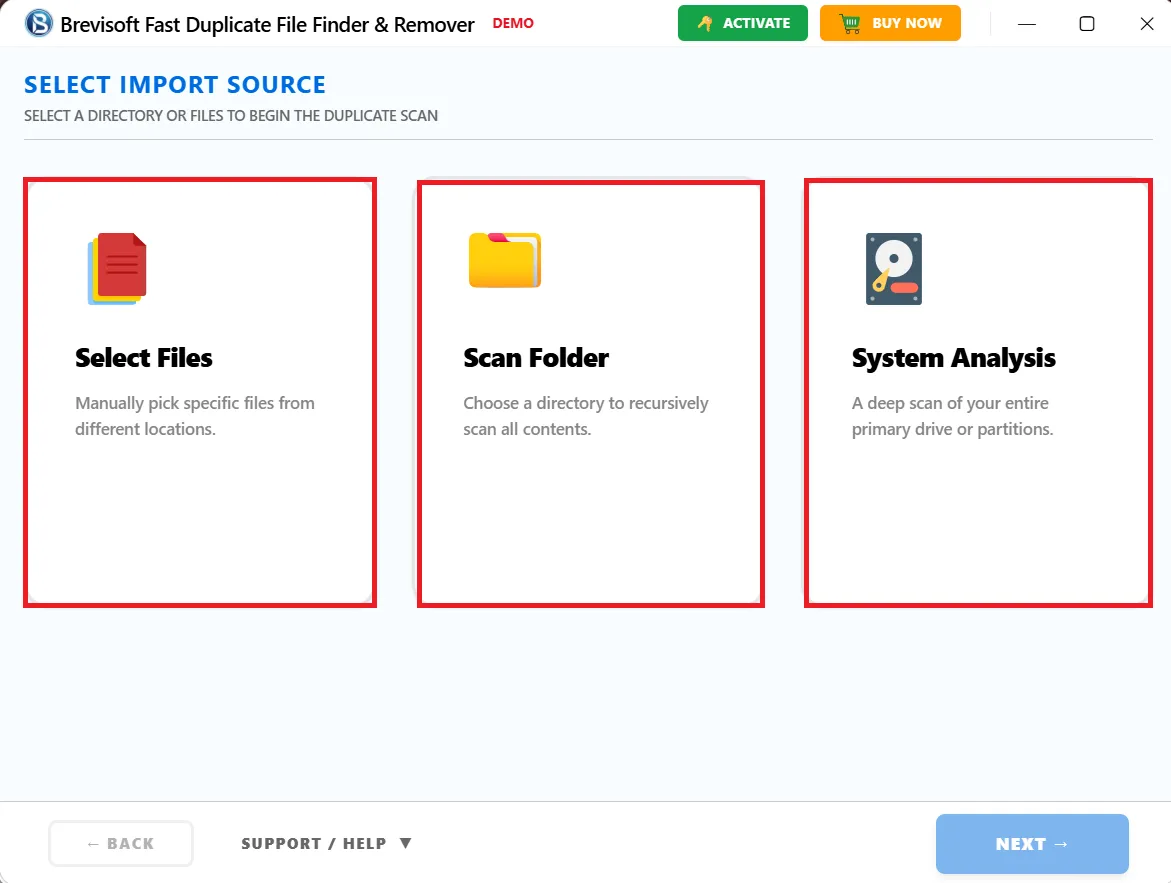
- Choose which drives, folders, or file types to scan.
- Run the scan and let it work through its multi layer comparison.
- Look over what it finds before touching anything.
- Select what you want gone, delete it in one click.
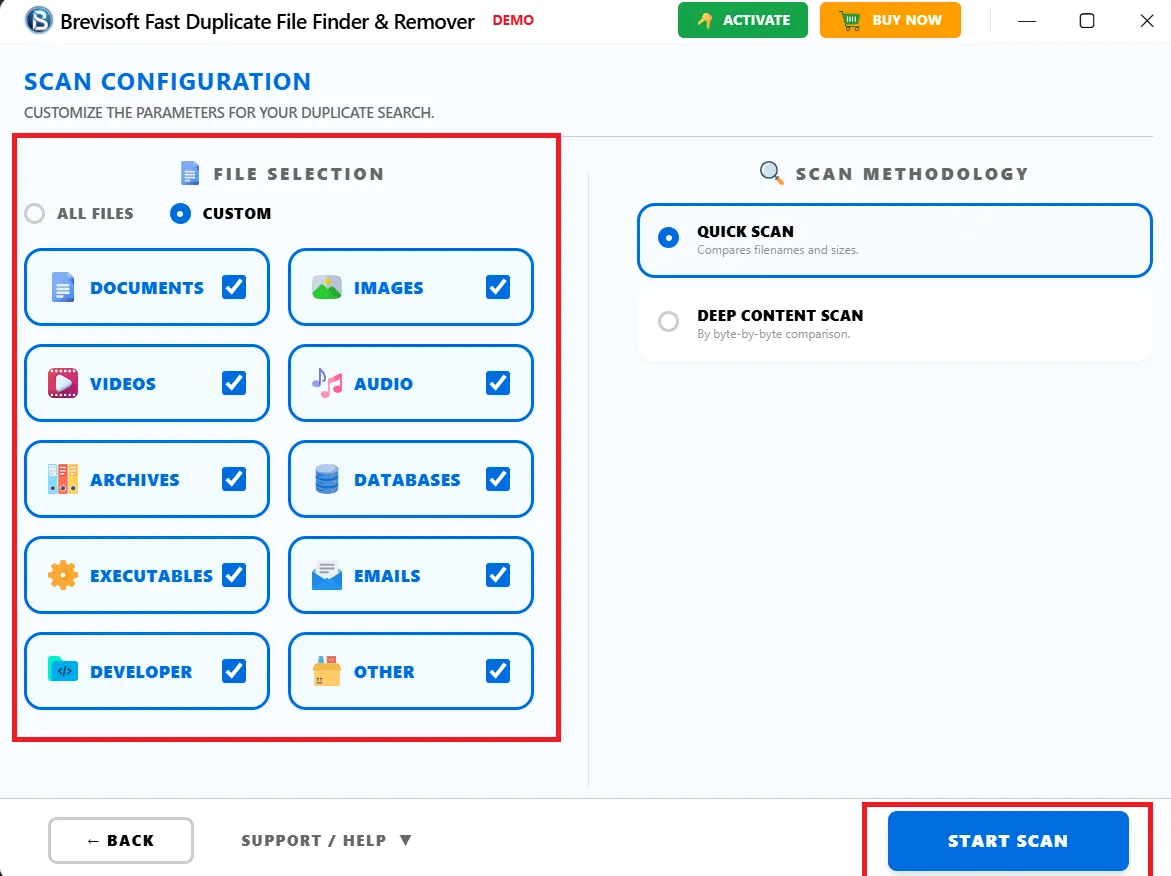
What’s genuinely useful here is the control. Nothing gets removed on its own without your say so, and you can preview the full results before committing to anything. Cleaning out a photo library, freeing up space by deleting duplicate files on a work laptop, finally sorting through years of accumulated clutter, whatever the case, it gets you there fast without you having to do the manual legwork yourself.
Conclusion
Duplicate files never feel urgent, and that’s exactly why they pile up in the first place. Left alone, they eat into storage and make everyday file management more annoying than it needs to be. Manual checking and Windows Search can handle the small stuff fine, but for anything bigger, dedicated software is just more dependable. With something like BreviSoft Duplicate File Finder & Remover doing the heavy lifting, cleaning up duplicates on Windows 11 or Windows 10 turns into a quick task instead of a weekend project.
Frequently Asked Questions
Ans – Usually, yes, as long as you actually check the results first and use a method that confirms files genuinely match. Backing up beforehand doesn’t hurt either.
Ans – Not on its own, no. There’s no built in duplicate finder. Windows Search helps narrow things down by name or size, but since it can’t look at content, it’ll sometimes miss real duplicates or flag files that aren’t actually duplicates at all.
Ans – Mostly it just frees up space rather than speeding things up directly. That said, a tidier drive does make backups and everyday searching a bit smoother.
Ans – Comparing actual file content, not just names or sizes, wins here by a wide margin. It’s exactly how tools like BreviSoft Duplicate File Finder & Remover confirm a genuine match.
Ans – Yes, it covers Windows 11, Windows 10, and earlier versions, so it works regardless of which one you’re running.