Download, install and run the BreviSoft JSON Chat Converter on your system.
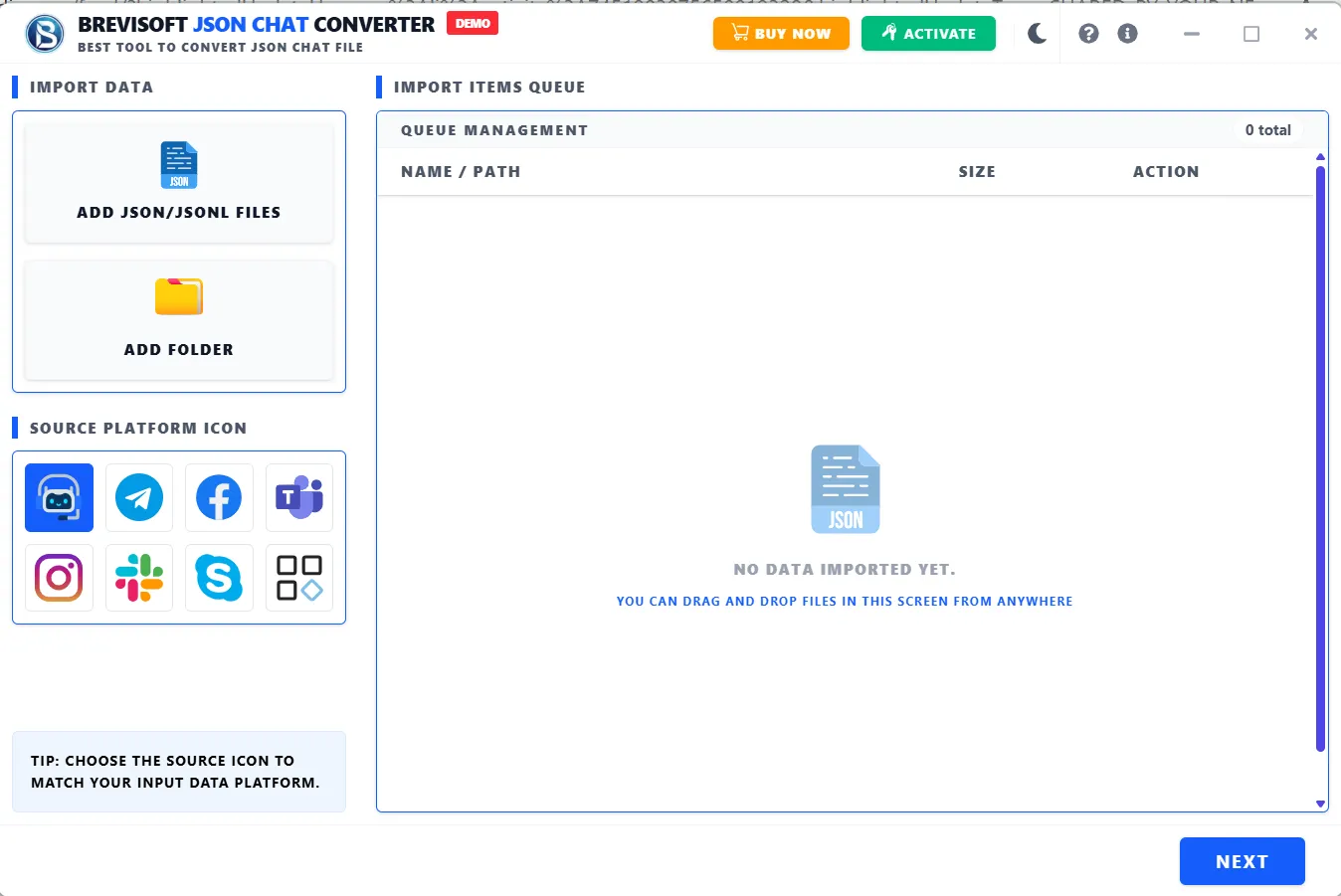
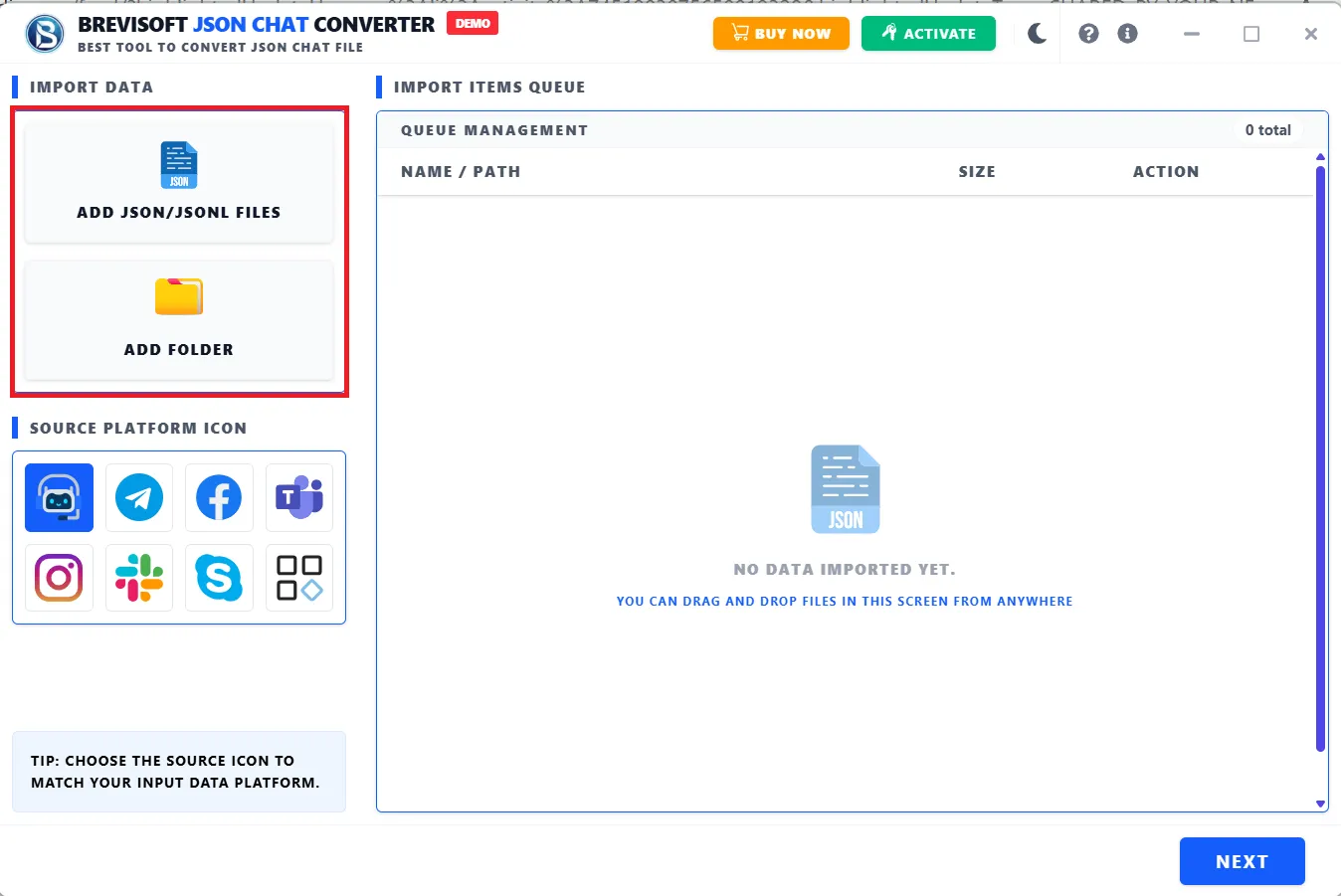
Choose options according to your requirement:

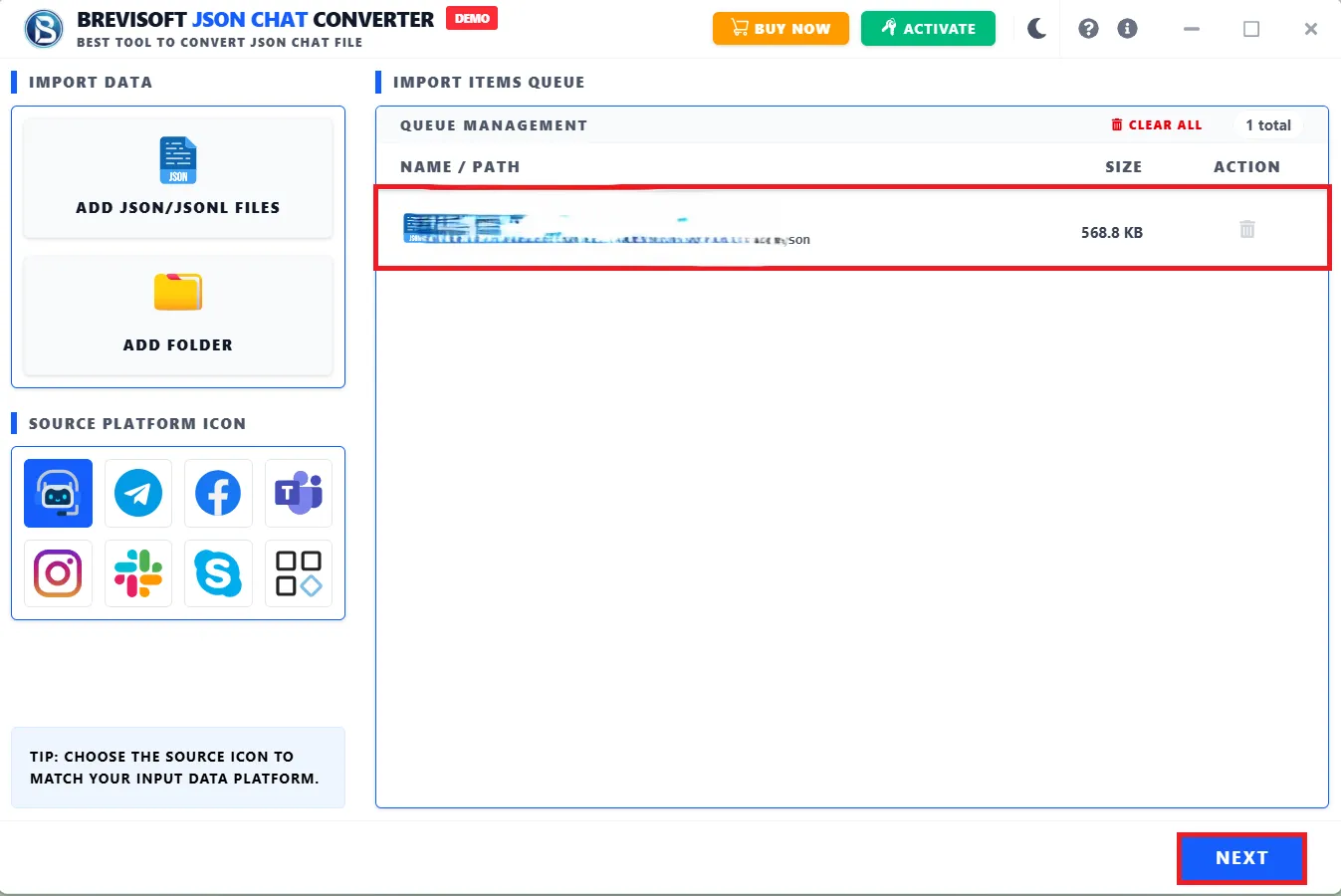
Here, we select the Add JSON option and add the JSON files from the computer. Click Open.
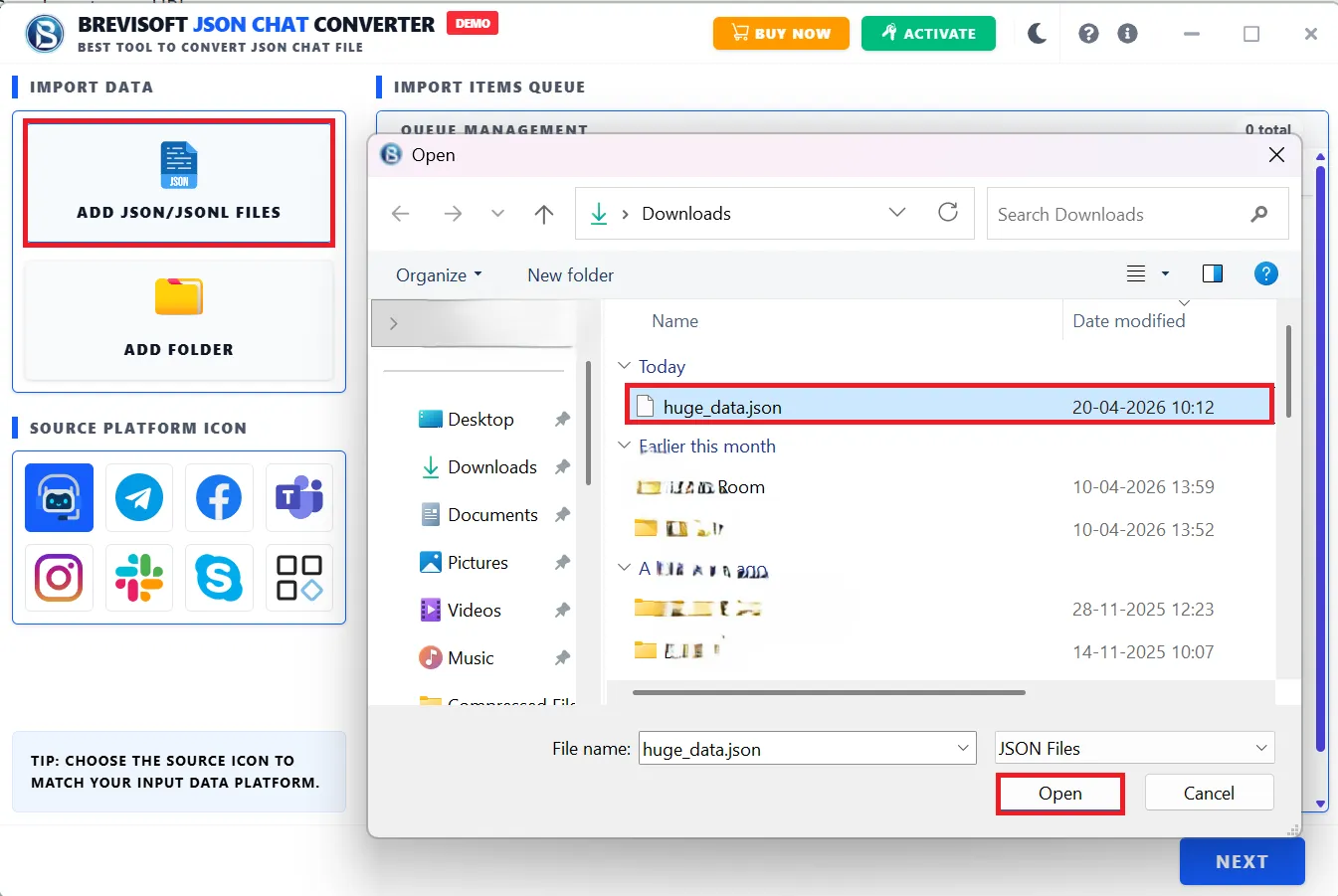
Once you select the JSON files, click the Next button.
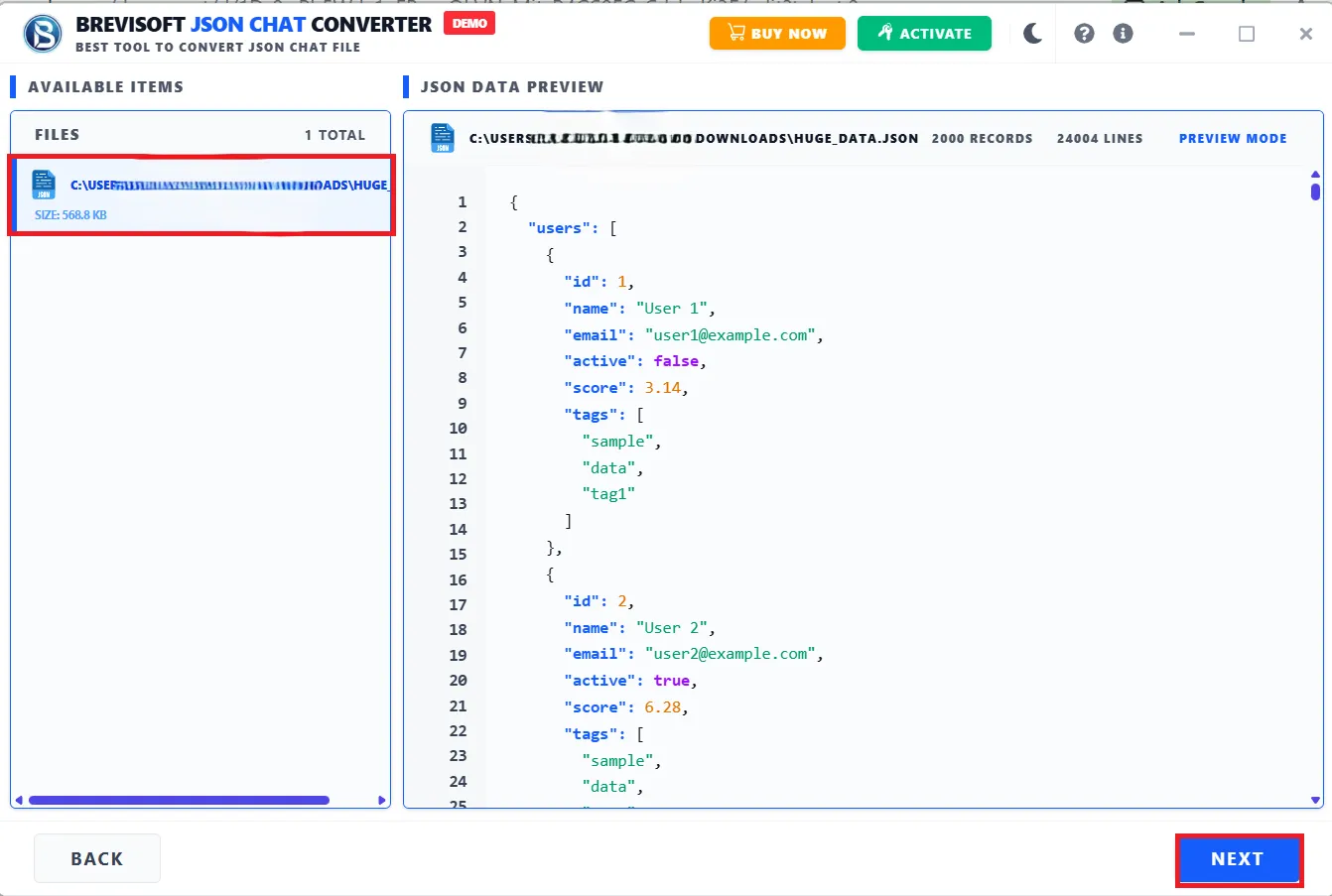
Now, the software shows each and every detail of the added JSON files, like their Records and Lines. Click the Next button to proceed further.
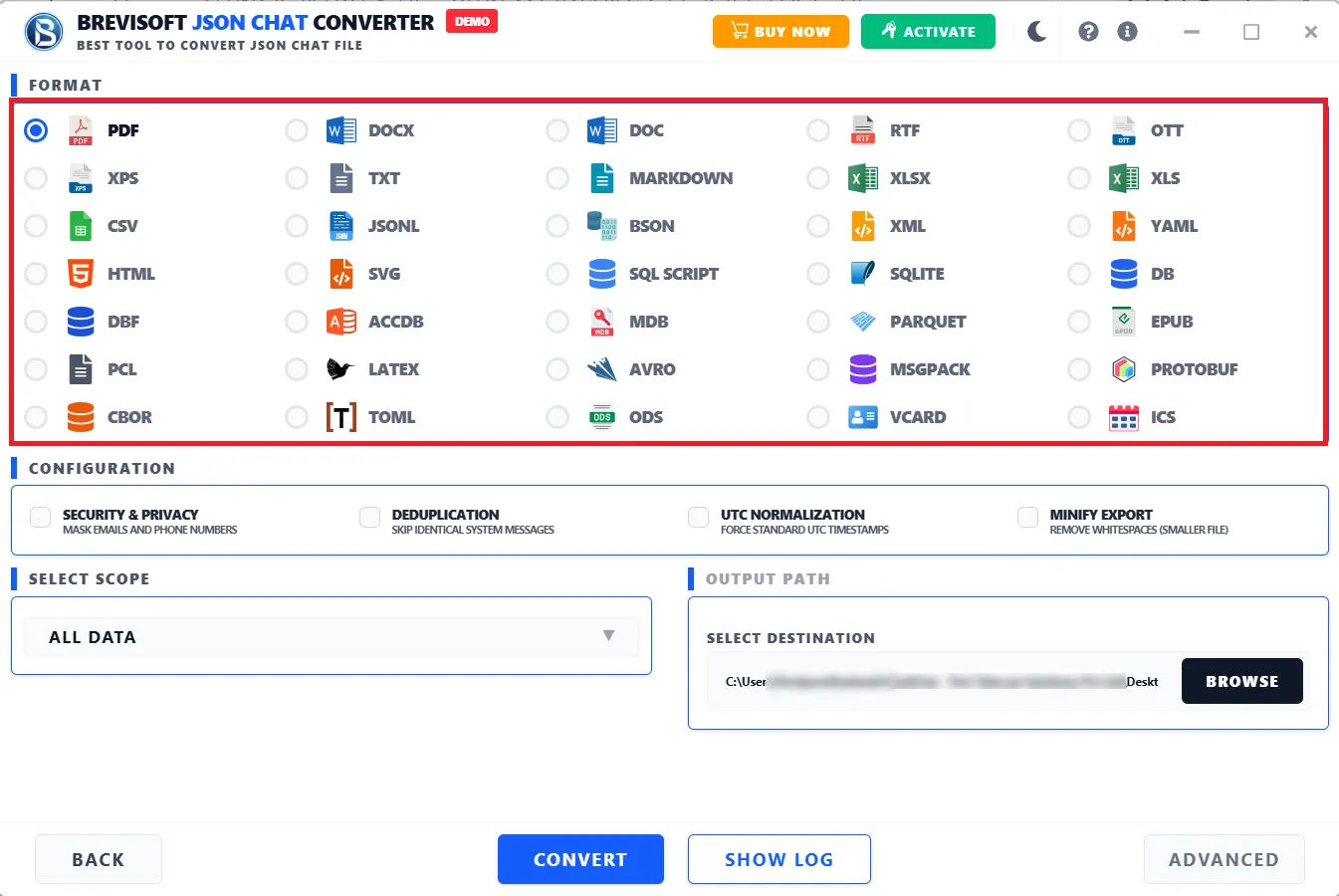
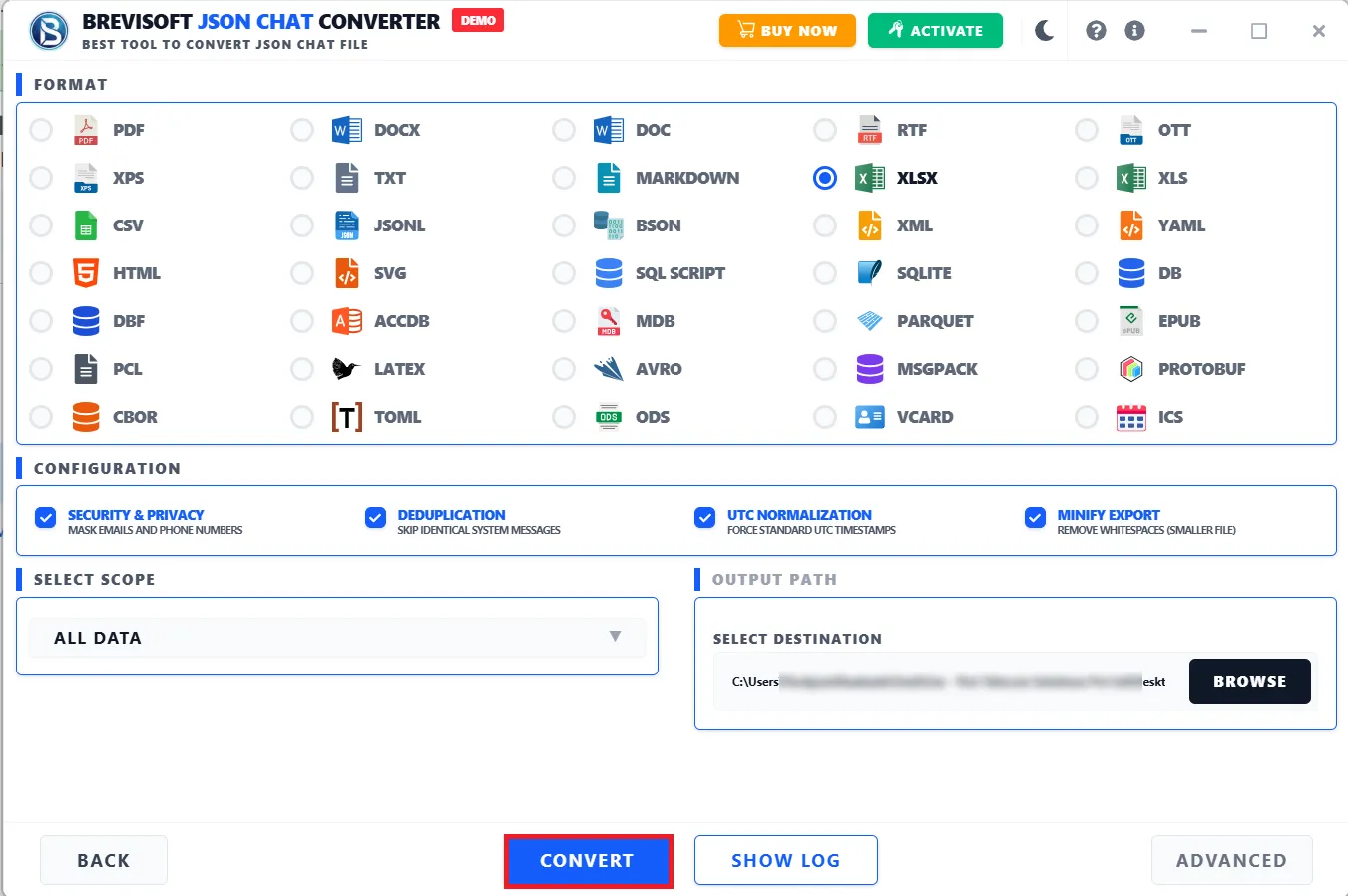
The next panel displays the following file formats, in which you can easily convert your JSON files.
Convert To Multiple FIle Formats
STEP 7
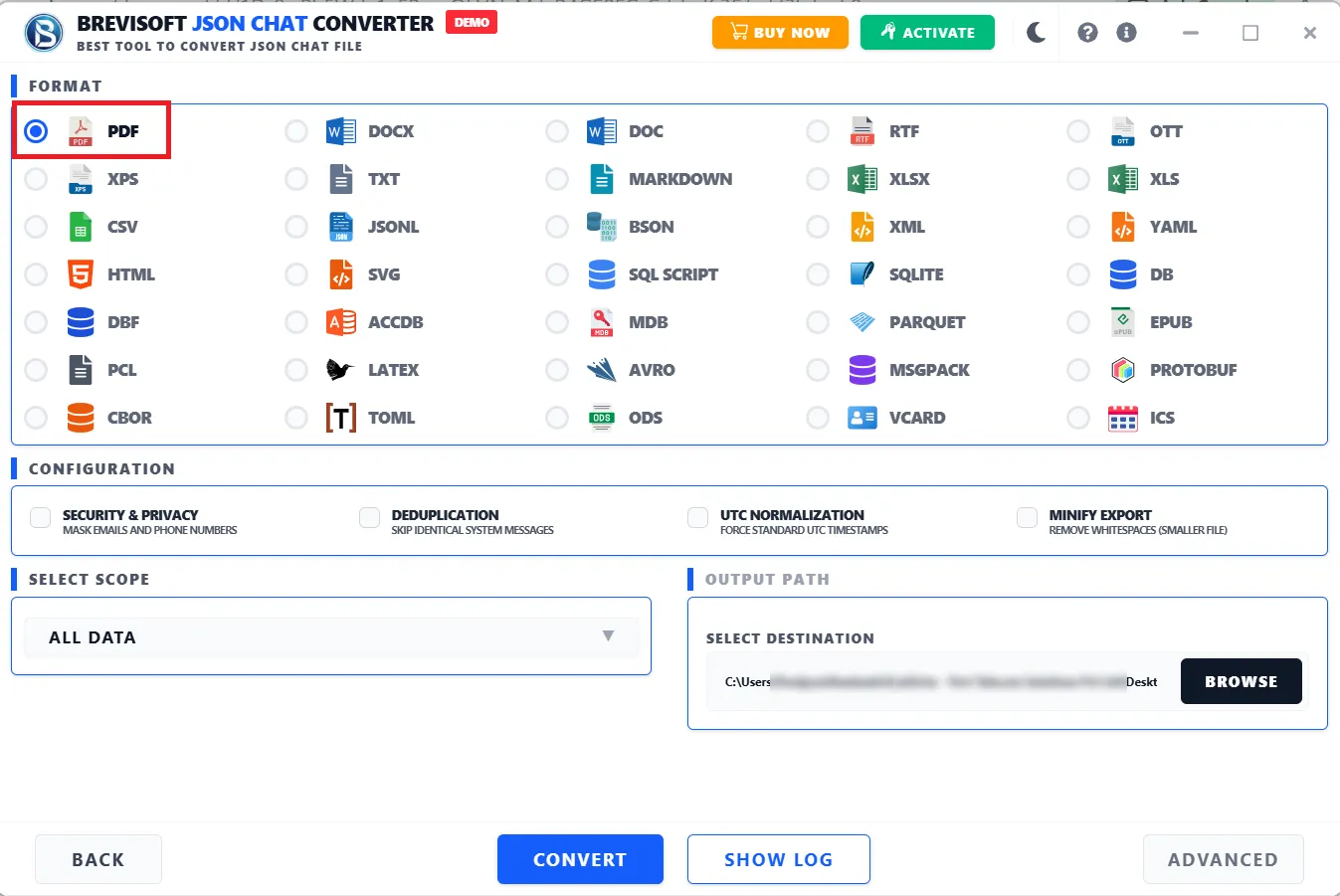
Here, we select the PDF file option to initiate the JSON to PDF conversion process.

STEP 8
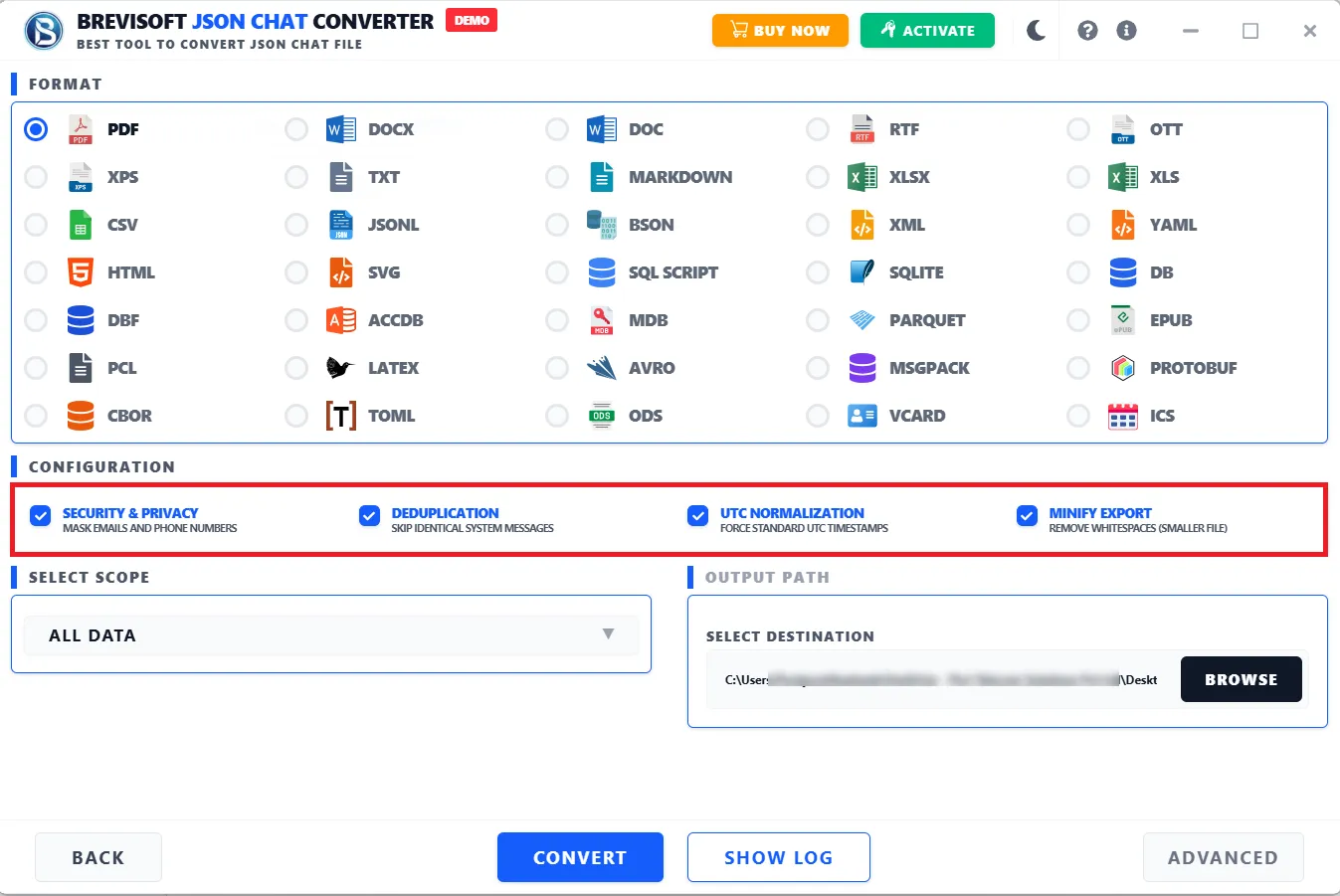
Opt for the Configuration option according to your requirements:

STEP 9
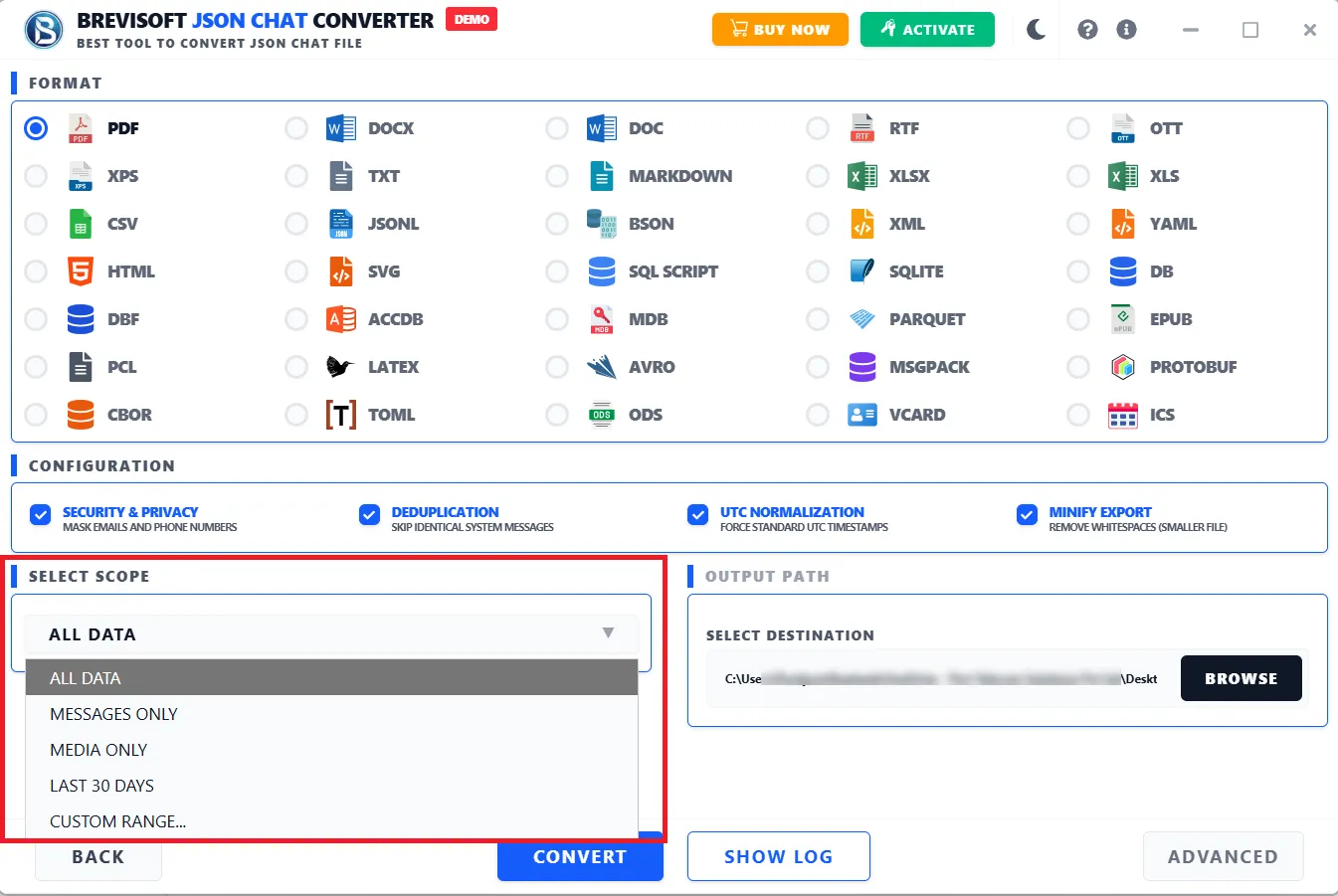
You can also select a scope like All Data, Message Only, Media Only, Last 30 Days, and Custom Range for limited data conversion.

STEP 10
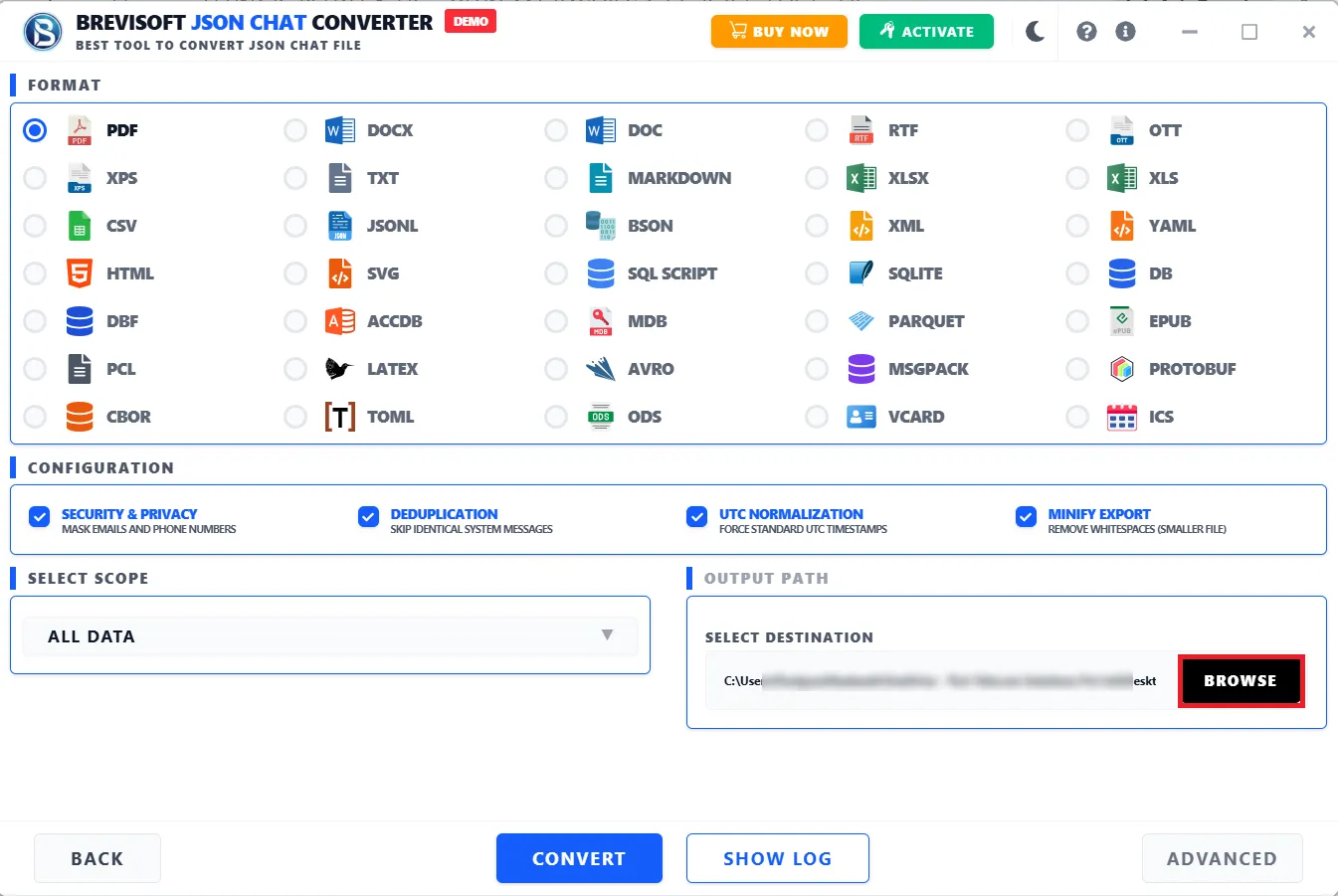
Click on the Browse button to choose the saving path where you want to download the resultant file.

STEP 11
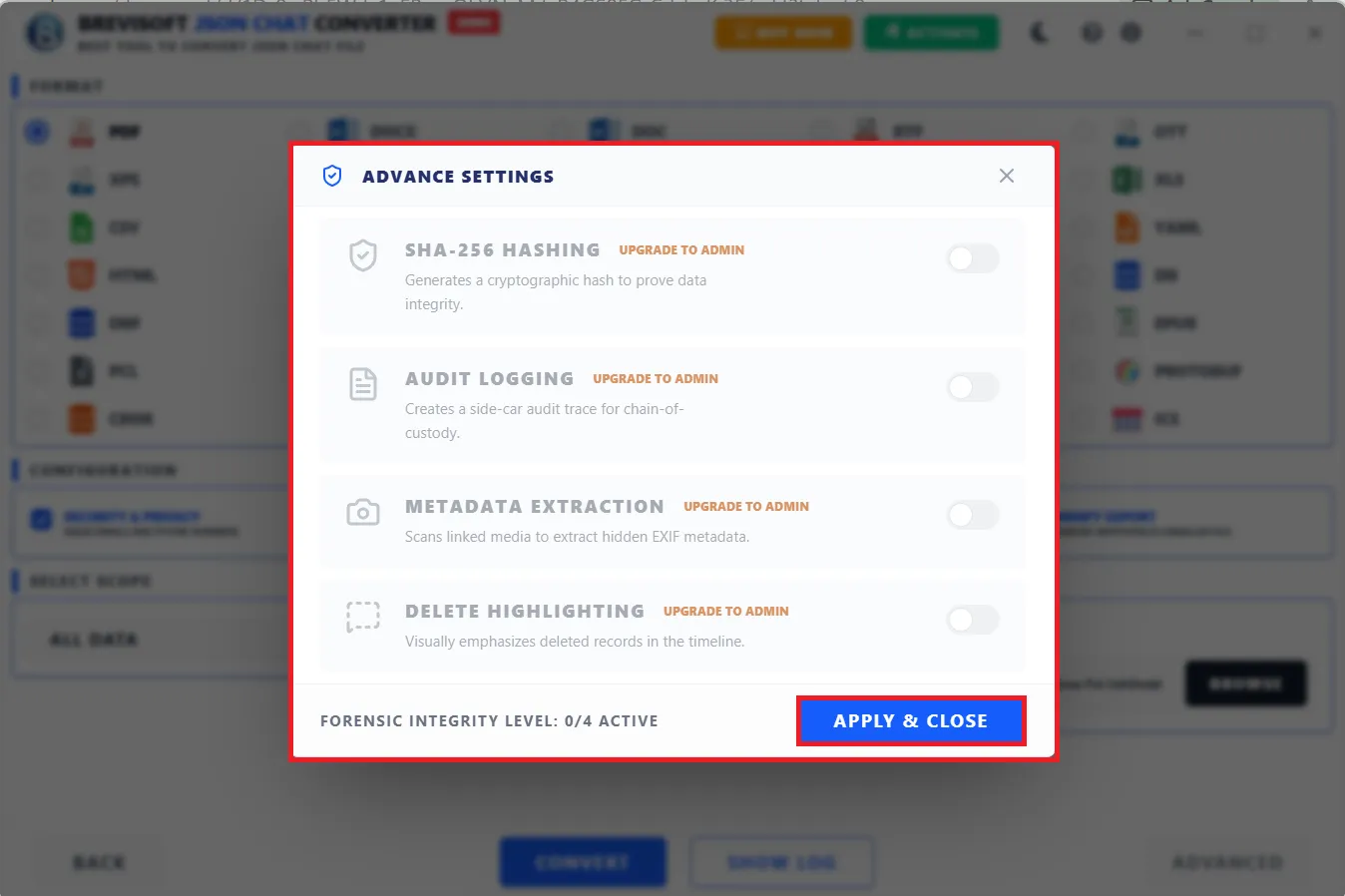
After that, you can also go for the Advance Settings to do forensic analysis on JSON files.

STEP 12
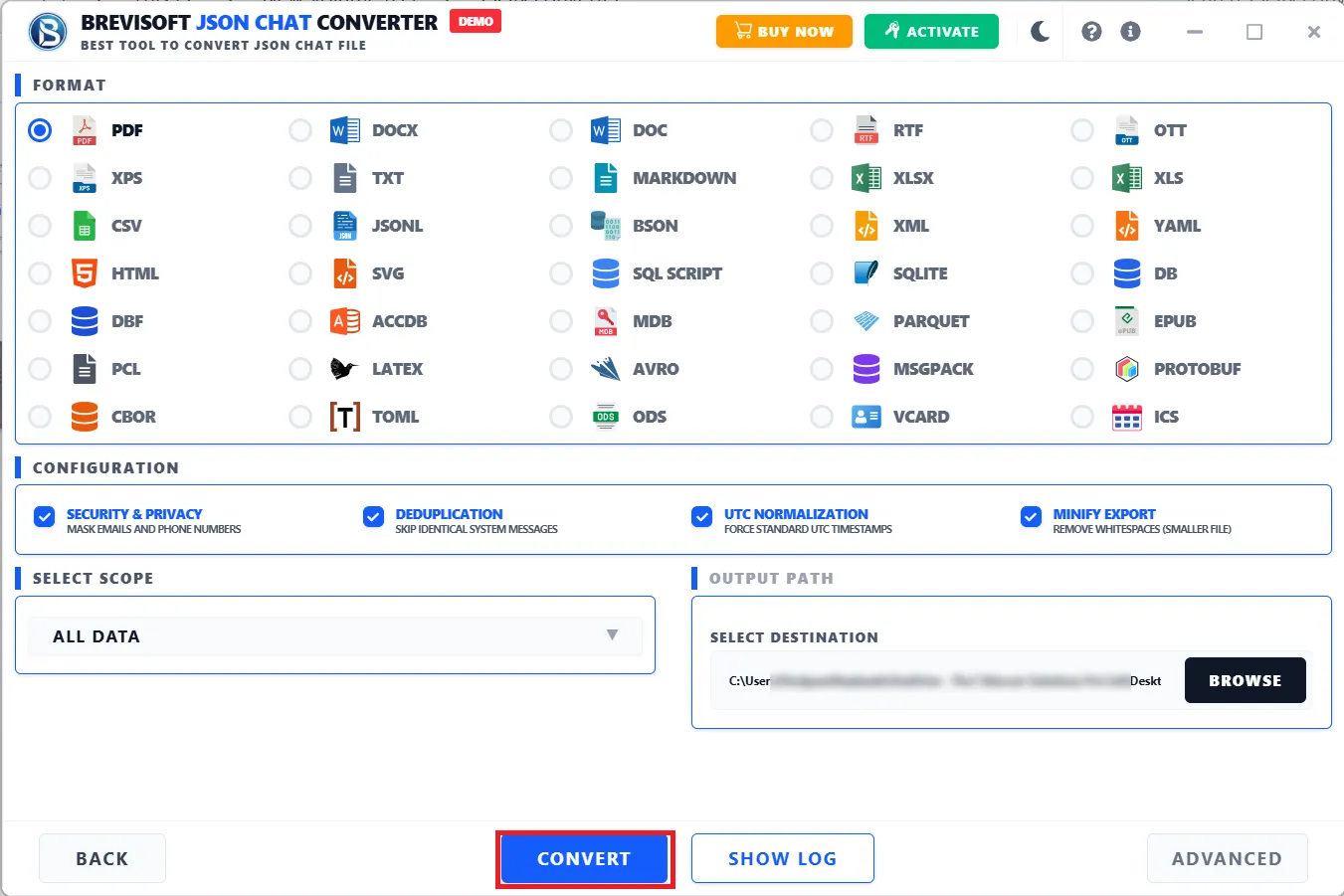
Now, click the Convert button to start the JSON to PDF file conversion process

STEP 13
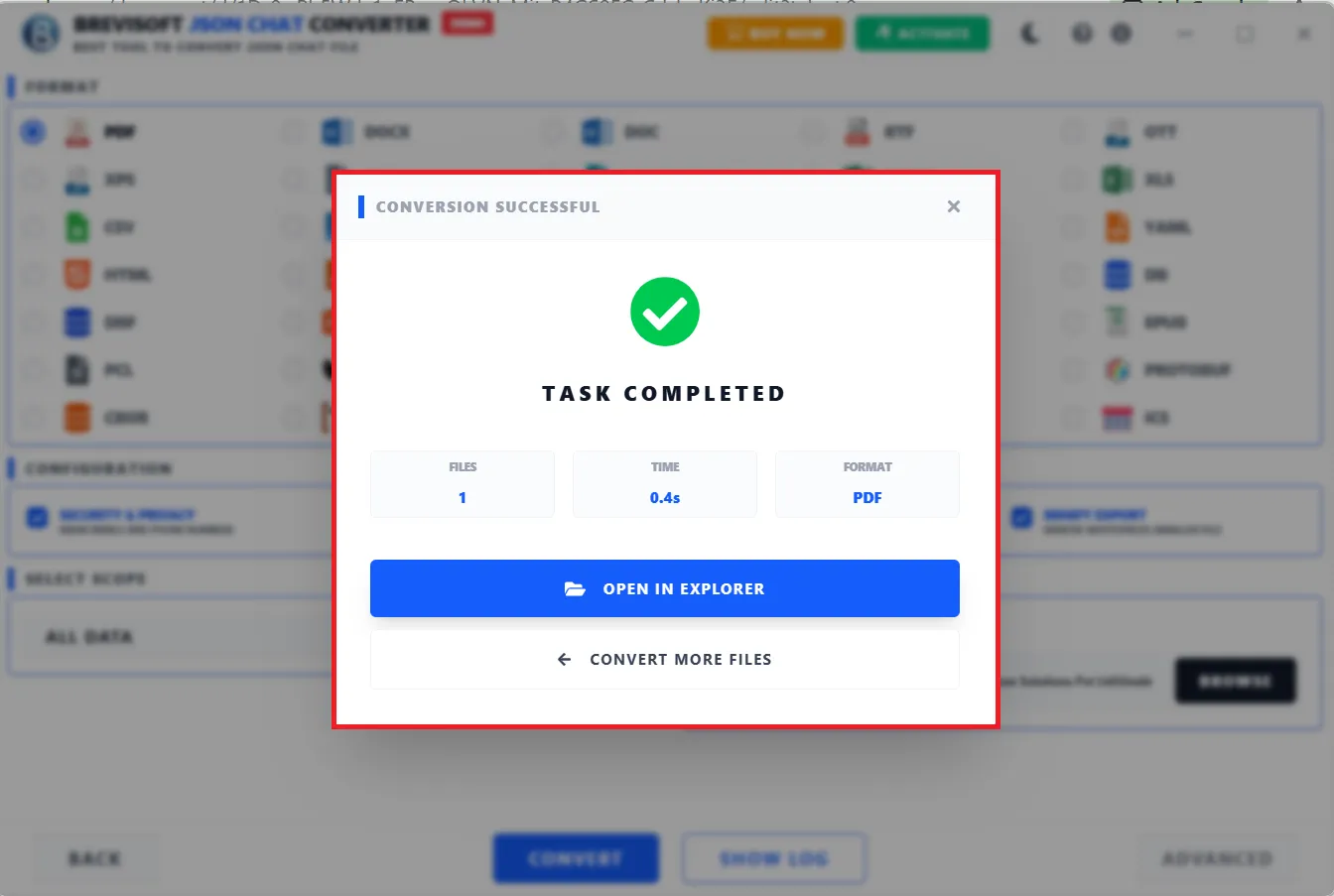
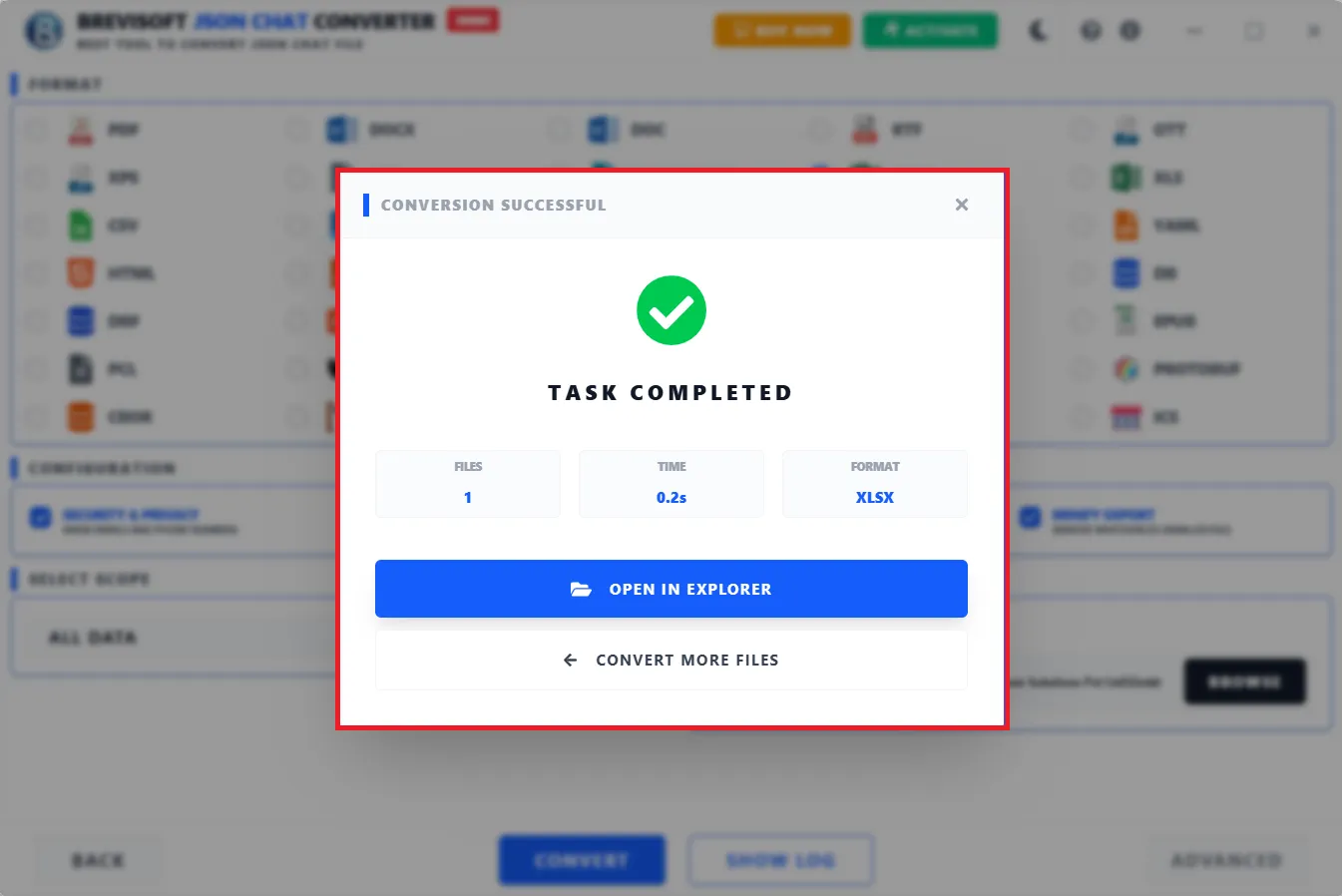
Once your conversion process is completed, you will find a pop tab containing information like the total number of files, time duration, and resultant format
STEP 14
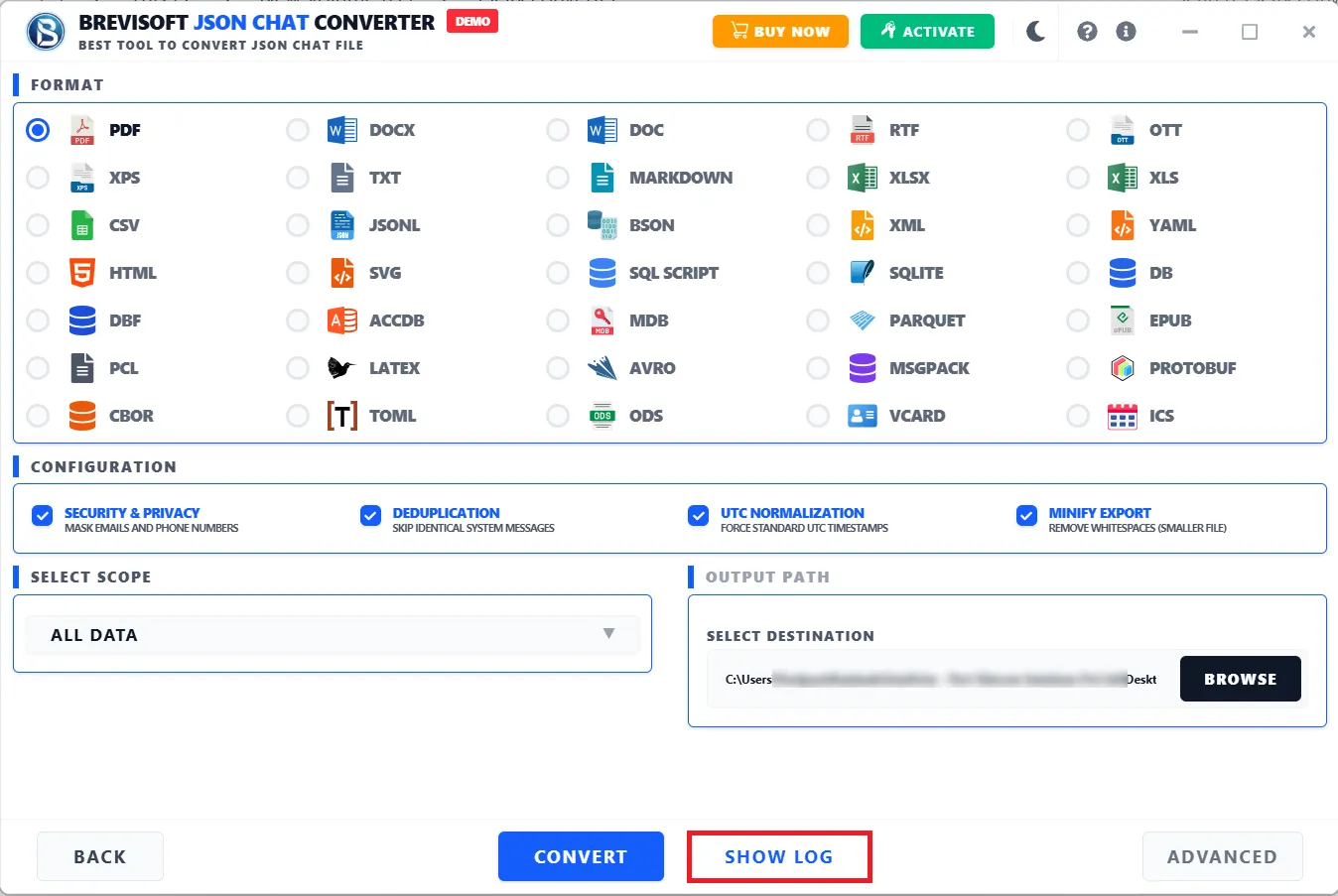
You can also check the logs file details of your conversion process.
STEP 7
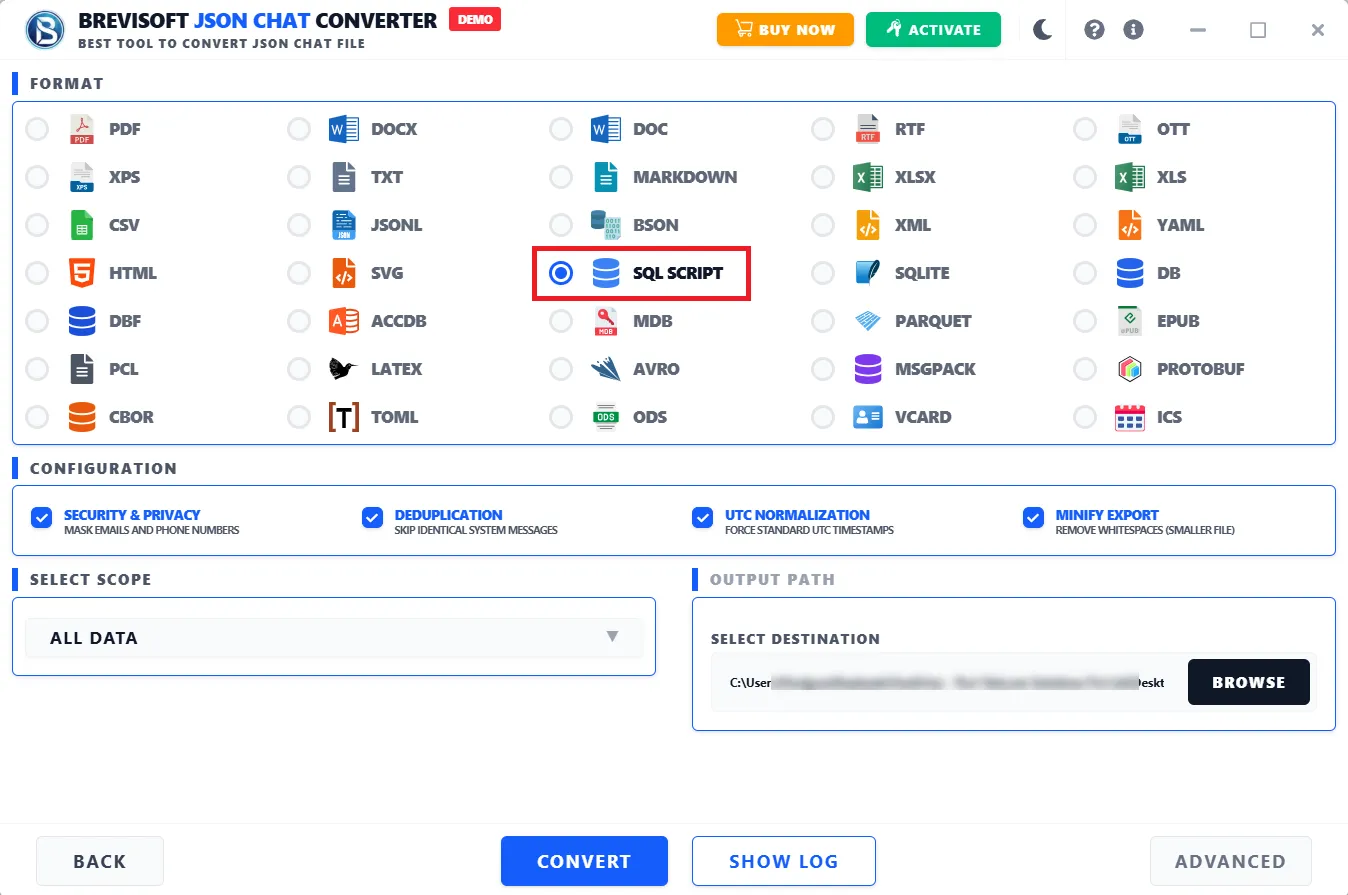
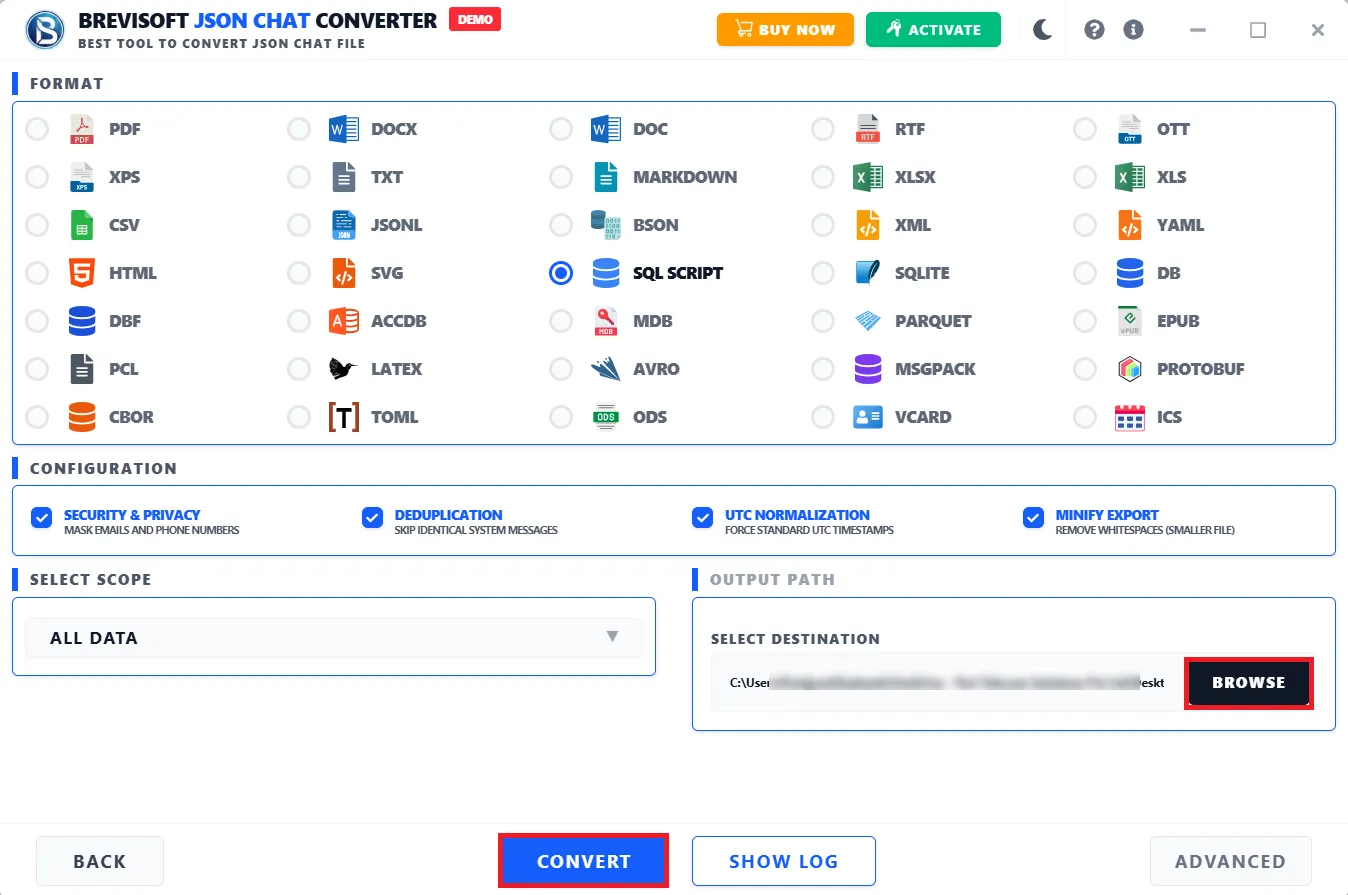
Choose SQL-Script as a saving option from the file formats list.

STEP 8
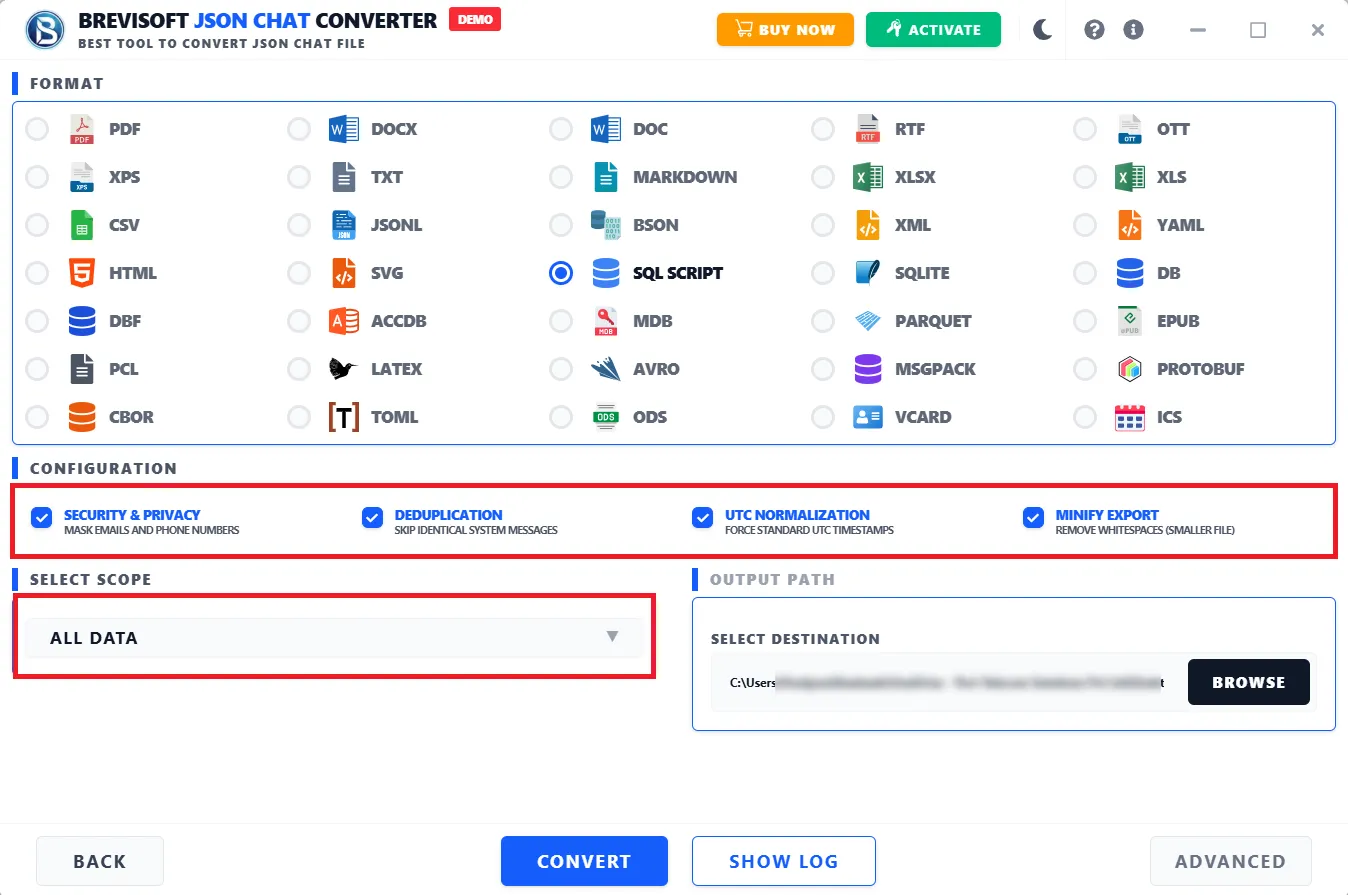
Opt for the built-in features like Configuration and Scope as per your needs.

STEP 9
Then, select the destination path where you want to save the resultant SQL-Script file. And, click the Convert button.

STEP 10
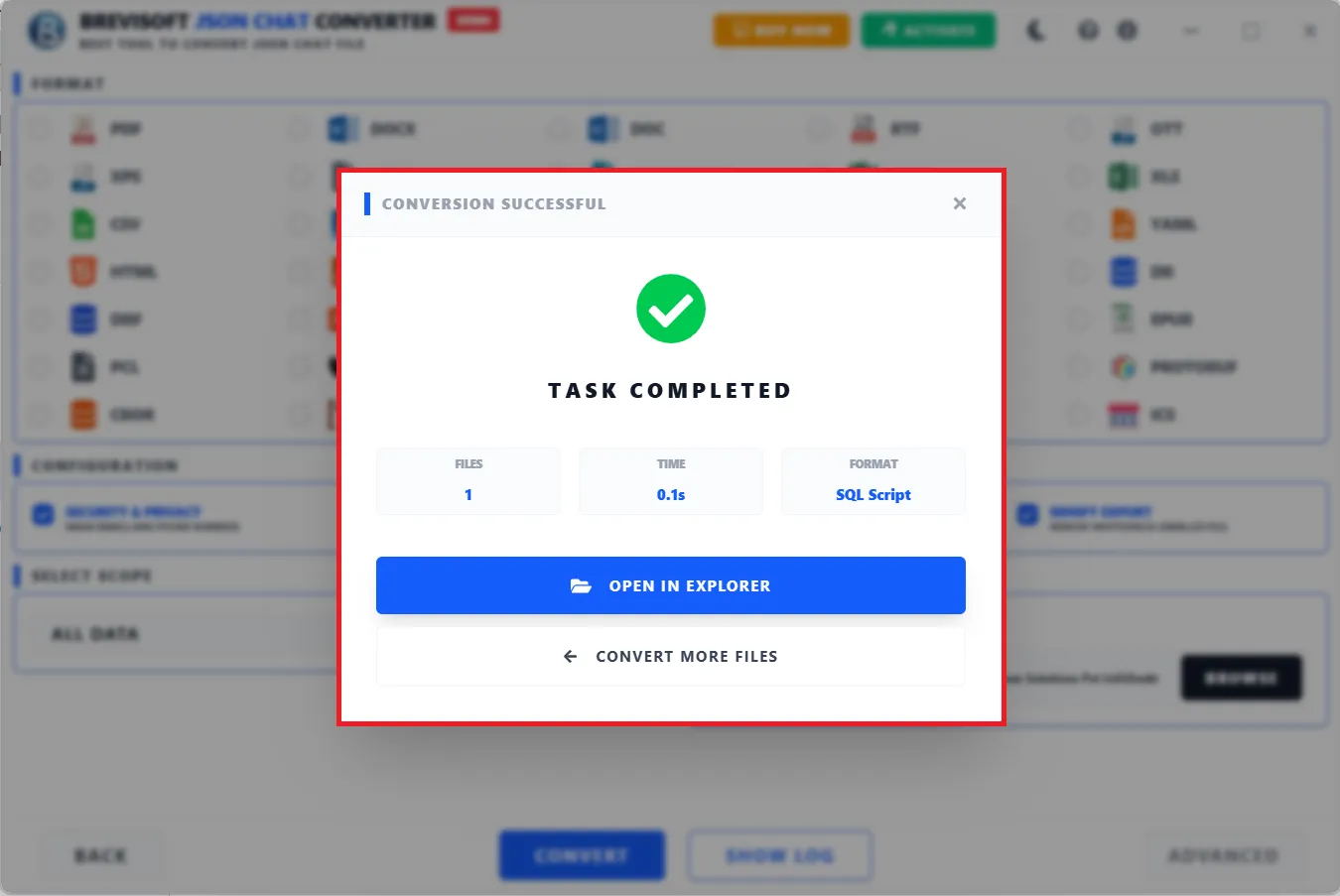
A pop-up page opens on your screen, which shows the proper JSON to SQL-Script conversion process details.

STEP 7
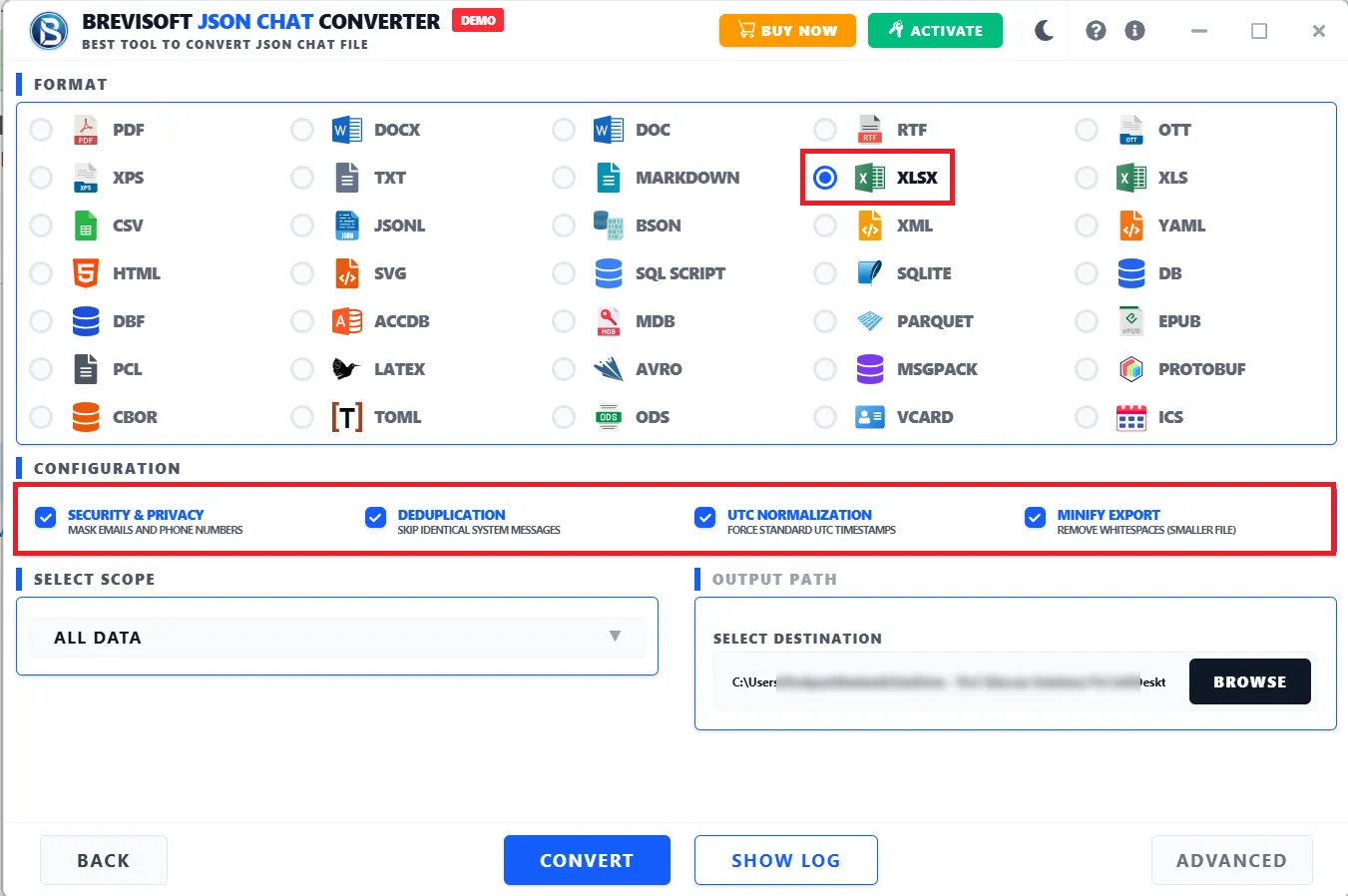
Select the saving option as XLSX(Excel).

STEP 8
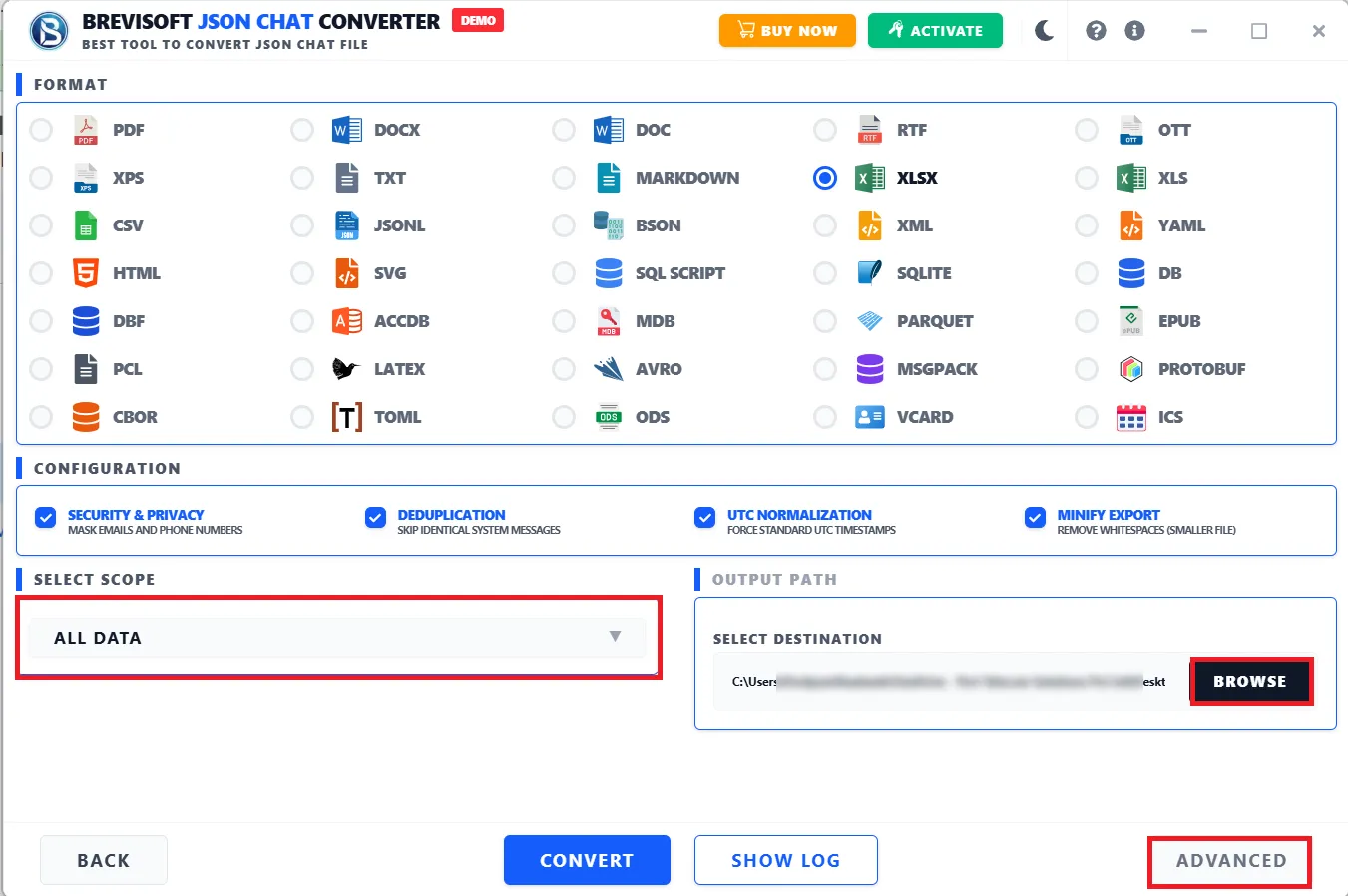
Then go for the software offered features like Configuration, Select Scope, Destination Path and Advanced Security option.

STEP 9
Click on the Convert to initiate the conversion process.

STEP 10
A pop-up on your screen showing the Conversion successful message.